



Question: 1. a. PROJECT STEPS Jane Bahr is a development officer at Cortona University, a private university in western Massachusetts. She is tracking the pledges received
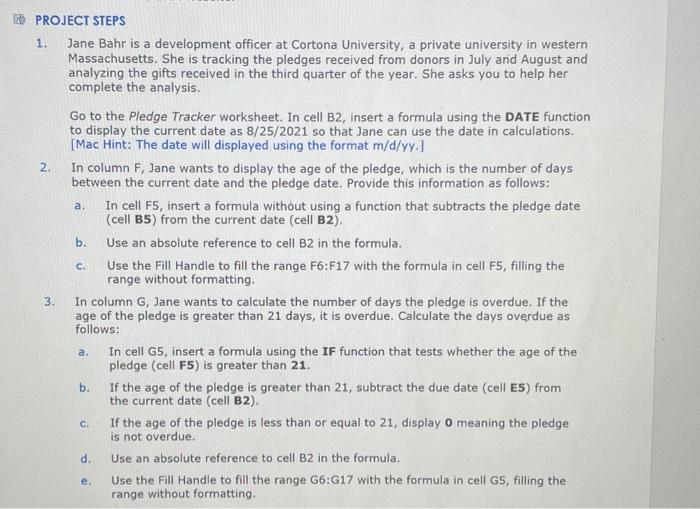
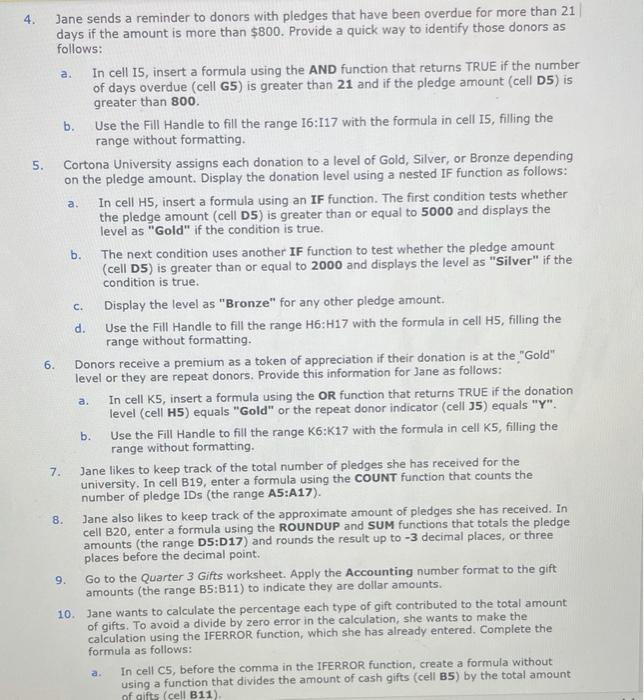
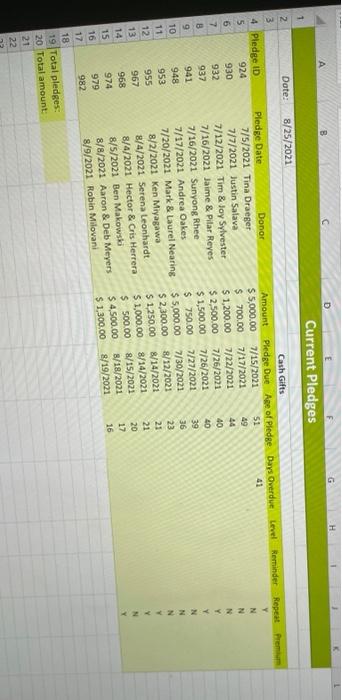
1. a. PROJECT STEPS Jane Bahr is a development officer at Cortona University, a private university in western Massachusetts. She is tracking the pledges received from donors in July and August and analyzing the gifts received in the third quarter of the year. She asks you to help her complete the analysis. Go to the Pledge Tracker worksheet. In cell B2, insert a formula using the DATE function to display the current date as 8/25/2021 so that Jane can use the date in calculations. [Mac Hint: The date will displayed using the format m/d/yy.] 2. In column F, Jane wants to display the age of the pledge, which is the number of days between the current date and the pledge date. Provide this information as follows: In cell F5, insert a formula without using a function that subtracts the pledge date (cell B5) from the current date (cell B2). b. Use an absolute reference to cell B2 in the formula. Use the Fill Handle to fill the range F6:F17 with the formula in cell F5, filling the range without formatting. In column G, Jane wants to calculate the number of days the pledge is overdue. If the age of the pledge is greater than 21 days, it is overdue. Calculate the days overdue as follows: In cell G5, insert a formula using the IF function that tests whether the age of the pledge (cell F5) is greater than 21. If the age of the pledge is greater than 21, subtract the due date (cell ES) from the current date (cell B2). If the age of the pledge is less than or equal to 21, display o meaning the pledge is not overdue. Use an absolute reference to cell B2 in the formula, Use the Fill Handle to fill the range G6:417 with the formula in cell G5, filling the range without formatting, c. 3. a. b. c. d. e. a. 5. a. C. 4. Jane sends a reminder to donors with pledges that have been overdue for more than 21 days if the amount is more than $800. Provide a quick way to identify those donors as follows: In cell 15, insert a formula using the AND function that returns TRUE if the number of days overdue (cell G5) is greater than 21 and if the pledge amount (cell D5) is greater than 800. b. Use the Fill Handle to fill the range 16:117 with the formula in cell i5, filling the range without formatting. . Cortona University assigns each donation to a level of Gold, Silver, or Bronze depending on the pledge amount. Display the donation level using a nested IF function as follows: In cell H5, insert a formula using an IF function. The first condition tests whether the pledge amount (cell D5) is greater than or equal to 5000 and displays the level as "Gold" if the condition is true. b. The next condition uses another IF function to test whether the pledge amount (cell DS) is greater than or equal to 2000 and displays the level as "Silver" if the condition is true. Display the level as "Bronze" for any other pledge amount. d. Use the Fill Handle to fill the range H6:H17 with the formula in cell H5, filling the range without formatting. 6. Donors receive a premium as a token of appreciation if their donation is at the "Gold" level or they are repeat donors. Provide this information for Jane as follows: In cell K5, insert a formula using the OR function that returns TRUE if the donation level (cell H5) equals "Gold" or the repeat donor indicator (cell J5) equals "Y". Use the Fill Handle to fill the range K6:K17 with the formula in cell K5, filling the range without formatting, 7. Jane likes to keep track of the total number of pledges she has received for the university. In cell B19, enter a formula using the COUNT function that counts the number of pledge IDs (the range A5:A17). Jane also likes to keep track of the approximate amount of pledges she has received. In cell B20, enter a formula using the ROUNDUP and SUM functions that totals the pledge amounts (the range D5:017) and rounds the result up to -3 decimal places, or three places before the decimal point. 9. Go to the Quarter 3 Gifts worksheet. Apply the Accounting number format to the gift amounts (the range B5:311) to indicate they are dollar amounts. 10. Jane wants to calculate the percentage each type of gift contributed to the total amount of gifts. To avoid a divide by zero error in the calculation, she wants to make the calculation using the IFERROR function, which she has already entered. Complete the formula as follows: In cell C5, before the comma in the IFERROR function, create a formula without using a function that divides the amount of cash gifts (cell B5) by the total amount of gifts (cell B11). b. 8. a. Current Pledges 1 8/25/2021 WN 2 Dote: 3 4 Pledge ID 5 924 6 930 7 932 B 937 941 10 948 11 953 12 955 13 967 14 968 15 974 16 979 17 982 18 19 Total pledges 20 Total amount: 21 22 Pledge Date Donor 7/5/2021 Tina Draeger 7/7/2021 Justin Salava 7/12/2021 Tim & Joy Sylvester 7/16/2021 Jaime & Pilar Reyes 7/16/2021 Sunyong Rhee 7/17/2021 Andrea Oakes 7/20/2021 Mark & Laurel Nearing 8/2/2021 Ken Miyagawa 8/4/2021 Serena Leonhardt 8/4/2021 Hector & Cris Herrera 8/5/2021 Ben Makowska 8/8/2021 Aaron & Deb Meyers 8/9/2021 Robin Milovani Amount $5,000.00 $ 700.00 $ 1,200.00 $ 2,500.00 $ 1,500.00 $ 750.00 $ 5,000.00 $ 2,300.00 $ 1.250.00 $ 1,000.00 $ 500.00 $ 4.500.00 $ 1,300.00 Cash Gifts Pledge Due Age of Pledge Days Overdue Level Reminder Repeat Premium 7/15/2021 51 41 7/17/2021 N 7/22/2021 44 N 7/26/2021 40 N 7/26/2021 40 Y 7/27/2021 39 Y N 36 7/30/2021 8/12/2021 23 N 21 8/14/2021 8/14/2021 21 8/15/2021 20 8/18/2021 17 8/19/2021 16 ins
Step by Step Solution
There are 3 Steps involved in it

Get step-by-step solutions from verified subject matter experts