







Question: 1) Create a batch file named user.bat. The batch file must use the net user command to add a local user account to the computer.
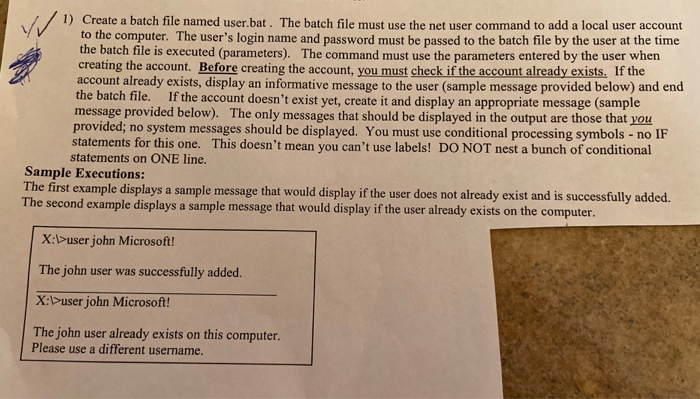
1) Create a batch file named user.bat. The batch file must use the net user command to add a local user account to the computer. The user's login name and password must be passed to the batch file by the user at the time the batch file is executed (parameters). The command must use the parameters entered by the user when creating the account. Before creating the account, you must check if the account already exists. If the account already exists, display an informative message to the user (sample message provided below) and end the batch file. If the account doesn't exist yet, create it and display an appropriate message (sample message provided below). The only messages that should be displayed in the output are those that you provided; no system messages should be displayed. You must use conditional processing symbols - no IF statements for this one. This doesn't mean you can't use labels! DO NOT nest a bunch of conditional statements on ONE line. Sample Executions: The first example displays a sample message that would display if the user does not already exist and is successfully added. The second example displays a sample message that would display if the user already exists on the computer. X:\user john Microsoft! The john user was successfully added. X:>user john Microsoft! The john user already exists on this computer. Please use a different username. 1) Create a batch file named user.bat. The batch file must use the net user command to add a local user account to the computer. The user's login name and password must be passed to the batch file by the user at the time the batch file is executed (parameters). The command must use the parameters entered by the user when creating the account. Before creating the account, you must check if the account already exists. If the account already exists, display an informative message to the user (sample message provided below) and end the batch file. If the account doesn't exist yet, create it and display an appropriate message (sample message provided below). The only messages that should be displayed in the output are those that you provided; no system messages should be displayed. You must use conditional processing symbols - no IF statements for this one. This doesn't mean you can't use labels! DO NOT nest a bunch of conditional statements on ONE line. Sample Executions: The first example displays a sample message that would display if the user does not already exist and is successfully added. The second example displays a sample message that would display if the user already exists on the computer. X:\user john Microsoft! The john user was successfully added. X:>user john Microsoft! The john user already exists on this computer. Please use a different username
Step by Step Solution
There are 3 Steps involved in it

Get step-by-step solutions from verified subject matter experts
 Study Help