







Question: 1. Create a new VI whose front panel has a numeric control labeled Number and a string indicator labeled Color Band. Using a case
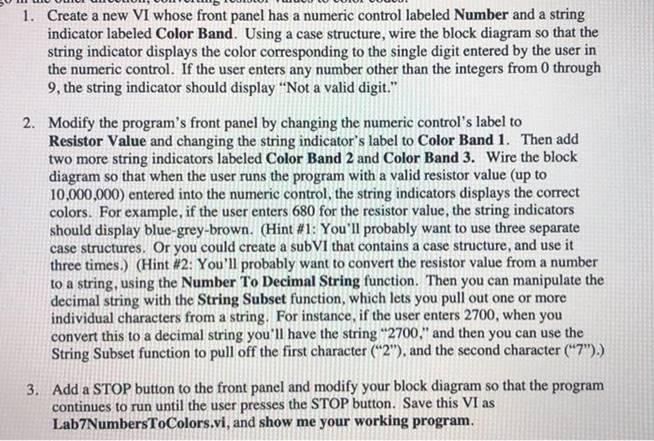
1. Create a new VI whose front panel has a numeric control labeled Number and a string indicator labeled Color Band. Using a case structure, wire the block diagram so that the string indicator displays the color corresponding to the single digit entered by the user in the numeric control. If the user enters any number other than the integers from 0 through 9, the string indicator should display "Not a valid digit." 2. Modify the program's front panel by changing the numeric control's label to Resistor Value and changing the string indicator's label to Color Band 1. Then add two more string indicators labeled Color Band 2 and Color Band 3. Wire the block diagram so that when the user runs the program with a valid resistor value (up to 10,000,000) entered into the numeric control, the string indicators displays the correct colors. For example, if the user enters 680 for the resistor value, the string indicators should display blue-grey-brown. (Hint #1: You'll probably want to use three separate case structures. Or you could create a subVI that contains a case structure, and use it three times.) (Hint #2: You'll probably want to convert the resistor value from a number to a string, using the Number To Decimal String function. Then you can manipulate the decimal string with the String Subset function, which lets you pull out one or more individual characters from a string. For instance, if the user enters 2700, when you convert this to a decimal string you'll have the string "2700," and then you can use the String Subset function to pull off the first character ("2"), and the second character ("7").) 3. Add a STOP button to the front panel and modify your block diagram so that the program continues to run until the user presses the STOP button. Save this VI as Lab7NumbersToColors.vi, and show me your working program.
Step by Step Solution
There are 3 Steps involved in it

Get step-by-step solutions from verified subject matter experts
 Study Help