







Question: 1. For the cell range B3:E3, use the COUNTIF() function to count the number of employees at each commission rate. - For the function, use
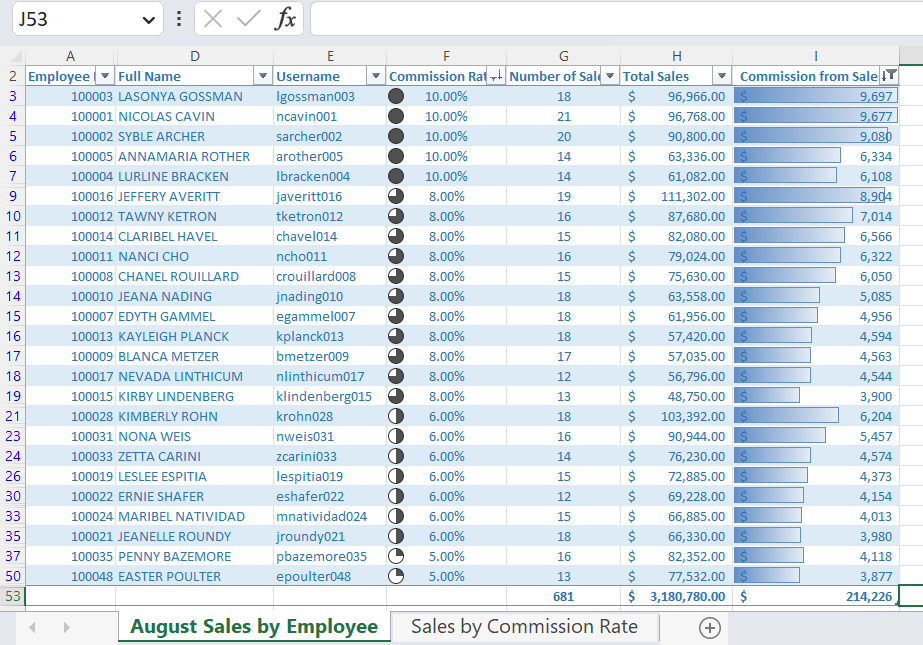
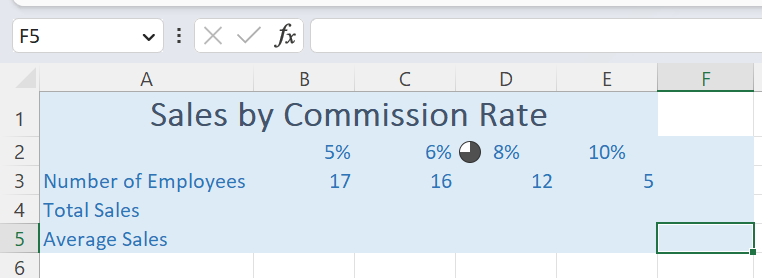
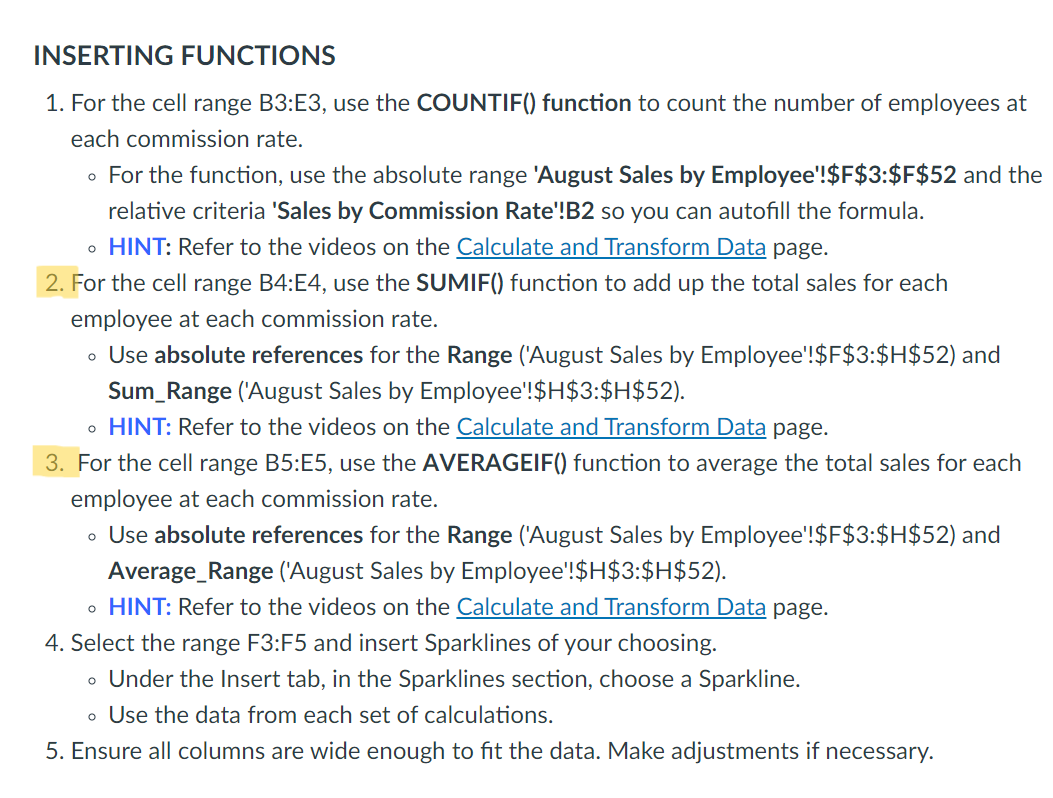
1. For the cell range B3:E3, use the COUNTIF() function to count the number of employees at each commission rate. - For the function, use the absolute range 'August Sales by Employee'!\$F3:\$F\$52 and the relative criteria 'Sales by Commission Rate'!B2 so you can autofill the formula. - HINT: Refer to the videos on the Calculate and Transform Data page. 2. For the cell range B4:E4, use the SUMIF() function to add up the total sales for each employee at each commission rate. - Use absolute references for the Range ('August Sales by Employee'!\$F\$3:\$H\$52) and Sum_Range ('August Sales by Employee'! $H3:$H$2 ). - HINT: Refer to the videos on the Calculate and Transform Data page. 3. For the cell range B5:E5, use the AVERAGEIF() function to average the total sales for each employee at each commission rate. - Use absolute references for the Range ('August Sales by Employee'!\$F\$3:\$H\$52) and Average_Range ('August Sales by Employee'! $H 3:\$H\$52). - HINT: Refer to the videos on the Calculate and Transform Data page. 4. Select the range F3:F5 and insert Sparklines of your choosing. - Under the Insert tab, in the Sparklines section, choose a Sparkline. - Use the data from each set of calculations. 5. Ensure all columns are wide enough to fit the data. Make adjustments if necessary
Step by Step Solution
There are 3 Steps involved in it

Get step-by-step solutions from verified subject matter experts
 Study Help