





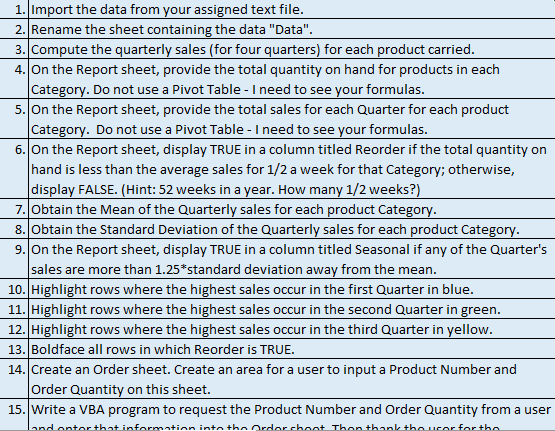
Question: 1. Import the data from your assigned text file. 2. Rename the sheet containing the data Data. 3. Compute the quarterly sales (for four quarters)
1. Import the data from your assigned text file. 1. Import the data from your assigned text file.1. Import the data from your assigned text file.

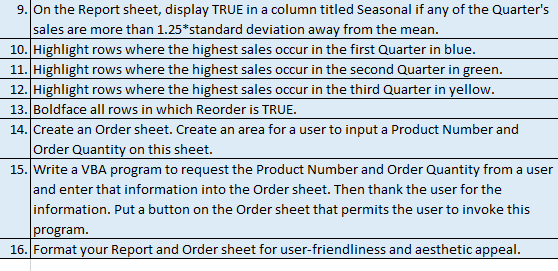
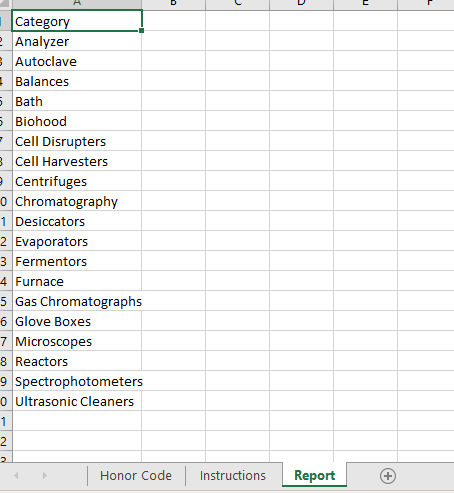
1. Import the data from your assigned text file. 2. Rename the sheet containing the data "Data". 3. Compute the quarterly sales (for four quarters) for each product carried. 4. On the Report sheet, provide the total quantity on hand for products in each Category. Do not use a Pivot Table - I need to see your formulas. 5. On the Report sheet, provide the total sales for each Quarter for each product Category. Do not use a Pivot Table - I need to see your formulas. 6. On the Report sheet, display TRUE in a column titled Reorder if the total quantity on hand is less than the average sales for 1/2 a week for that Category; otherwise, display FALSE. (Hint: 52 weeks in a year. How many 1/2 weeks?) 7. Obtain the Mean of the Quarterly sales for each product Category. 8. Obtain the Standard Deviation of the Quarterly sales for each product Category. 9. On the Report sheet, display TRUE in a column titled Seasonal if any of the Quarter's sales are more than 1.25*standard deviation away from the mean. 10. Highlight rows where the highest sales occur in the first Quarter in blue. 11. Highlight rows where the highest sales occur in the second Quarter in green. 12. Highlight rows where the highest sales occur in the third Quarter in yellow. 13. Boldface all rows in which Reorder is TRUE. 14. Create an Order sheet. Create an area for a user to input a Product Number and Order Quantity on this sheet. 15. Write a VBA program to request the Product Number and Order Quantity from a user Landantor that information into the orderchont Thon than the cor for the 9. On the Report sheet, display TRUE in a column titled Seasonal if any of the Quarter's sales are more than 1.25*standard deviation away from the mean. 10. Highlight rows where the highest sales occur in the first Quarter in blue. 11. Highlight rows where the highest sales occur in the second Quarter in green. 12. Highlight rows where the highest sales occur in the third Quarter in yellow. 13. Boldface all rows in which Reorder is TRUE. 14. Create an Order sheet. Create an area for a user to input a Product Number and Order Quantity on this sheet. 15. Write a VBA program to request the Product Number and Order Quantity from a user and enter that information into the Order sheet. Then thank the user for the information. Put a button on the Order sheet that permits the user to invoke this program. 16. Format your Report and Order sheet for user-friendliness and aesthetic appeal. Category Analyzer Autoclave Balances 5 Bath 5 Biohood - Cell Disrupters Cell Harvesters Centrifuges 0 Chromatography 1 Desiccators 2 Evaporators 3 Fermentors 4 Furnace 5 Gas Chromatographs 6 Glove Boxes 7 Microscopes 8 Reactors 9 Spectrophotometers o Ultrasonic Cleaners 1 2 Honor Code Instructions Report + 1. Import the data from your assigned text file. 2. Rename the sheet containing the data "Data". 3. Compute the quarterly sales (for four quarters) for each product carried. 4. On the Report sheet, provide the total quantity on hand for products in each Category. Do not use a Pivot Table - I need to see your formulas. 5. On the Report sheet, provide the total sales for each Quarter for each product Category. Do not use a Pivot Table - I need to see your formulas. 6. On the Report sheet, display TRUE in a column titled Reorder if the total quantity on hand is less than the average sales for 1/2 a week for that Category; otherwise, display FALSE. (Hint: 52 weeks in a year. How many 1/2 weeks?) 7. Obtain the Mean of the Quarterly sales for each product Category. 8. Obtain the Standard Deviation of the Quarterly sales for each product Category. 9. On the Report sheet, display TRUE in a column titled Seasonal if any of the Quarter's sales are more than 1.25*standard deviation away from the mean. 10. Highlight rows where the highest sales occur in the first Quarter in blue. 11. Highlight rows where the highest sales occur in the second Quarter in green. 12. Highlight rows where the highest sales occur in the third Quarter in yellow. 13. Boldface all rows in which Reorder is TRUE. 14. Create an Order sheet. Create an area for a user to input a Product Number and Order Quantity on this sheet. 15. Write a VBA program to request the Product Number and Order Quantity from a user Landantor that information into the orderchont Thon than the cor for the 9. On the Report sheet, display TRUE in a column titled Seasonal if any of the Quarter's sales are more than 1.25*standard deviation away from the mean. 10. Highlight rows where the highest sales occur in the first Quarter in blue. 11. Highlight rows where the highest sales occur in the second Quarter in green. 12. Highlight rows where the highest sales occur in the third Quarter in yellow. 13. Boldface all rows in which Reorder is TRUE. 14. Create an Order sheet. Create an area for a user to input a Product Number and Order Quantity on this sheet. 15. Write a VBA program to request the Product Number and Order Quantity from a user and enter that information into the Order sheet. Then thank the user for the information. Put a button on the Order sheet that permits the user to invoke this program. 16. Format your Report and Order sheet for user-friendliness and aesthetic appeal. Category Analyzer Autoclave Balances 5 Bath 5 Biohood - Cell Disrupters Cell Harvesters Centrifuges 0 Chromatography 1 Desiccators 2 Evaporators 3 Fermentors 4 Furnace 5 Gas Chromatographs 6 Glove Boxes 7 Microscopes 8 Reactors 9 Spectrophotometers o Ultrasonic Cleaners 1 2 Honor Code Instructions Report +
Step by Step Solution

There are 3 Steps involved in it

1 Expert Approved Answer
Step: 1 Unlock blur-text-image

Question Has Been Solved by an Expert!

Get step-by-step solutions from verified subject matter experts

Step: 2 Unlock
Step: 3 Unlock

Students Have Also Explored These Related General Management Questions!