







Question: 1 . In Visual Studio, create a new Windows Forms Application project named HangManApp. 2 . Create the Images folder in the project by using
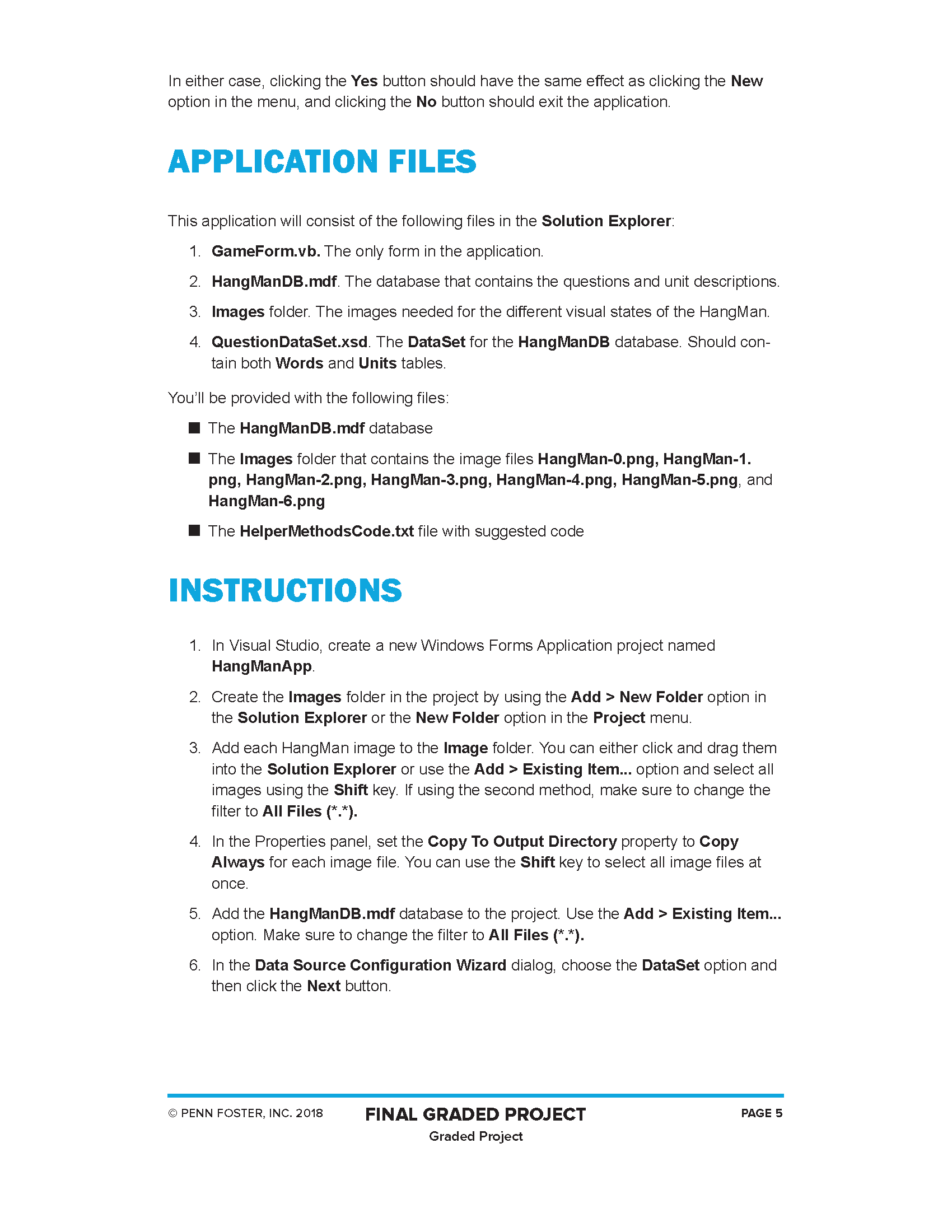
In Visual Studio, create a new Windows Forms Application project named
HangManApp.
Create the Images folder in the project by using the Add New Folder option in
the Solution Explorer or the New Folder option in the Project menu.
Add each HangMan image to the Image folder. You can either click and drag them
into the Solution Explorer or use the Add Existing Item... option and select all
images using the Shift key. If using the second method, make sure to change the
filter to All Files
In the Properties panel, set the Copy To Output Directory property to Copy
Always for each image file. You can use the Shift key to select all image files at
once.
Add the HangManDB.mdf database to the project. Use the Add Existing Item...
option. Make sure to change the filter to All Files
In the Data Source Configuration Wizard dialog, choose the DataSet option and
then click the Next button.
Check the checkbox next to Tables and then click the Finish button. This will create a default dataset named HangManDBDataSet with the Units and Words data
tables.
Rename the Formvb file to GameForm.vb
Click the Yes button in the dialog to rename the Form class as well.
Create the user interface for GameForm.vb See the previous User Interface section
for the layout. The form will consist of the following controls:
a One MenuStrip control that contains the Game menu with the options New
and Quit
b One Label control for instructions with the text Guess a letter; pointfont
recommended
c One Label control for the unit description
d One TextBox control for the user to type in letter choices
e A PictureBox control that will display the HangMan images. Youll set the
ImageLocation property to load the HangMan images.
f A Panel control that will contain the displayed letter labels
g Eleven Label controls, one for each letter of the word. These labels should
be in the panel and will have an initial placeholder until the user guesses
a letter.
You can choose to set the control properties to whatever you like, but some helpful
suggestions follow
In the body of GameForm, you should define the following variables:
a dsQuestions. A HangManDBDataSet object
b numWord. The index of which word is being guessed
c strWord. The actual word being guessed
d numRightGuesses. Number of right guesses in a game
e numWrongGuesses. Number of wrong guesses in a game
f blnGameStarted. Indicates whether the game has started or not
In the body of GameForm, you should define the following utility methods:
a A method named CheckProgress that calculates the total number of tries
numRightGuesses numWrongGuesses displays the correct message
box for winning or losing, and starts the next game or exits the application
depending on the message box button clicked
b A method named WonGame that checks whether each letter in the word is
matched by its label and returns True if this is the case
c A method named LostGame that checks to see if the number of wrong
guesses is greater than six and returns True if this is the case
d A method named ResetAllLabels that sets each character label to blank
text
Open the HelperMethodsCode.txt file and copy and paste its contents into the
GameForm class.
My biggest problem is how to create the HangManDB.mdf database
Step by Step Solution
There are 3 Steps involved in it
1 Expert Approved Answer
Step: 1 Unlock

Question Has Been Solved by an Expert!
Get step-by-step solutions from verified subject matter experts
Step: 2 Unlock
Step: 3 Unlock
 Study Help