







Question: 1. (MATLAB) Here you will use the square matrices in exercises 29, 31, 39 and 41 in Section 2.2. For each of these, you will
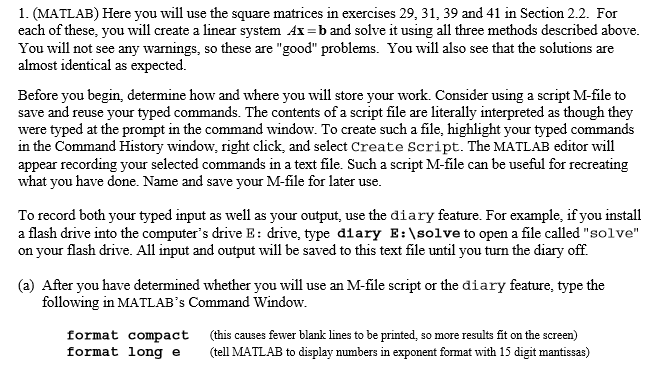
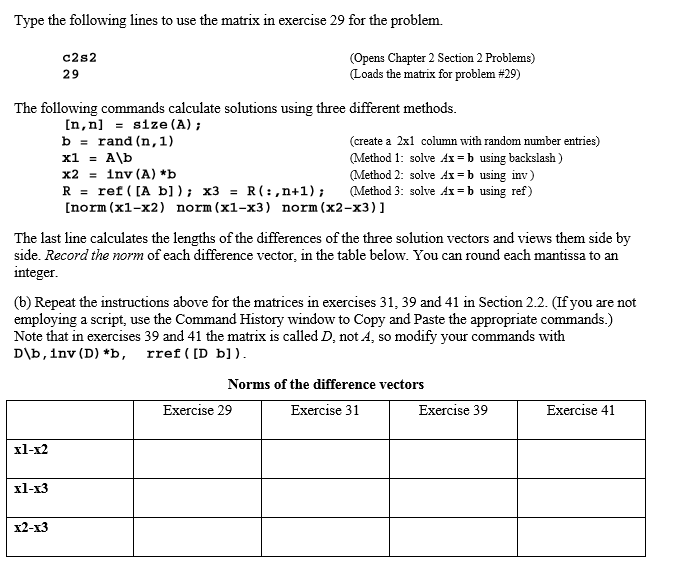
1. (MATLAB) Here you will use the square matrices in exercises 29, 31, 39 and 41 in Section 2.2. For each of these, you will create a linear system Ax-b and solve it using all three methods described above You will not see any warnings, so these are "good" problems. You will also see that the solutions are almost identical as expected Before you begin, determine how and where you will store your work. Consider using a script M-file to save and reuse your typed commands. The contents of a script file are literally interpreted as though they were typed at the prompt in the command window. To create such a file, highlight your typed commands in the Command History window, right click, and select Create Script. The MATLAB editor will appear recording your selected commands in a text file. Such a script M-file can be useful for recreating what you have done. Name and save your M-file for later use To record both your typed input as well as your output, use the diary feature. For example, if you instal a flash drive into the computer's drive E: drive, type diary E:\solve to open a file called "solve" on your flash drive. All input and output will be saved to this text file until you turn the diary off. (a) After you have determined whether you will use an M-file script or the diary feature, type the following in MATLAB's Command Window format format compact long e (this causes fewer blank lines to be printed, so more results fit on the screen) (tell MATLAB to display numbers in exponent format with 15 digit mantissas) 1. (MATLAB) Here you will use the square matrices in exercises 29, 31, 39 and 41 in Section 2.2. For each of these, you will create a linear system Ax-b and solve it using all three methods described above You will not see any warnings, so these are "good" problems. You will also see that the solutions are almost identical as expected Before you begin, determine how and where you will store your work. Consider using a script M-file to save and reuse your typed commands. The contents of a script file are literally interpreted as though they were typed at the prompt in the command window. To create such a file, highlight your typed commands in the Command History window, right click, and select Create Script. The MATLAB editor will appear recording your selected commands in a text file. Such a script M-file can be useful for recreating what you have done. Name and save your M-file for later use To record both your typed input as well as your output, use the diary feature. For example, if you instal a flash drive into the computer's drive E: drive, type diary E:\solve to open a file called "solve" on your flash drive. All input and output will be saved to this text file until you turn the diary off. (a) After you have determined whether you will use an M-file script or the diary feature, type the following in MATLAB's Command Window format format compact long e (this causes fewer blank lines to be printed, so more results fit on the screen) (tell MATLAB to display numbers in exponent format with 15 digit mantissas)
Step by Step Solution
There are 3 Steps involved in it

Get step-by-step solutions from verified subject matter experts
 Study Help