



Question: 1. Open Tableau and connect to the Excel spreadsheet you downloaded. 2. Click on the Sheet 1 tab at the bottom of the canvas, to
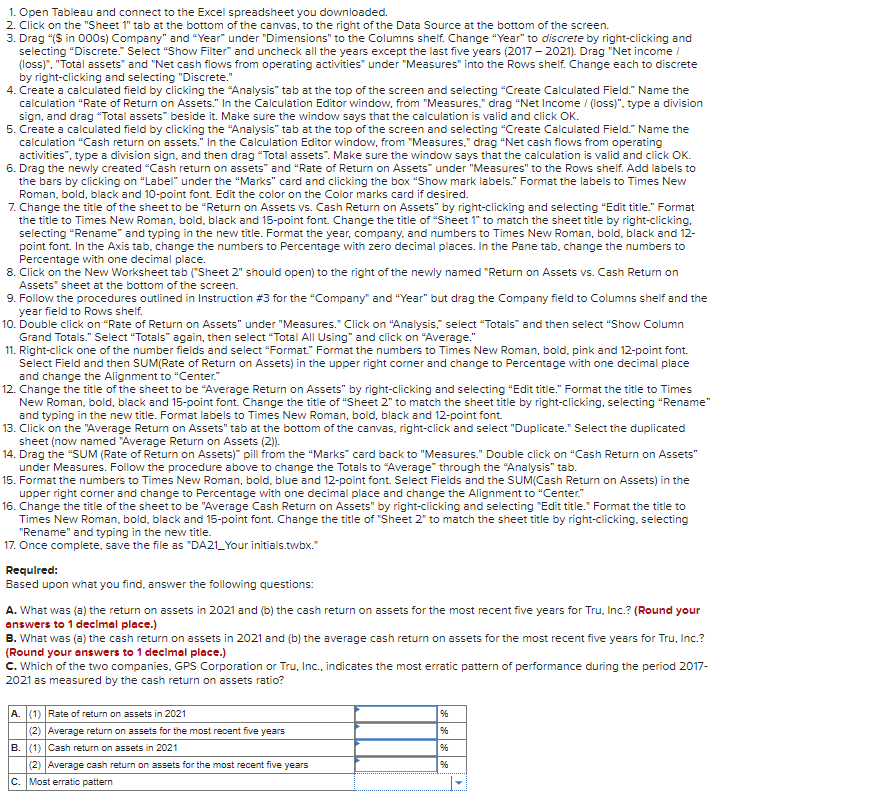
1. Open Tableau and connect to the Excel spreadsheet you downloaded. 2. Click on the "Sheet 1" tab at the bottom of the canvas, to the right of the Data Source at the bottom of the screen. 3. Drag "($ in 000s) Company" and "Year" under "Dimensions" to the Columns shelf. Change "Year" to discrete by right-clicking and selecting "Discrete Select "Show Filter" and uncheck all the years except the last five years (2017 2021). Drag "Net income (loss)". "Total assets" and "Net cash flows from operating activities under "Measures" into the Rows shelf. Change each to discrete by right-clicking and selecting "Discrete." 4. Create a calculated field by clicking the "Analysis" tab at the top of the screen and selecting Create Calculated field." Name the calculation "Rate of Return on Assets." In the Calculation Editor window, from "Measures." drag "Net Income / (loss)". type a division sign, and drag "Total assets" beside it. Make sure the window says that the calculation is valid and click OK. 5. Create a calculated field by clicking the "Analysis" tab at the top of the screen and selecting Create Calculated field." Name the calculation "Cash return on assets." In the Calculation Editor window, from "Measures." drag "Net cash flows from operating activities, type a division sign, and then drag "Total assets". Make sure the window says that the calculation is valid and click OK. 6. Drag the newly created "Cash return on assets" and "Rate of Return on Assets" under "Measures" to the Rows shelf. Add labels to the bars by clicking on "Label" under the "Marks" card and clicking the box "Show mark labels." Format the labels to Times New Roman, bold, black and 10-point font. Edit the color on the color marks card if desired. 7. Change the title of the sheet to be "Return on Assets vs. Cash Return on Assets" by right-clicking and selecting "Edit title." Format the title to Times New Roman, bold, black and 15-point font. Change the title of "Sheet 1" to match the sheet title by right-clicking, selecting "Rename" and typing in the new title. Format the year, company, and numbers to Times New Roman, bold, black and 12- point font. In the Axis tab, change the numbers to Percentage with zero decimal places. In the Pane tab, change the numbers to Percentage with one decimal place. 8. Click on the New Worksheet tab ("Sheet 2" should open) to the right of the newly named "Return on Assets vs. Cash Return on Assets" sheet at the bottom of the screen. 9. Follow the procedures outlined in Instruction #3 for the "Company" and "Year" but drag the Company field to Columns shelf and the year field to Rows shelf. 10. Double click on "Rate of Return on Assets" under "Measures. Click on "Analysis," select "Totals" and then select "Show Column Grand Totals." Select "Totals" again, then select "Total All Using" and click on "Average." 11. Right-click one of the number fields and select "Format." Format the numbers to Times New Roman, bold, pink and 12-point font. Select Field and then SUM(Rate of Return on Assets) in the upper right corner and change to Percentage with one decimal place and change the Alignment to "Center." 12. Change the title of the sheet to be "Average Return on Assets" by right-clicking and selecting Edit title." Format the title to Times New Roman, bold, black and 15-point font Change the title of "Sheet 2" to match the sheet title by right-clicking, selecting Rename" and typing in the new title. Format labels to Times New Roman, bold, black and 12-point font. 13. Click on the "Average Return on Assets" tab at the bottom of the canvas, right-click and select "Duplicate." Select the duplicated sheet (now named "Average Return on Assets (2)). 14. Drag the "SUM (Rate of Return on Assets) pill from the "Marks" card back to "Measures." Double click on "Cash Return on Assets" under Measures. Follow the procedure above to change the Totals to "Average through the "Analysis" tab. 15. Format the numbers to Times New Roman, bold, blue and 12-point font. Select Fields and the SUM(Cash Return on Assets) in the upper right corner and change to Percentage with one decimal place and change the Alignment to "Center." 16. Change the title of the sheet to be "Average Cash Return on Assets" by right-clicking and selecting "Edit title." Format the title to Times New Roman, bold, black and 15-point font. Change the title of "Sheet 2" to match the sheet title by right-clicking, selecting "Rename" and typing in the new title. 17. Once complete, save the file as "DA21_Your initials.twbx.* Required: Based upon what you find answer the following questions: A. What was (a) the return on assets in 2021 and (b) the cash return on assets for the most recent five years for Tru, Inc.? (Round your answers to 1 decimal place.) B. What was (a) the cash return on assets in 2021 and (b) the average cash return on assets for the most recent five years for Tru, Inc.? (Round your answers to 1 decimal place.) C. Which of the two companies. GPS Corporation or Tru, Inc., indicates the most erratic pattern of performance during the period 2017- 2021 as measured by the cash return on assets ratio? 96 A. (1) Rate of return on assets in 2021 (2) Average return on assets for the most recent five years B. (1) Cash return on assets in 2021 (2) Average cash return on assets for the most recent five years c. Most erratic pattern 96 1. Open Tableau and connect to the Excel spreadsheet you downloaded. 2. Click on the "Sheet 1" tab at the bottom of the canvas, to the right of the Data Source at the bottom of the screen. 3. Drag "($ in 000s) Company" and "Year" under "Dimensions" to the Columns shelf. Change "Year" to discrete by right-clicking and selecting "Discrete Select "Show Filter" and uncheck all the years except the last five years (2017 2021). Drag "Net income (loss)". "Total assets" and "Net cash flows from operating activities under "Measures" into the Rows shelf. Change each to discrete by right-clicking and selecting "Discrete." 4. Create a calculated field by clicking the "Analysis" tab at the top of the screen and selecting Create Calculated field." Name the calculation "Rate of Return on Assets." In the Calculation Editor window, from "Measures." drag "Net Income / (loss)". type a division sign, and drag "Total assets" beside it. Make sure the window says that the calculation is valid and click OK. 5. Create a calculated field by clicking the "Analysis" tab at the top of the screen and selecting Create Calculated field." Name the calculation "Cash return on assets." In the Calculation Editor window, from "Measures." drag "Net cash flows from operating activities, type a division sign, and then drag "Total assets". Make sure the window says that the calculation is valid and click OK. 6. Drag the newly created "Cash return on assets" and "Rate of Return on Assets" under "Measures" to the Rows shelf. Add labels to the bars by clicking on "Label" under the "Marks" card and clicking the box "Show mark labels." Format the labels to Times New Roman, bold, black and 10-point font. Edit the color on the color marks card if desired. 7. Change the title of the sheet to be "Return on Assets vs. Cash Return on Assets" by right-clicking and selecting "Edit title." Format the title to Times New Roman, bold, black and 15-point font. Change the title of "Sheet 1" to match the sheet title by right-clicking, selecting "Rename" and typing in the new title. Format the year, company, and numbers to Times New Roman, bold, black and 12- point font. In the Axis tab, change the numbers to Percentage with zero decimal places. In the Pane tab, change the numbers to Percentage with one decimal place. 8. Click on the New Worksheet tab ("Sheet 2" should open) to the right of the newly named "Return on Assets vs. Cash Return on Assets" sheet at the bottom of the screen. 9. Follow the procedures outlined in Instruction #3 for the "Company" and "Year" but drag the Company field to Columns shelf and the year field to Rows shelf. 10. Double click on "Rate of Return on Assets" under "Measures. Click on "Analysis," select "Totals" and then select "Show Column Grand Totals." Select "Totals" again, then select "Total All Using" and click on "Average." 11. Right-click one of the number fields and select "Format." Format the numbers to Times New Roman, bold, pink and 12-point font. Select Field and then SUM(Rate of Return on Assets) in the upper right corner and change to Percentage with one decimal place and change the Alignment to "Center." 12. Change the title of the sheet to be "Average Return on Assets" by right-clicking and selecting Edit title." Format the title to Times New Roman, bold, black and 15-point font Change the title of "Sheet 2" to match the sheet title by right-clicking, selecting Rename" and typing in the new title. Format labels to Times New Roman, bold, black and 12-point font. 13. Click on the "Average Return on Assets" tab at the bottom of the canvas, right-click and select "Duplicate." Select the duplicated sheet (now named "Average Return on Assets (2)). 14. Drag the "SUM (Rate of Return on Assets) pill from the "Marks" card back to "Measures." Double click on "Cash Return on Assets" under Measures. Follow the procedure above to change the Totals to "Average through the "Analysis" tab. 15. Format the numbers to Times New Roman, bold, blue and 12-point font. Select Fields and the SUM(Cash Return on Assets) in the upper right corner and change to Percentage with one decimal place and change the Alignment to "Center." 16. Change the title of the sheet to be "Average Cash Return on Assets" by right-clicking and selecting "Edit title." Format the title to Times New Roman, bold, black and 15-point font. Change the title of "Sheet 2" to match the sheet title by right-clicking, selecting "Rename" and typing in the new title. 17. Once complete, save the file as "DA21_Your initials.twbx.* Required: Based upon what you find answer the following questions: A. What was (a) the return on assets in 2021 and (b) the cash return on assets for the most recent five years for Tru, Inc.? (Round your answers to 1 decimal place.) B. What was (a) the cash return on assets in 2021 and (b) the average cash return on assets for the most recent five years for Tru, Inc.? (Round your answers to 1 decimal place.) C. Which of the two companies. GPS Corporation or Tru, Inc., indicates the most erratic pattern of performance during the period 2017- 2021 as measured by the cash return on assets ratio? 96 A. (1) Rate of return on assets in 2021 (2) Average return on assets for the most recent five years B. (1) Cash return on assets in 2021 (2) Average cash return on assets for the most recent five years c. Most erratic pattern 96
Step by Step Solution
There are 3 Steps involved in it

Get step-by-step solutions from verified subject matter experts