







Question: 1 . Open the script next given In this script you have the main necessary commands, except for the highlighted with blue colour. Make sure
Open the script next given In this script you have the main necessary commands, except for the highlighted with blue colour. Make sure you have the input images: sample.jpg
Convert the image in binary format, using imbw You should find the appropriate threshold value, so that the binarisation operation applies to all objects from the input image. Include the results of the binarisation of one of the images and the value of the threshold value in your report.
Find the connected components of your obtained binary images with bwlabel and visualise with labelrgb the detected connected components.You have this functionality in the provided script. You do not need to include this visualisation in your report.
Compute different characteristics of the connected components with regionprops Visualise the bounding boxes of the objects BoundingBox field from the regionprops function output, rectanglePosition You have this functionality in the provided script. It is not required to include this visualisation in your report.
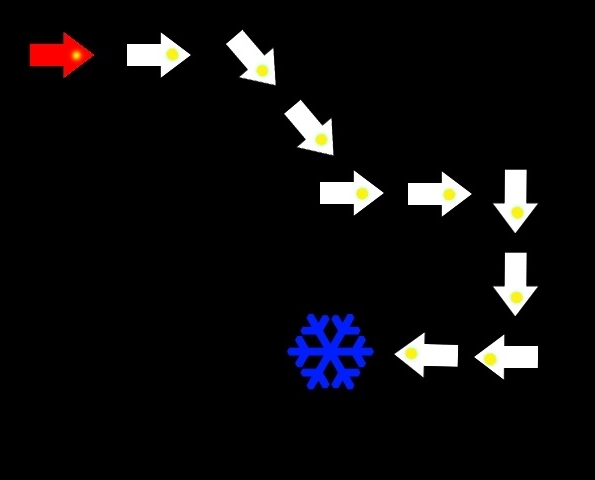
Develop a function to distinguish arrows from other objects. What does differ the arrows from the other objects? You may use any ideas from lectures, the previous lab session or common sense for your function. Include the brief description of main idea of your function in your report and the actual code of the function in the appendix of your report. Hint: arrows have points of different colour.
Find the starting red arrow. You have this functionality in the provided script.
Develop a function to find the label of the next nearest object to which the current arrow indicates.
Hint : to set a line it is enough to have two points.
Hint : for each arrow you may extract the centroid point and the yellow one.
Hint : a vector x x y y points to the direction from the point x y to the point x y
Apply your functions to find the treasure in the images. Visualise the treasure and the path to it from the starting arrow. You have this functionality in the provided script. Include your visualisation in your report for all images.
Other solutions of this task are possible. If you propose a different solution, include a brief description of it and provide a diagram of the main idea of your solution. Include your functions in your report.
close all;
clear all;
Reading image
im imreadTreasuresimple.jpg; change name to process other images
imshowim; pause;
Binarisation
binthreshold ; parameter to vary
binim imbwim binthreshold;
imshowbinim; pause;
Extracting connected components
concom bwlabelbinim;
imshowlabelrgbconcom; pause;
Computing objects properties
props regionpropsconcom;
Drawing bounding boxes
nobjects numelprops;
imshowim;
hold on;
for objectid : nobjects
rectanglePosition propsobjectidBoundingBox, 'EdgeColor', b;
end
hold off; pause;
Arrownonarrow determination
You should develop a function arrowfinder, which returns the IDs of the arror objects.
IDs are from the connected component analysis order. You may use any parameters for your function.
arrowind arrowfinder;
Finding red arrow
narrows numelarrowind;
startarrowid ;
check each arrow until find the red one
for arrownum : narrows
objectid arrowindarrownum; determine the arrow id
extract colour of the centroid point of the current arrow
centroidcolour imroundpropsobjectidCentroid roundpropsobjectidCentroid :;
if centroidcolour: : && centroidcolour: : && centroidcolour: :
the centroid point is red, memorise its id and break the loop
startarrowid objectid;
break;
end
end
Hunting
curobject startarrowid; start from the red arrow
path curobject;
while the current object is an arrow, continue to search
while ismembercurobject, arrowind
You should develop a function nextobjectfinder, which returns
the ID of the nearest object, which is pointed at by the current
arrow. You may use any other parameters for your function.
curobject nextobjectfindercurobject;
pathend curobject;
end
visualisation of the path
imshowim;
hold on;
for pathelement : numelpath
objectid pathpathelement; determine the object id
rectanglePosition propsobjectidBoundingBox, 'EdgeColor', y;
str numstrpathelement;
textpropsobjectidBoundingBox propsobjectidBoundingBox str 'Color', r 'FontWeight', 'bold', 'FontSize', ;
end
visualisation of the treasure
treasureid pathend;
rectanglePosition propstreasureidBoundingBox, 'EdgeColor', g;
Additional Guidance on Performing the Robot Treasure Hunting Task
Areas of the arrows are different from the treasures.
All arrows have a y
Step by Step Solution
There are 3 Steps involved in it
1 Expert Approved Answer
Step: 1 Unlock

Question Has Been Solved by an Expert!
Get step-by-step solutions from verified subject matter experts
Step: 2 Unlock
Step: 3 Unlock
 Study Help