







Question: 1 - - Type your answers here. 7.Set the device boot order settings. Ensure that the first boot order device is the optical drive Ensure
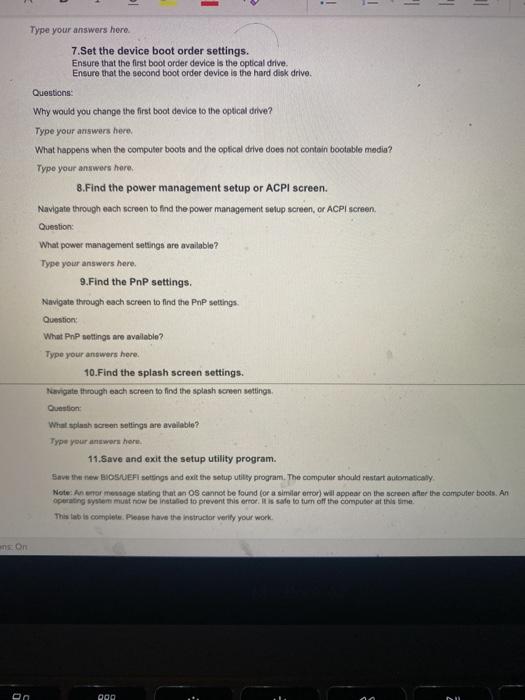
1 - - Type your answers here. 7.Set the device boot order settings. Ensure that the first boot order device is the optical drive Ensure that the second boot order device is the hard disk drive. Questions: Why would you change the first boot device to the optical drive? Type your answers here What happens when the computer boots and the optical drive does not contain bootable media? Type your answers here 8.Find the power management setup or ACPI screen. Navigate through each screen to find the power management setup screen, or ACPI screen. Question: What power management settings are available? Type your answers here 9. Find the PnP settings Navigate through each screen to find the PnP settings. Question: What PnP settings are available? Type your answers here 10. Find the splash screen settings. Navigate through each screen to find the splash screen settings, Question: What splash screen settings are available? Type your answers here 11. Save and exit the setup utility program. Save the new BIOS UEFI settings and edit the setup utitty program. The computer should restart automatically Note: An error message stating that an Os cannot be found for a similar error) will appear on the screen after the computer boots. An operating system must now be installed to prevent this error. It is safe to turn off the computer at this time This tab is complete. Please have the instructor verify your work ons on 00 000
Step by Step Solution
There are 3 Steps involved in it

Get step-by-step solutions from verified subject matter experts
 Study Help