







Question: 1 . Use the dataset called credit _ risk.csv . Use ' CSV File Import' widget to upload the dataset.Use 'Select Columns' widget to
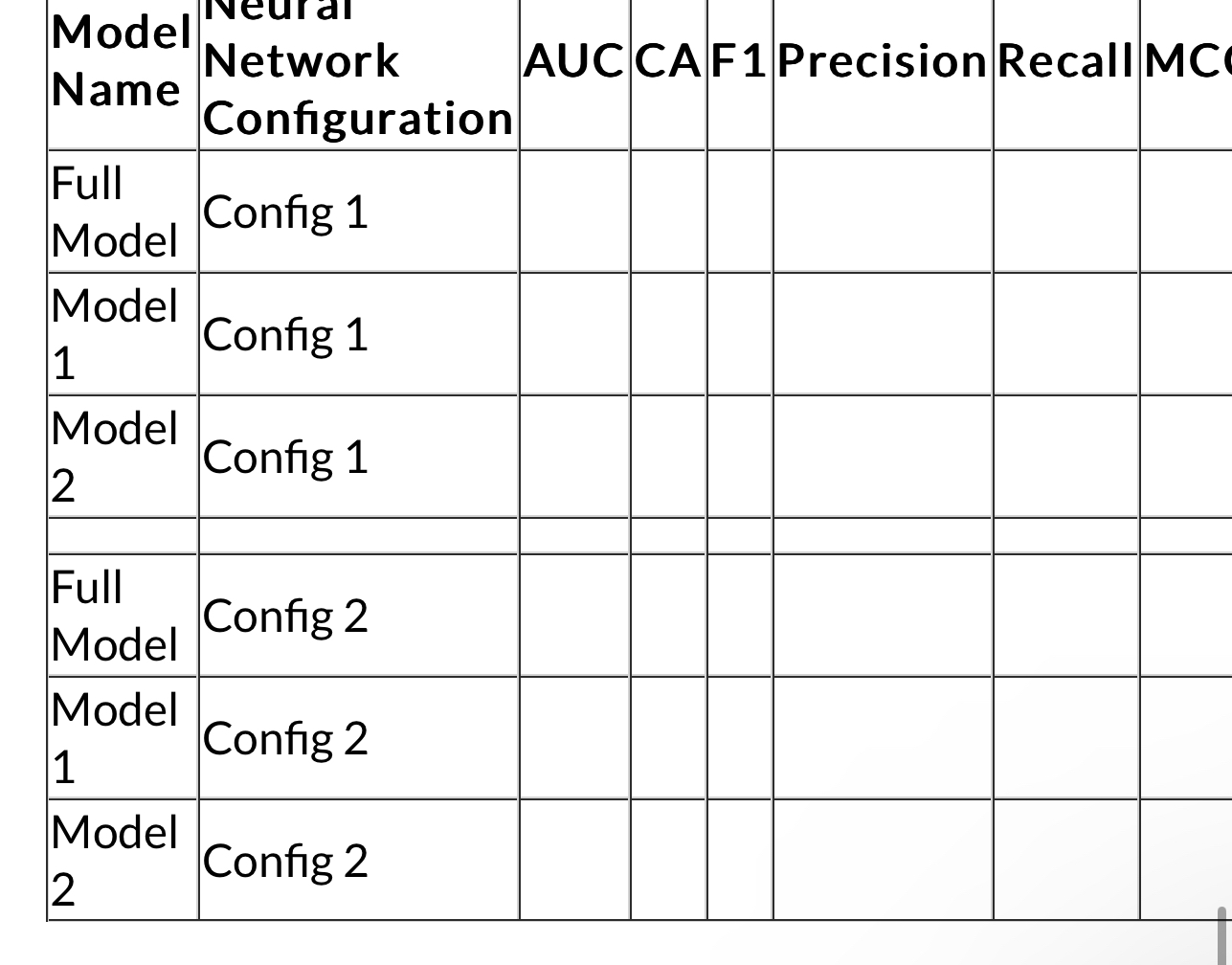
Use the dataset called "creditrisk.csvUse CSV File Import' widget to upload the dataset.Use 'Select Columns' widget to set 'loanstatus' as the target variable Use the Python Script called "createdeterministicsample.py to create a random sample of the dataset.Go to the bottom of the Python Script and replace the default value of for the randomseed with the numeric part of your UID you can drop leading zero Take a screenshot to show that you changed the random seed and save it as "Random Seed".Leave samplesize as Connect 'Select Columns' to this 'Python Script' and connect the output to a 'Test and Score' widget. In 'Test and Score' widget, select 'Cross validation' and 'Number of folds' as This is your full model. Open the 'Select Columns' widget and take a screenshot and save it as "Full Model" Bring the 'Neural Network' widget on to the workflow canvas and rename it as "Neural Network Config Before connecting it:Uncheck the 'Apply Automatically' checkbox.Change the maximal number of iterations to After making those changes, take a screenshot of the 'Neural Network' properties and save it as "Neural Network Config Connect 'Neural Network' to 'Test and Score'. Make sure to go into the 'Neural Network' widget and click on 'Apply' remember you unchecked the 'Apply Automatically' in Step so now you have to 'Apply' it manually Create two additional models using 'Select Columns' ie keep the same target variable, but select different independent variables to include Call them 'Model and 'Model Take screenshots of the opened 'Select Columns' widgets for both models and save them as "Model and "Model Capture the evaluation results AUC CA F Precision, Recall, and MCC for each model from the 'Test and Score' widget in an Evaluation Results Table as shown below Make a copy of the 'Neural Network' widget and rename it as "Neural Network Config Disconnect 'Neural Network Config from the three 'Test and Score' widgets and connect the 'Neural Network Config to the three 'Test and Score' widgets.Now, change one or more the following properties of the 'Neural Network Config widget: 'Neurons in hidden layers', 'Maximal number of iterations', 'Activation' function, or 'Solver'. Modify the properties of 'Neural Network Config in such a way that it improves at least one of the evaluation metrics for the three models. The metric that improves can be different for the different models. Take a screenshot of the neural network properties and save it as "Neural Network Config Capture the evaluation results just as in Step in the Evaluation Results table as shown below
Step by Step Solution
There are 3 Steps involved in it
1 Expert Approved Answer
Step: 1 Unlock

Question Has Been Solved by an Expert!
Get step-by-step solutions from verified subject matter experts
Step: 2 Unlock
Step: 3 Unlock
 Study Help