Question: 12-23 Thank you 12 On the Map worksheet, insert a map for the states and revenues. Cut and paste the map in cell C1 5
12-23
Thank you 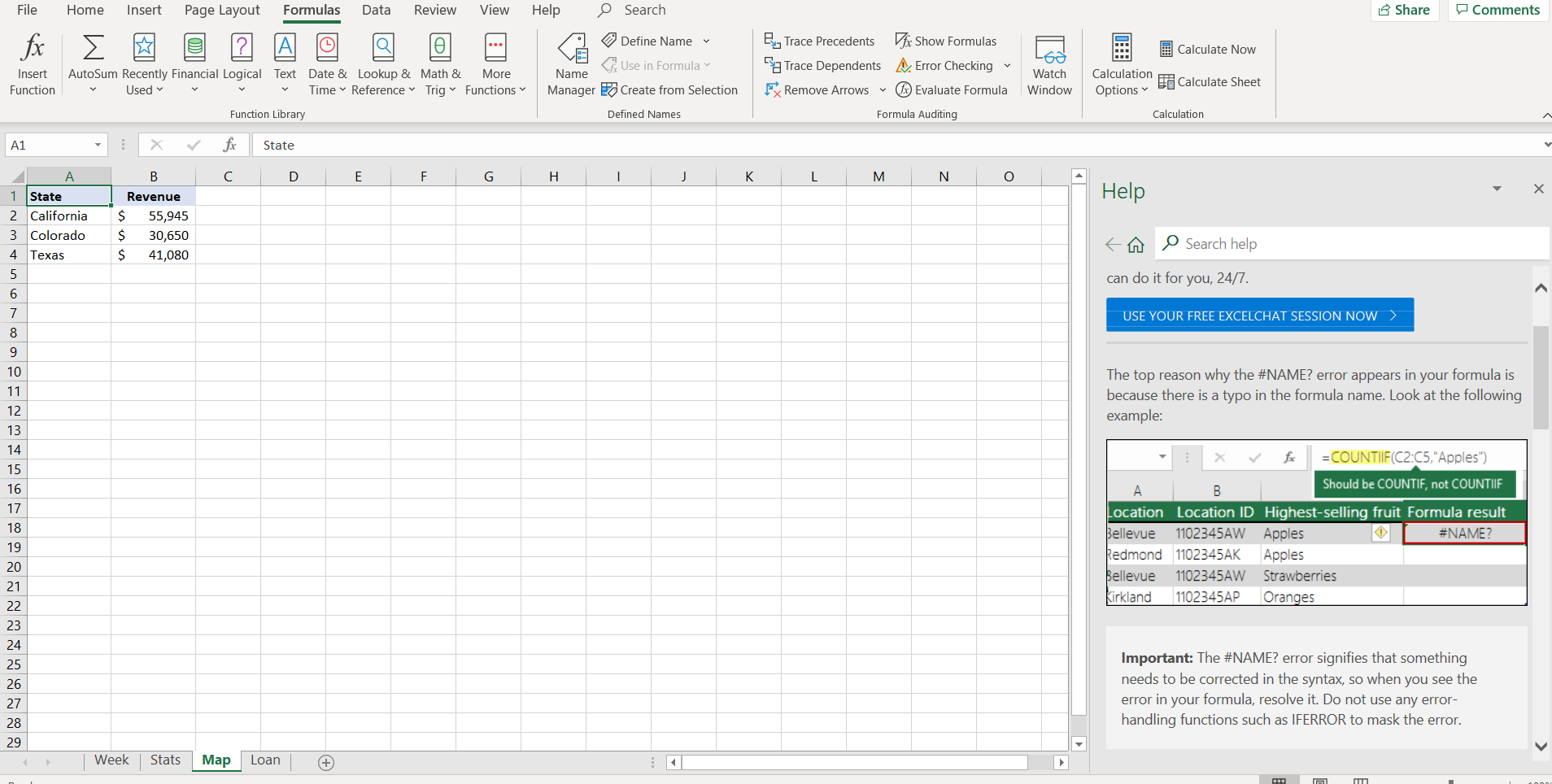
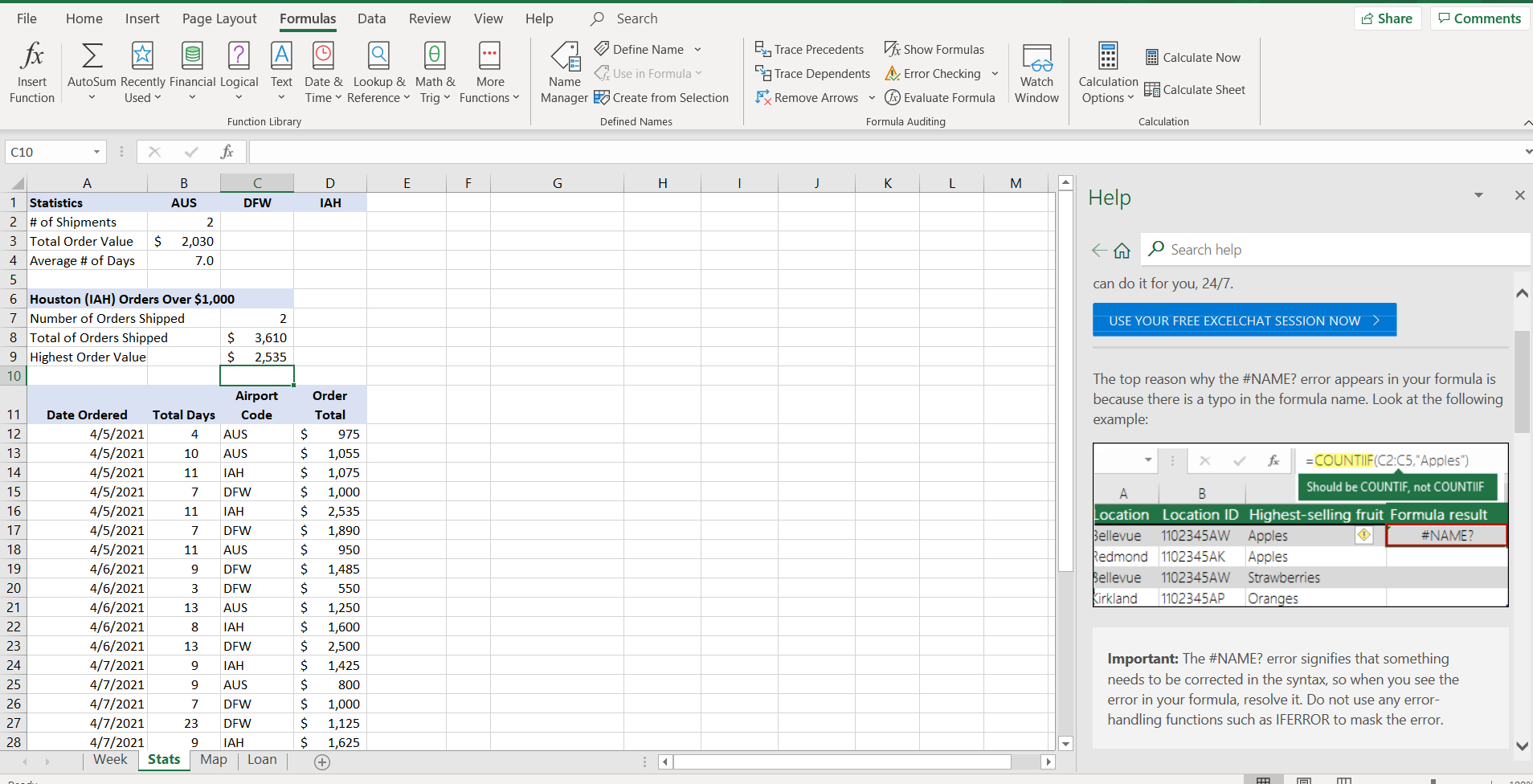
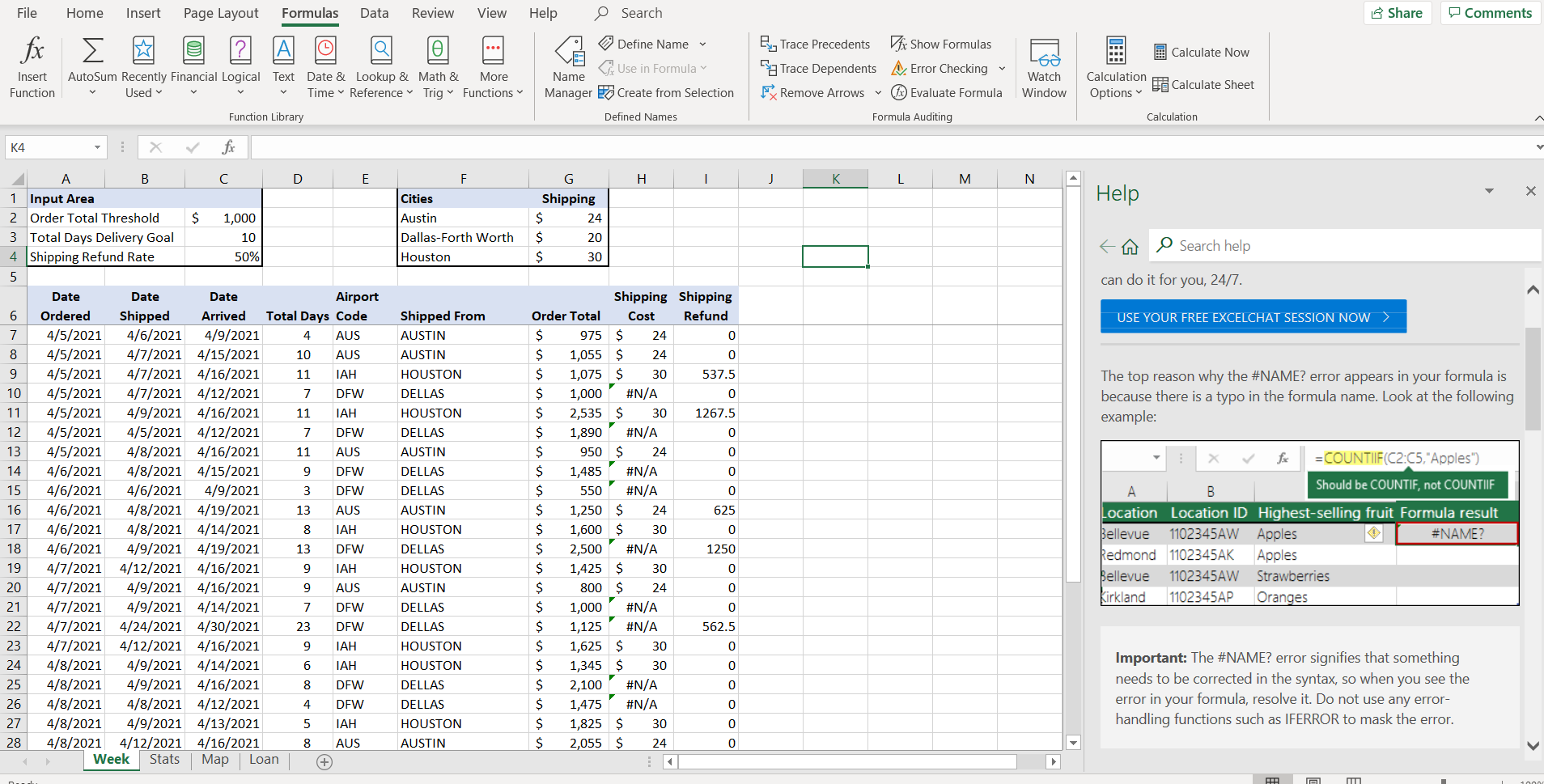
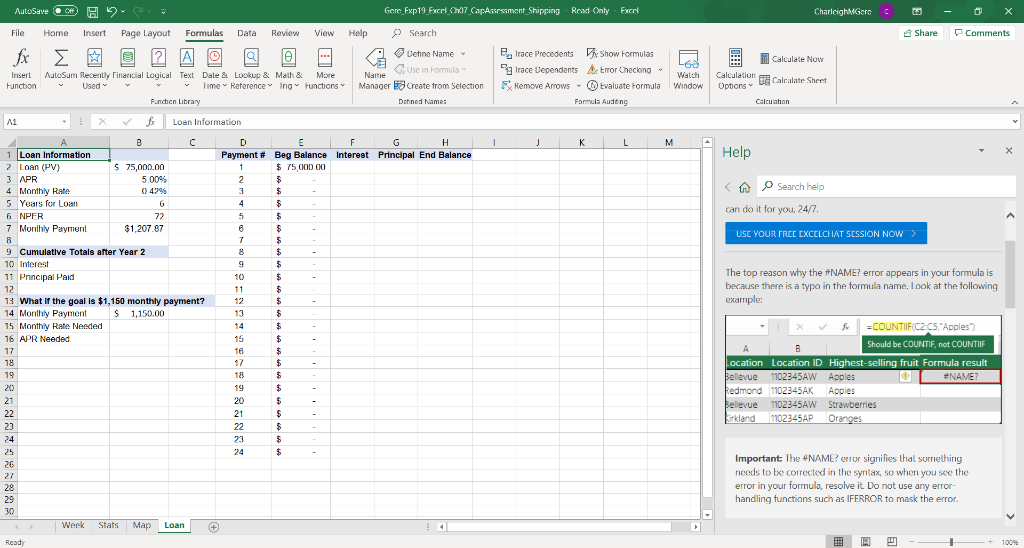
12 On the Map worksheet, insert a map for the states and revenues. Cut and paste the map in cell C1 5 13 Format the data series to show only regions with data and show all map labels. 5 14 Change the map title to April 5-9 Gross Revenue. 3 15 Use the Loan worksheet to complete the loan amortization table. 5 In cell F2, insert the IPMT function to calculate the interest for the first payment. Copy the function to the range F3:F25. (The results will update after you complete the other functions and formulas.) 16 5 In cell G2, insert the PPMT function to calculate the principal paid for the first payment. Copy the function to the range G3:G25. 17 5 In cell H2, insert a formula to calculate the ending principal balance. Copy the formula to the range H3:H25. 18 Now you want to determine how much interest was paid during the first two years. 5 In cell B10, insert the CUMIPMT function to calculate the cumulative interest after the first two years. Make sure the result is positive. 19 5 In cell B11, insert the CUMPRINC function to calculate the cumulative principal paid at the end of the first two years. Make sure the result is positive. 20 5 You want to perform a what-if analysis to determine the rate if the monthly payment is $1,150 instead of $1,207.87. In cell B15, insert the RATE function to calculate the necessary monthly rate given the NPER, proposed monthly payment, and loan. Make sure the result is positive. 21 Finally, you want to convert the monthly rate to an APR. 5 In cell B16, insert a formula to calculate the APR for the monthly rate in cell B15. 22 2 Insert a footer on all sheets with your name on the left side, the sheet name code in the center, and the file name code on the right side. 23 0 Save and close Exp19_Excel_Ch07_CapAssessment_Shipping.xlsx. Exit Excel. Submit the file as directed. Total Points 100 File Home Insert Page Layout Formulas Data Review View Help Search Share Comments fx A = Calculate Now & Trace Precedents Dfx Show Formulas Sa Trace Dependents Error Checking FRemove Arrows x) Evaluate Formula Define Name CUse in Formula Name Manager 20 Create from Selection Insert Function AutoSum Recently Financial Logical Text Date & Lookup & Math & More Used Time Reference Trig Functions Function Library Watch Window Calculation Options Calculate Sheet Defined Names Formula Auditing Calculation A1 X fic State D E F G H 1 K L M N 0 Help X B Revenue $ 55,945 $ 30,650 $ 41,080 EA O Search help can do it for you, 24/7. USE YOUR FREE EXCELCHAT SESSION NOW The top reason why the #NAME? error appears in your formula is because there is a typo in the formula name. Look at the following example: A 1 State 2 California 3 Colorado 4 Texas 5 6 7 8 9 10 11 12 13 14 15 16 17 18 19 20 21 22 23 24 25 26 27 28 29 x =COUNTIIF(C2:05,"Apples") B Should be COUNTIF, not COUNTIIF Location Location ID Highest-selling fruit Formula result Bellevue 1102345AW Apples #NAME? Redmond 1102345AK Apples Bellevue 1102345AW Strawberries Kirkland 1102345AP Oranges Important: The #NAME? error signifies that something needs to be corrected in the syntax, so when you see the error in your formula, resolve it. Do not use any error- handling functions such as IFERROR to mask the error. Week Stats Map Loan File Home Insert Page Layout Formulas Data Review View Help Search Share Comments fx EO C Define Name A Calculate Now Insert Function Watch E, Trace Precedents Vfx Show Formulas a Trace Dependents Error Checking FRemove Arrows @Evaluate Formula Formula Auditing AutoSum Recently Financial Logical Text Date & Lookup & Math & More Used Time Reference Trig Functions Function Library CUse in Formula Name Manager 20 Create from Selection Calculate Sheet Calculation Options Window Defined Names Calculation C10 X fx D E F G H J K L M IAH Help Search help can do it for you, 24/7. USE YOUR FREE EXCELCHAT SESSION NOW The top reason why the #NAME? error appears in your formula is because there is a typo in the formula name. Look at the following example: AUS B C 1 Statistics AUS DFW 2 # of Shipments 2 3 Total Order Value $ 2,030 4 Average # of Days 7.0 5 6 Houston (IAH) Orders Over $1,000 7 Number of Orders Shipped 2 8 Total of Orders Shipped $ 3,610 9 Highest Order Value $ 2,535 10 Airport 11 Date Ordered Total Days Code 12 4/5/2021 4 13 4/5/2021 10 AUS 14 4/5/2021 11 IAH 15 4/5/2021 7 DFW 16 4/5/2021 11 IAH 17 4/5/2021 7 DFW 18 4/5/2021 11 AUS 19 4/6/2021 9 DFW 20 4/6/2021 3 DFW 21 4/6/2021 13 AUS 22 4/6/2021 8 IAH 23 4/6/2021 13 DFW 24 4/7/2021 9 IAH 25 4/7/2021 9 AUS 26 4/7/2021 7 DFW 27 4/7/2021 23 DFW 28 4/7/2021 9 TAH Week Stats Map Loan Order Total $ 975 $ 1,055 $ 1,075 $ 1,000 $ 2,535 $ 1,890 $ 950 $ 1,485 $ 550 $ 1,250 $ 1,600 $ 2,500 $ 1,425 $ 800 $ 1,000 $ 1,125 $ 1,625 + X =COUNTIIF(C2:C5,"Apples") B Should be COUNTIF, not COUNTIF Location Location ID Highest-selling fruit Formula result Bellevue 1102345AW Apples #NAME? Redmond 1102345AK Apples Bellevue 1102345AW Strawberries Kirkland 1102345AP Oranges Important: The #NAME? error signifies that something needs to be corrected in the syntax, so when you see the error in your formula, resolve it. Do not use any error- handling functions such as IFERROR to mask the error. File Home Insert Page Layout Formulas Data Review View Help Search Share Comments fx = Calculate Now Define Name Use in Formula Name Manager 20 Create from Selection Insert Function & Trace Precedents Die Show Formulas 5a Trace Dependents Error Checking FRemove Arrows Bx Evaluate Formula Formula Auditing AutoSum Recently Financial Logical Text Date & Lookup & Math & More Used Time Reference Trig Functions Function Library Watch Window Calculation Options Calculate Sheet V Defined Names Calculation K4 fic H | K L M N Help X F Cities Austin Dallas-Forth Worth Houston G Shipping $ 24 $ 20 $ 30 A Search help can do it for you, 24/7. USE YOUR FREE EXCELCHAT SESSION NOW in oo The top reason why the #NAME? error appears in your formula is because there is a typo in the formula name. Look at the following example: 24 A B D E 1 Input Area 2 Order Total Threshold $ 1,000 3 Total Days Delivery Goal 10 4 Shipping Refund Rate 50% 5 Date Date Date Airport 6 Ordered Shipped Arrived Total Days Code 7 4/5/2021 4/6/2021 4/9/2021 4 AUS 8 4/5/2021 4/7/2021 4/15/2021 10 AUS 4/5/2021 4/7/2021 /16/2021 11 10 4/5/2021 4/7/2021 4/12/2021 7 DFW 11 4/5/2021 4/9/2021 4/16/2021 11 IAH 12 4/5/2021 4/5/2021 4/12/2021 7 DFW 13 4/5/2021 4/8/2021 4/16/2021 11 AUS 14 4/6/2021 4/8/2021 4/15/2021 9 DFW 15 4/6/2021 4/6/2021 4/9/2021 3 DFW 16 4/6/2021 4/8/2021 4/19/2021 13 AUS 17 4/6/2021 4/8/2021 4/14/2021 8 IAH 18 4/6/2021 4/9/2021 4/19/2021 13 DFW 19 4/7/2021 4/12/2021 4/16/2021 9 IAH 20 4/7/2021 4/9/2021 4/16/2021 9 AUS 21 4/7/2021 4/9/2021 4/14/2021 7 DFW 22 4/7/2021 4/24/2021 4/30/2021 23 DFW 23 4/7/2021 4/12/2021 4/16/2021 9 IAH 24 4/8/2021 4/9/2021 4/14/2021 6 IAH 25 4/8/2021 4/9/2021 4/16/2021 8 DFW 26 4/8/2021 4/8/2021 4/12/2021 4 DFW 27 4/8/2021 4/9/2021 4/13/2021 5 IAH 28 4/8/2021 4/12/2021 4/16/2021 8 AUS Week Stats Map Loan Shipped From AUSTIN AUSTIN HOUSTON DELLAS HOUSTON DELLAS AUSTIN DELLAS DELLAS AUSTIN HOUSTON DELLAS HOUSTON AUSTIN DELLAS DELLAS HOUSTON HOUSTON DELLAS DELLAS HOUSTON AUSTIN Shipping Shipping Order Total Cost Refund $ 975 $ 24 $ 1,055 $ 24 $ 1,075 $ 30 537.5 $ 1,000 #N/A 0 $ 2,535 $ 30 1267.5 $ 1,890 #N/A 0 $ 950 0 $ 1,485 #N/A 0 $ 550 #N/A 0 $ 1,250 $ 24 625 $ 1,600 $ 30 0 $ 2,500 #N/A 1250 $ 1,425 $ 30 0 $ 800 $ 24 0 $ 1,000 #N/A 0 $ 1,125 #N/A 562.5 $ 1,625 $ 30 0 $ 1,345 $ 30 0 $ 2,100 #N/A 0 $ 1,475 #N/A 0 $ 1,825 $ 30 0 $ 2,055 $ 24 0 =COUNTIIF(C2:C5,"Apples") Should be COUNTIF, not COUNTIIF B Location Location ID Highest-selling fruit Formula result Bellevue 1102345AW Apples #NAME? Redmond 1102345AK Apples Bellevue 1102345AW Strawberries Kirkland 1102345AP Oranges Important: The #NAME? error signifies that something needs to be corrected in the syntax, so when you see the error in your formula, resolve it. Do not use any error- handling functions such as IFERROR to mask the error. AutoSave C Gere_Exp19_Excel Cho_CapAssessment_Shipping - Read Only - Excel Charlcigh Gerec File Home Insert Page Layout Formulas Data Review View Help Search Share Comments fx Calculate Now A a AutoSum Recently Financial Logical Text Date & Lookup & Math & More Used Time Reference Trg Functions Funchen Library Detine Name Use in Formula Name Manager a Create from Selection Insert Function & Trace Precedents di Show Formulas Irace Dependents AxError Checking Remove ArrowsEvaluate Formula Formula Auditing Walch Window Calculation Calealate Sheet Options Dohned Names Calculation A1 Loan Information 1 1 j K L M Help X Search help can do it for you, 24/7. USE YOUR FREE EXCELCHAT SESSION NOW B 1 Loan Information 2 Loan (PV) $ 75,000.00 3 APR 5.00% 4 Monthly Rate 5 Years for Loan 6 6 NPER 72 7 Monthly Payment $1.207.87 8 9 Cumulative Totals after Year 2 10 Interest 11 Principal Paid 12 13 What if the goal is $1,150 monthly payment? 14 Monthly Payment $ 1,150.00 15 Monthly Rate Needed 16 APR Needed 17 18 19 D E F G H Payment # Beg Balance interest Principal End Balance 1 $75 000 00 2 $ 3 $ 4 $ $ 5 $ 6 $ $ 7 $ 8 $ 9 $ 10 $ 11 $ 12 $ 13 $ $ 15 $ 16 $ 17 $ $ 18 $ 19 $ 20 $ 21 $ 22 $ 23 $ 24 $ The top reason why the NAME? error appears in your formula is because there is a typo in the formula name. Look at the following example: f =COUNTIIF(C2CS. "Apples") B Should be COUNTIF, not COUNTIIF Location Location ID Highest-selling fruit Formula result Bellevue 1102345AW Apples #NAME? Redmond 1102345AK Apples Bellevue 9102345AW Strawberries Kirkland 1102345AP Oranges 21 22 23 24 25 26 27 28 29 30 Important. The NAME? error signifies that something needs to be corrected in the syntax, so when you see the error in your formula, resolve it. Do not use any error- handling functions such as FERROR to mask the error. Werk Stats Map Loan + Ready 1 - + 100% 12 On the Map worksheet, insert a map for the states and revenues. Cut and paste the map in cell C1 5 13 Format the data series to show only regions with data and show all map labels. 5 14 Change the map title to April 5-9 Gross Revenue. 3 15 Use the Loan worksheet to complete the loan amortization table. 5 In cell F2, insert the IPMT function to calculate the interest for the first payment. Copy the function to the range F3:F25. (The results will update after you complete the other functions and formulas.) 16 5 In cell G2, insert the PPMT function to calculate the principal paid for the first payment. Copy the function to the range G3:G25. 17 5 In cell H2, insert a formula to calculate the ending principal balance. Copy the formula to the range H3:H25. 18 Now you want to determine how much interest was paid during the first two years. 5 In cell B10, insert the CUMIPMT function to calculate the cumulative interest after the first two years. Make sure the result is positive. 19 5 In cell B11, insert the CUMPRINC function to calculate the cumulative principal paid at the end of the first two years. Make sure the result is positive. 20 5 You want to perform a what-if analysis to determine the rate if the monthly payment is $1,150 instead of $1,207.87. In cell B15, insert the RATE function to calculate the necessary monthly rate given the NPER, proposed monthly payment, and loan. Make sure the result is positive. 21 Finally, you want to convert the monthly rate to an APR. 5 In cell B16, insert a formula to calculate the APR for the monthly rate in cell B15. 22 2 Insert a footer on all sheets with your name on the left side, the sheet name code in the center, and the file name code on the right side. 23 0 Save and close Exp19_Excel_Ch07_CapAssessment_Shipping.xlsx. Exit Excel. Submit the file as directed. Total Points 100 File Home Insert Page Layout Formulas Data Review View Help Search Share Comments fx A = Calculate Now & Trace Precedents Dfx Show Formulas Sa Trace Dependents Error Checking FRemove Arrows x) Evaluate Formula Define Name CUse in Formula Name Manager 20 Create from Selection Insert Function AutoSum Recently Financial Logical Text Date & Lookup & Math & More Used Time Reference Trig Functions Function Library Watch Window Calculation Options Calculate Sheet Defined Names Formula Auditing Calculation A1 X fic State D E F G H 1 K L M N 0 Help X B Revenue $ 55,945 $ 30,650 $ 41,080 EA O Search help can do it for you, 24/7. USE YOUR FREE EXCELCHAT SESSION NOW The top reason why the #NAME? error appears in your formula is because there is a typo in the formula name. Look at the following example: A 1 State 2 California 3 Colorado 4 Texas 5 6 7 8 9 10 11 12 13 14 15 16 17 18 19 20 21 22 23 24 25 26 27 28 29 x =COUNTIIF(C2:05,"Apples") B Should be COUNTIF, not COUNTIIF Location Location ID Highest-selling fruit Formula result Bellevue 1102345AW Apples #NAME? Redmond 1102345AK Apples Bellevue 1102345AW Strawberries Kirkland 1102345AP Oranges Important: The #NAME? error signifies that something needs to be corrected in the syntax, so when you see the error in your formula, resolve it. Do not use any error- handling functions such as IFERROR to mask the error. Week Stats Map Loan File Home Insert Page Layout Formulas Data Review View Help Search Share Comments fx EO C Define Name A Calculate Now Insert Function Watch E, Trace Precedents Vfx Show Formulas a Trace Dependents Error Checking FRemove Arrows @Evaluate Formula Formula Auditing AutoSum Recently Financial Logical Text Date & Lookup & Math & More Used Time Reference Trig Functions Function Library CUse in Formula Name Manager 20 Create from Selection Calculate Sheet Calculation Options Window Defined Names Calculation C10 X fx D E F G H J K L M IAH Help Search help can do it for you, 24/7. USE YOUR FREE EXCELCHAT SESSION NOW The top reason why the #NAME? error appears in your formula is because there is a typo in the formula name. Look at the following example: AUS B C 1 Statistics AUS DFW 2 # of Shipments 2 3 Total Order Value $ 2,030 4 Average # of Days 7.0 5 6 Houston (IAH) Orders Over $1,000 7 Number of Orders Shipped 2 8 Total of Orders Shipped $ 3,610 9 Highest Order Value $ 2,535 10 Airport 11 Date Ordered Total Days Code 12 4/5/2021 4 13 4/5/2021 10 AUS 14 4/5/2021 11 IAH 15 4/5/2021 7 DFW 16 4/5/2021 11 IAH 17 4/5/2021 7 DFW 18 4/5/2021 11 AUS 19 4/6/2021 9 DFW 20 4/6/2021 3 DFW 21 4/6/2021 13 AUS 22 4/6/2021 8 IAH 23 4/6/2021 13 DFW 24 4/7/2021 9 IAH 25 4/7/2021 9 AUS 26 4/7/2021 7 DFW 27 4/7/2021 23 DFW 28 4/7/2021 9 TAH Week Stats Map Loan Order Total $ 975 $ 1,055 $ 1,075 $ 1,000 $ 2,535 $ 1,890 $ 950 $ 1,485 $ 550 $ 1,250 $ 1,600 $ 2,500 $ 1,425 $ 800 $ 1,000 $ 1,125 $ 1,625 + X =COUNTIIF(C2:C5,"Apples") B Should be COUNTIF, not COUNTIF Location Location ID Highest-selling fruit Formula result Bellevue 1102345AW Apples #NAME? Redmond 1102345AK Apples Bellevue 1102345AW Strawberries Kirkland 1102345AP Oranges Important: The #NAME? error signifies that something needs to be corrected in the syntax, so when you see the error in your formula, resolve it. Do not use any error- handling functions such as IFERROR to mask the error. File Home Insert Page Layout Formulas Data Review View Help Search Share Comments fx = Calculate Now Define Name Use in Formula Name Manager 20 Create from Selection Insert Function & Trace Precedents Die Show Formulas 5a Trace Dependents Error Checking FRemove Arrows Bx Evaluate Formula Formula Auditing AutoSum Recently Financial Logical Text Date & Lookup & Math & More Used Time Reference Trig Functions Function Library Watch Window Calculation Options Calculate Sheet V Defined Names Calculation K4 fic H | K L M N Help X F Cities Austin Dallas-Forth Worth Houston G Shipping $ 24 $ 20 $ 30 A Search help can do it for you, 24/7. USE YOUR FREE EXCELCHAT SESSION NOW in oo The top reason why the #NAME? error appears in your formula is because there is a typo in the formula name. Look at the following example: 24 A B D E 1 Input Area 2 Order Total Threshold $ 1,000 3 Total Days Delivery Goal 10 4 Shipping Refund Rate 50% 5 Date Date Date Airport 6 Ordered Shipped Arrived Total Days Code 7 4/5/2021 4/6/2021 4/9/2021 4 AUS 8 4/5/2021 4/7/2021 4/15/2021 10 AUS 4/5/2021 4/7/2021 /16/2021 11 10 4/5/2021 4/7/2021 4/12/2021 7 DFW 11 4/5/2021 4/9/2021 4/16/2021 11 IAH 12 4/5/2021 4/5/2021 4/12/2021 7 DFW 13 4/5/2021 4/8/2021 4/16/2021 11 AUS 14 4/6/2021 4/8/2021 4/15/2021 9 DFW 15 4/6/2021 4/6/2021 4/9/2021 3 DFW 16 4/6/2021 4/8/2021 4/19/2021 13 AUS 17 4/6/2021 4/8/2021 4/14/2021 8 IAH 18 4/6/2021 4/9/2021 4/19/2021 13 DFW 19 4/7/2021 4/12/2021 4/16/2021 9 IAH 20 4/7/2021 4/9/2021 4/16/2021 9 AUS 21 4/7/2021 4/9/2021 4/14/2021 7 DFW 22 4/7/2021 4/24/2021 4/30/2021 23 DFW 23 4/7/2021 4/12/2021 4/16/2021 9 IAH 24 4/8/2021 4/9/2021 4/14/2021 6 IAH 25 4/8/2021 4/9/2021 4/16/2021 8 DFW 26 4/8/2021 4/8/2021 4/12/2021 4 DFW 27 4/8/2021 4/9/2021 4/13/2021 5 IAH 28 4/8/2021 4/12/2021 4/16/2021 8 AUS Week Stats Map Loan Shipped From AUSTIN AUSTIN HOUSTON DELLAS HOUSTON DELLAS AUSTIN DELLAS DELLAS AUSTIN HOUSTON DELLAS HOUSTON AUSTIN DELLAS DELLAS HOUSTON HOUSTON DELLAS DELLAS HOUSTON AUSTIN Shipping Shipping Order Total Cost Refund $ 975 $ 24 $ 1,055 $ 24 $ 1,075 $ 30 537.5 $ 1,000 #N/A 0 $ 2,535 $ 30 1267.5 $ 1,890 #N/A 0 $ 950 0 $ 1,485 #N/A 0 $ 550 #N/A 0 $ 1,250 $ 24 625 $ 1,600 $ 30 0 $ 2,500 #N/A 1250 $ 1,425 $ 30 0 $ 800 $ 24 0 $ 1,000 #N/A 0 $ 1,125 #N/A 562.5 $ 1,625 $ 30 0 $ 1,345 $ 30 0 $ 2,100 #N/A 0 $ 1,475 #N/A 0 $ 1,825 $ 30 0 $ 2,055 $ 24 0 =COUNTIIF(C2:C5,"Apples") Should be COUNTIF, not COUNTIIF B Location Location ID Highest-selling fruit Formula result Bellevue 1102345AW Apples #NAME? Redmond 1102345AK Apples Bellevue 1102345AW Strawberries Kirkland 1102345AP Oranges Important: The #NAME? error signifies that something needs to be corrected in the syntax, so when you see the error in your formula, resolve it. Do not use any error- handling functions such as IFERROR to mask the error. AutoSave C Gere_Exp19_Excel Cho_CapAssessment_Shipping - Read Only - Excel Charlcigh Gerec File Home Insert Page Layout Formulas Data Review View Help Search Share Comments fx Calculate Now A a AutoSum Recently Financial Logical Text Date & Lookup & Math & More Used Time Reference Trg Functions Funchen Library Detine Name Use in Formula Name Manager a Create from Selection Insert Function & Trace Precedents di Show Formulas Irace Dependents AxError Checking Remove ArrowsEvaluate Formula Formula Auditing Walch Window Calculation Calealate Sheet Options Dohned Names Calculation A1 Loan Information 1 1 j K L M Help X Search help can do it for you, 24/7. USE YOUR FREE EXCELCHAT SESSION NOW B 1 Loan Information 2 Loan (PV) $ 75,000.00 3 APR 5.00% 4 Monthly Rate 5 Years for Loan 6 6 NPER 72 7 Monthly Payment $1.207.87 8 9 Cumulative Totals after Year 2 10 Interest 11 Principal Paid 12 13 What if the goal is $1,150 monthly payment? 14 Monthly Payment $ 1,150.00 15 Monthly Rate Needed 16 APR Needed 17 18 19 D E F G H Payment # Beg Balance interest Principal End Balance 1 $75 000 00 2 $ 3 $ 4 $ $ 5 $ 6 $ $ 7 $ 8 $ 9 $ 10 $ 11 $ 12 $ 13 $ $ 15 $ 16 $ 17 $ $ 18 $ 19 $ 20 $ 21 $ 22 $ 23 $ 24 $ The top reason why the NAME? error appears in your formula is because there is a typo in the formula name. Look at the following example: f =COUNTIIF(C2CS. "Apples") B Should be COUNTIF, not COUNTIIF Location Location ID Highest-selling fruit Formula result Bellevue 1102345AW Apples #NAME? Redmond 1102345AK Apples Bellevue 9102345AW Strawberries Kirkland 1102345AP Oranges 21 22 23 24 25 26 27 28 29 30 Important. The NAME? error signifies that something needs to be corrected in the syntax, so when you see the error in your formula, resolve it. Do not use any error- handling functions such as FERROR to mask the error. Werk Stats Map Loan + Ready 1 - + 100%




