







Question: 5. Create the following SQL queries using Select in the query window. Comment each step in the script. A. Select all data from the Products
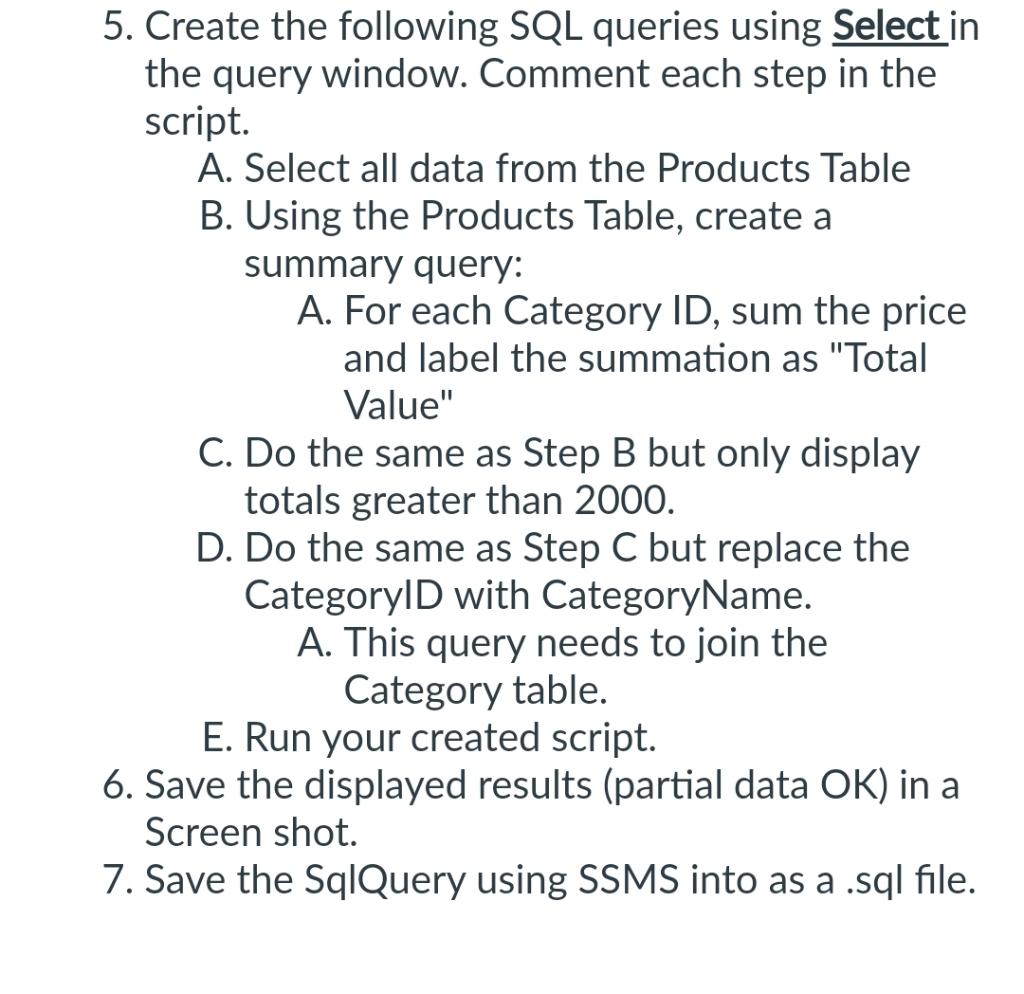
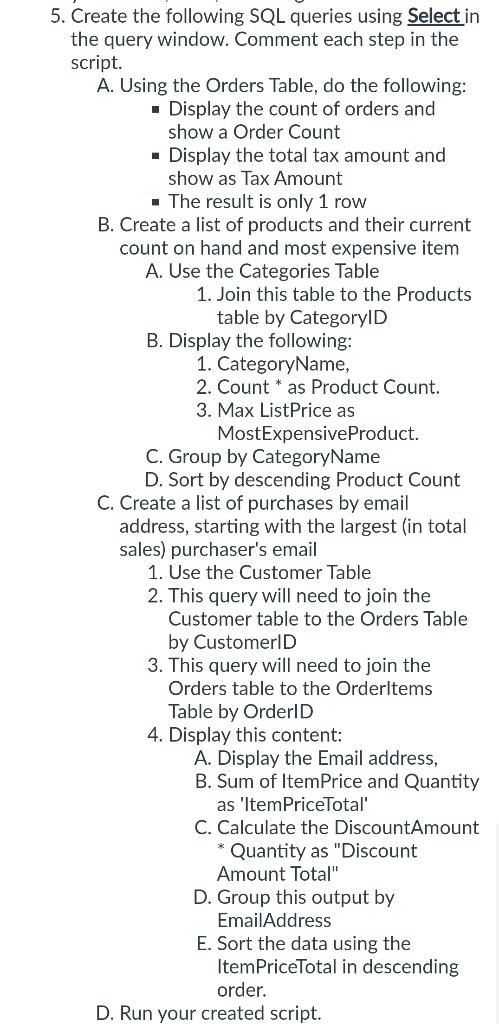
5. Create the following SQL queries using Select in the query window. Comment each step in the script. A. Select all data from the Products Table B. Using the Products Table, create a summary query: A. For each Category ID, sum the price and label the summation as "Total Value" C. Do the same as Step B but only display totals greater than 2000. D. Do the same as Step C but replace the CategoryID with CategoryName. A. This query needs to join the Category table. E. Run your created script. 6. Save the displayed results (partial data OK ) in a Screen shot. 7. Save the SqlQuery using SSMS into as a .sql file. 5. Create the following SQL queries using Select in the query window. Comment each step in the script. A. Using the Orders Table, do the following: - Display the count of orders and show a Order Count - Display the total tax amount and show as Tax Amount - The result is only 1 row B. Create a list of products and their current count on hand and most expensive item A. Use the Categories Table 1. Join this table to the Products table by CategoryID B. Display the following: 1. CategoryName, 2. Count * as Product Count. 3. Max ListPrice as MostExpensiveProduct. C. Group by CategoryName D. Sort by descending Product Count C. Create a list of purchases by email address, starting with the largest (in total sales) purchaser's email 1. Use the Customer Table 2. This query will need to join the Customer table to the Orders Table by CustomerlD 3. This query will need to join the Orders table to the Orderltems Table by OrderID 4. Display this content: A. Display the Email address, B. Sum of ItemPrice and Quantity as 'ItemPriceTotal' C. Calculate the DiscountAmount * Quantity as "Discount Amount Total" D. Group this output by EmailAddress E. Sort the data using the ItemPriceTotal in descending order. D. Run your created script
Step by Step Solution
There are 3 Steps involved in it

Get step-by-step solutions from verified subject matter experts
 Study Help