







Question: 6 Open the Edit Suppliers form in Design view. Select all controls in the Detail 6 section of the form, and then remove the layout.
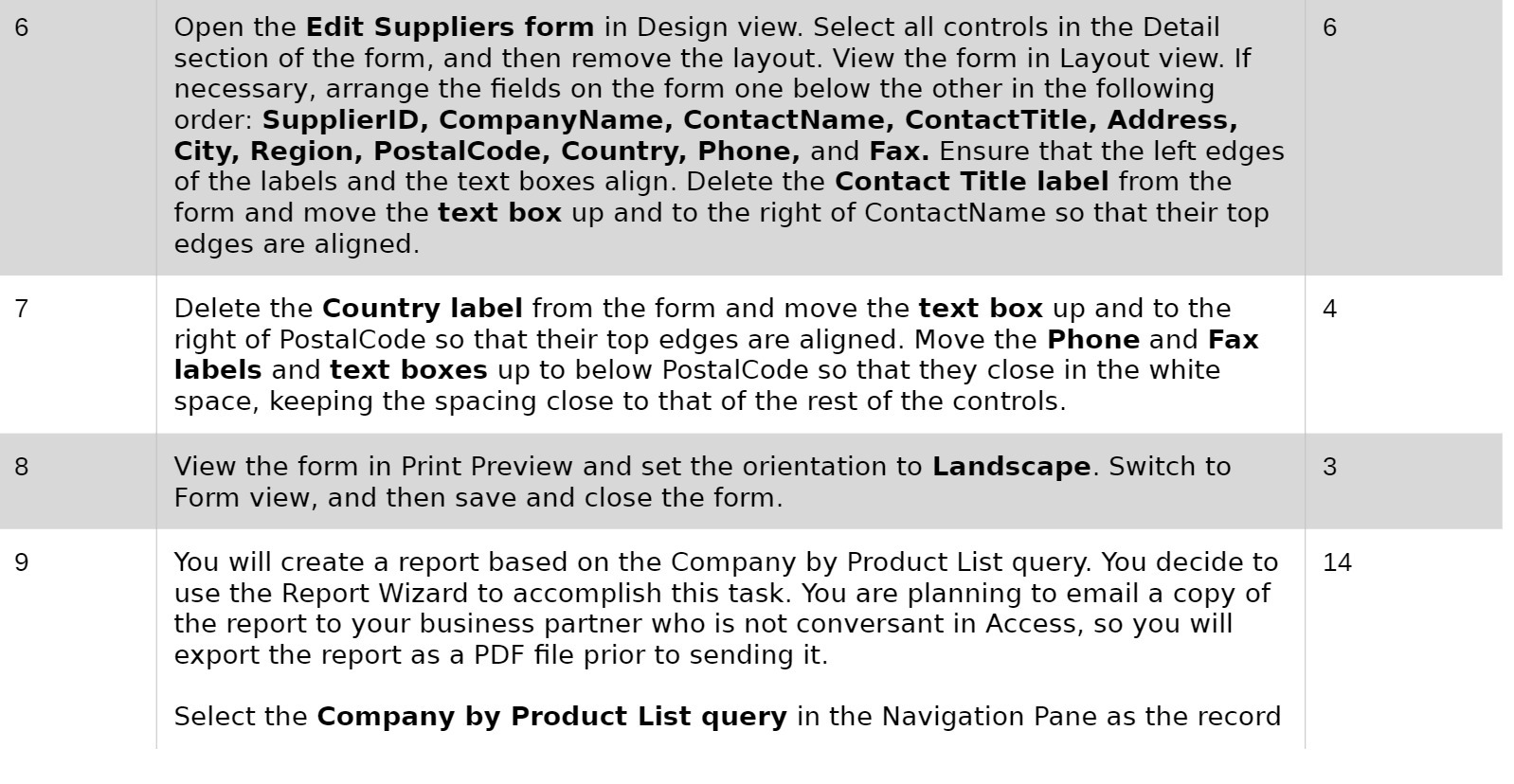
6 Open the Edit Suppliers form in Design view. Select all controls in the Detail 6 section of the form, and then remove the layout. View the form in Layout view. If necessary, arrange the fields on the form one below the other in the following order: SupplierID, CompanyName, ContactName, ContactTitle, Address, City, Region, PostalCode, Country, Phone, and Fax. Ensure that the left edges of the labels and the text boxes align. Delete the Contact Title label from the form and move the text box up and to the right of ContactName so that their top edges are aligned. 7 Delete the Country label from the form and move the text box up and to the 4 right of PostalCode so that their top edges are aligned. Move the Phone and Fax labels and text boxes up to below PostalCode so that they close in the white space, keeping the spacing close to that of the rest of the controls. 8 View the form in Print Preview and set the orientation to Landscape. Switch to 3 Form view, and then save and close the form. 9 You will create a report based on the Company by Product List query. You decide to 14 use the Report Wizard to accomplish this task. You are planning to email a copy of the report to your business partner who is not conversant in Access, so you will export the report as a PDF file prior to sending it. Select the Company by Product List query in the Navigation Pane as the record
Step by Step Solution
There are 3 Steps involved in it

Get step-by-step solutions from verified subject matter experts
 Study Help