



Question: 9. Open the ClaimsRep table in Design View, and then create a custom input mask for the ClaimsRepNumber field so that the field must consist
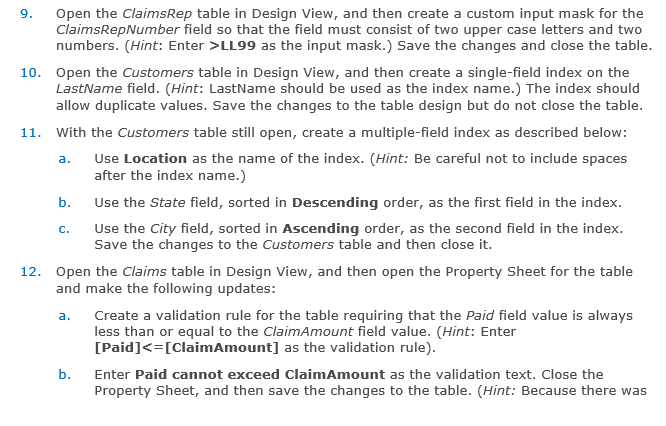
9. Open the ClaimsRep table in Design View, and then create a custom input mask for the ClaimsRepNumber field so that the field must consist of two upper case letters and two numbers. (Hint: Enter >LL99 as the input mask.) Save the changes and close the table. 10. Open the Customers table in Design View, and then create a single-field index on the LastName field. (Hint: LastName should be used as the index name.) The index should allow duplicate values. Save the changes to the table design but do not close the table. 11. With the Customers table still open, create a multiple-field index as described below: a. Use Location as the name of the index. (Hint: Be careful not to include spaces after the index name.) b. Use the State field, sorted in Descending order, as the first field in the index. c. Use the City field, sorted in Ascending order, as the second field in the index. Save the changes to the Customers table and then close it. 12. Open the Claims table in Design View, and then open the Property Sheet for the table and make the following updates: a. Create a validation rule for the table requiring that the Paid field value is always less than or equal to the ClaimAmount field value. (Hint: Enter [Paid]
Step by Step Solution
There are 3 Steps involved in it

Get step-by-step solutions from verified subject matter experts