







Question: a. Add a button named Compute BMI in sheet BMI Data such that by clicking on this button it calculates the BMI from the
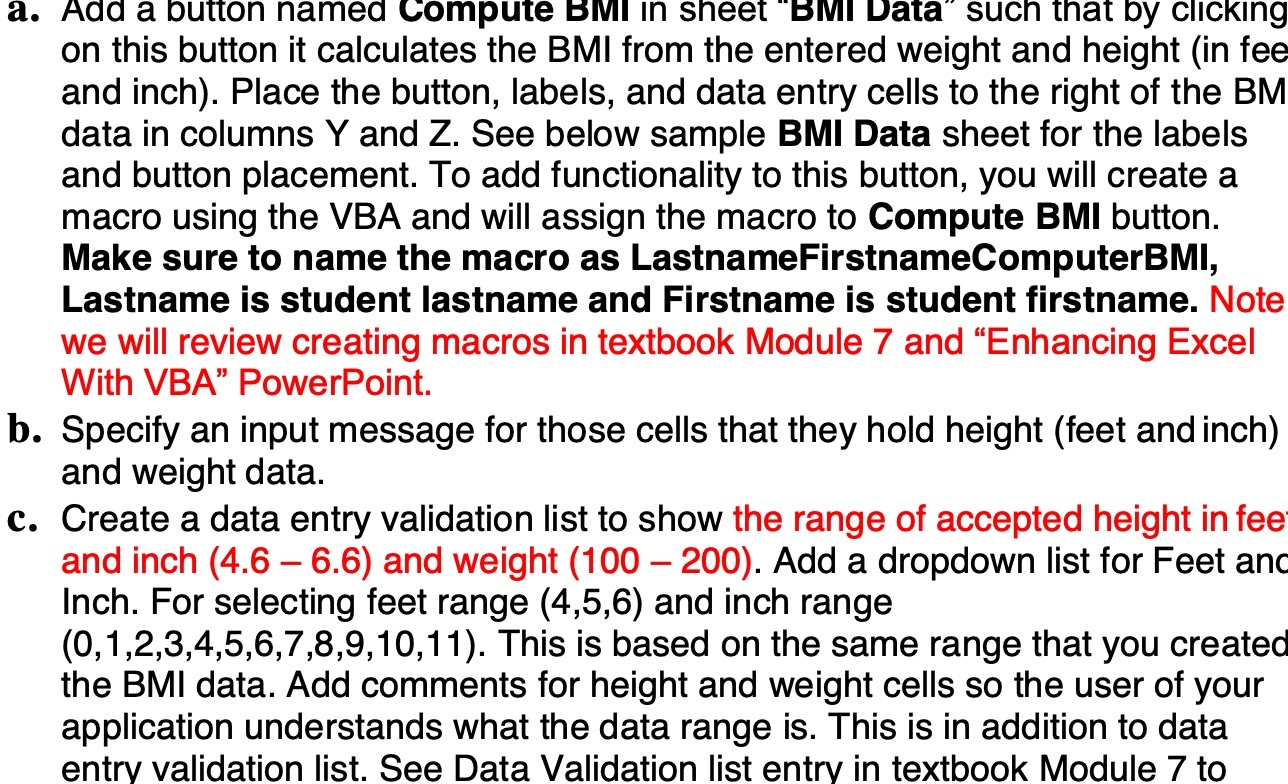
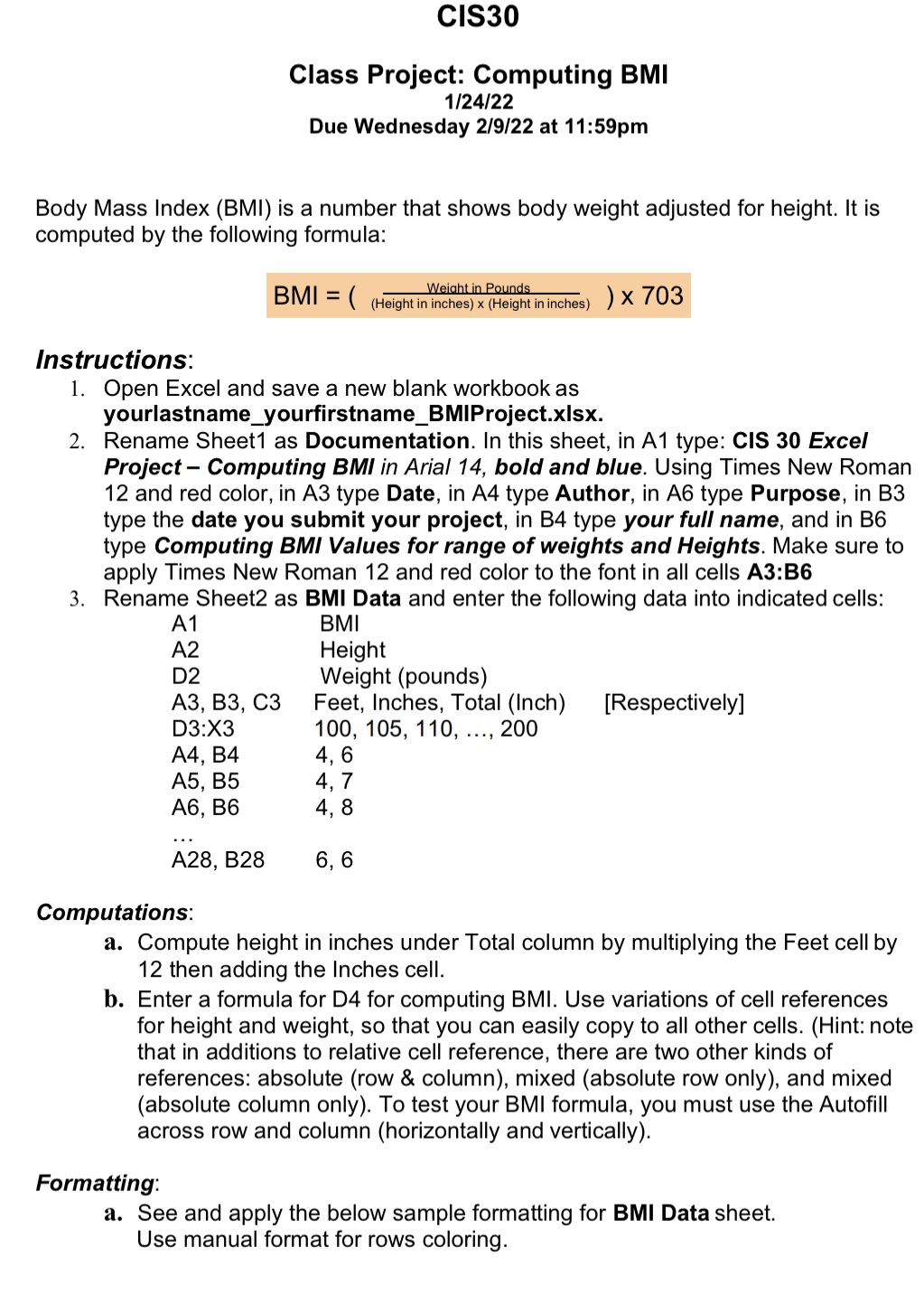
a. Add a button named Compute BMI in sheet "BMI Data" such that by clicking on this button it calculates the BMI from the entered weight and height (in fee and inch). Place the button, labels, and data entry cells to the right of the BM data in columns Y and Z. See below sample BMI Data sheet for the labels and button placement. To add functionality to this button, you will create a macro using the VBA and will assign the macro to Compute BMI button. Make sure to name the macro as LastnameFirstnameComputerBMI, Lastname is student lastname and Firstname is student firstname. Note we will review creating macros in textbook Module 7 and "Enhancing Excel With VBA" PowerPoint. b. Specify an input message for those cells that they hold height (feet and inch) and weight data. c. Create a data entry validation list to show the range of accepted height in feet and inch (4.6 - 6.6) and weight (100-200). Add a dropdown list for Feet and Inch. For selecting feet range (4,5,6) and inch range (0,1,2,3,4,5,6,7,8,9,10,11). This is based on the same range that you created the BMI data. Add comments for height and weight cells so the user of your application understands what the data range is. This is in addition to data entry validation list. See Data Validation list entry in textbook Module 7 to CIS30 Class Project: Computing BMI 1/24/22 Due Wednesday 2/9/22 at 11:59pm Body Mass Index (BMI) is a number that shows body weight adjusted for height. It is computed by the following formula: Weight in Pounds. BMI = ((Height in inches) x (Height in inches) ) x 703 Instructions: 1. Open Excel and save a new blank workbook as yourlastname_yourfirstname_BMIProject.xlsx. 2. Rename Sheet1 as Documentation. In this sheet, in A1 type: CIS 30 Excel Project - Computing BMI in Arial 14, bold and blue. Using Times New Roman 12 and red color, in A3 type Date, in A4 type Author, in A6 type Purpose, in B3 type the date you submit your project, in B4 type your full name, and in B6 type Computing BMI Values for range of weights and Heights. Make sure to apply Times New Roman 12 and red color to the font in all cells A3:B6 3. Rename Sheet2 as BMI Data and enter the following data into indicated cells: A1 A2 BMI Height Weight (pounds) D2 A3, B3, C3 Feet, Inches, Total (Inch) [Respectively] D3:X3 100, 105, 110, ..., 200 A4, B4 4,6 A5, B5 4,7 A6, B6 4,8 A28, B28 6,6 Computations: a. Compute height in inches under Total column by multiplying the Feet cell by 12 then adding the Inches cell. b. Enter a formula for D4 for computing BMI. Use variations of cell references for height and weight, so that you can easily copy to all other cells. (Hint: note that in additions to relative cell reference, there are two other kinds of references: absolute (row & column), mixed (absolute row only), and mixed (absolute column only). To test your BMI formula, you must use the Autofill across row and column (horizontally and vertically). Formatting: a. See and apply the below sample formatting for BMI Data sheet. Use manual format for rows coloring.
Step by Step Solution
There are 3 Steps involved in it

Get step-by-step solutions from verified subject matter experts
 Study Help