







Question: a Sub Highlight(): Create a macro that gives a user different conditional formatting options. -Name the first product value cell as FirstP -Insert a new
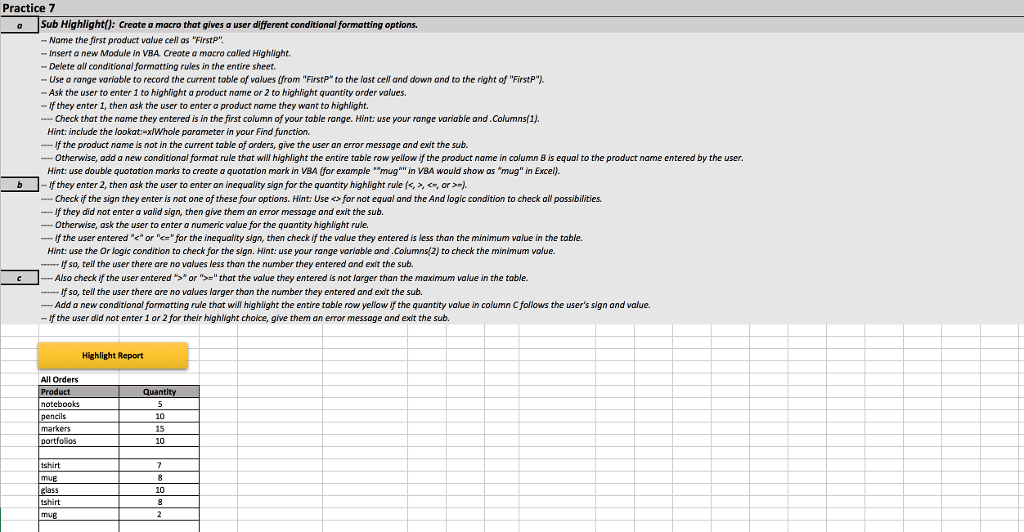
a Sub Highlight(): Create a macro that gives a user different conditional formatting options. -Name the first product value cell as "FirstP" -Insert a new Module in VBA Create a macro caled Highlight. Delete all conditional formatting rules in the entire sheet - Use a range variable to record the current table of values (from "FirstP" to the last cell and down and to the right of "FirstP") Ask the user to enter 1 to highlight product name or 2 to highlight quantity order values. If they enter 1, then ask the user to enter a product name they want to highlight. .Check that the name they entered is in the first column of your table range. Hint: use your range variable and.Columns(1). Hint: include the lookat:xlWhole parameter in your Find function. If the product name is not in the current table of orders, give the user an error message and exit the sub. Otherwise, add a new conditional format rule that will highlight the entire table row yellow if the product name in column B is equal to the product name entered by the user Hint: use double quotation marks to create a quotation mark in VBA (for example "mug" in VBA would show as "mug" in Excel). bIf they enter 2, then ask the user to enter an inequality sign for the quantity highlight rule (or""that the value they entered is not larger than the maximum value in the table. If so, tell the user there are no values larger than the number they entered and exit the sub. -Add a new conditional formatting rule that wll highlight the entire toble row yellow if the quantity value in column C follows the user's sign and value. -If the user did not enter I or 2 for their highlight choice, give them an error message and exit the sub. Highlight Report All Orders Product notebooks tshirt a Sub Highlight(): Create a macro that gives a user different conditional formatting options. -Name the first product value cell as "FirstP" -Insert a new Module in VBA Create a macro caled Highlight. Delete all conditional formatting rules in the entire sheet - Use a range variable to record the current table of values (from "FirstP" to the last cell and down and to the right of "FirstP") Ask the user to enter 1 to highlight product name or 2 to highlight quantity order values. If they enter 1, then ask the user to enter a product name they want to highlight. .Check that the name they entered is in the first column of your table range. Hint: use your range variable and.Columns(1). Hint: include the lookat:xlWhole parameter in your Find function. If the product name is not in the current table of orders, give the user an error message and exit the sub. Otherwise, add a new conditional format rule that will highlight the entire table row yellow if the product name in column B is equal to the product name entered by the user Hint: use double quotation marks to create a quotation mark in VBA (for example "mug" in VBA would show as "mug" in Excel). bIf they enter 2, then ask the user to enter an inequality sign for the quantity highlight rule (or""that the value they entered is not larger than the maximum value in the table. If so, tell the user there are no values larger than the number they entered and exit the sub. -Add a new conditional formatting rule that wll highlight the entire toble row yellow if the quantity value in column C follows the user's sign and value. -If the user did not enter I or 2 for their highlight choice, give them an error message and exit the sub. Highlight Report All Orders Product notebooks tshirt
Step by Step Solution
There are 3 Steps involved in it

Get step-by-step solutions from verified subject matter experts
 Study Help