







Question: A Textual Specification Complete each event driven program as a separate html file containing a . Use any file name you want. Just make sure
A Textual Specification
Complete each event driven program as a separate html file containing a
0) Calculator:
Write an HTML page that contains HTML code, a
1) Hide / Show: Layout a button labeled "Hide", and a nearby div containing some text. When you press hide, the div should disappear, and the button's text should change to "Show". If you press the button again, the div should reappear, and the button's text should change to "Hide" and be back to the starting functionality.

2) Change 7 Styles When the text "Click this text" is clicked (no button this time), change the innerHTML of a div (see after screenshot below) plus seven different styles: fontSize, border, width, float (right), padding, and background color. Here is a before and after with an
after Click this text. You may use different text than shown here.

3) Move Text: Add an input field, a button labeled ">> Move left to right >>", and another input field. Pressing the button should copy text from the left inputfield into the right input field. There need be only this one move.

4) Add to Array: Allow input of strings into an input field. For each new name entered, add to an array. A nearby div should show all names for each update in the format shown (this is not a list). This screenshot shows the page after entering three names. Notice that that input field is reset back to "" for each change in the input field (press enter).

5) Over Out: Layout to divs that look like the ones shone below. The topmost div always contains "Hover over Me". The bottom div changes from blank to Entered when the mouse enters the top div, to Exited when the mouse leaves to top div. Show the number of events after Entered and Exited. Declare a style inside your html for the pink, red, and centered text. Here is the initial view and two views of the same webpage. The bottom div could be Entered or Exited followed by the number of events that have occurred.


6) Growing Image: Start with the image, any one you want with the height or width of somewhere near 60 pixels. Each time the picture is clicked, grow it by in a manner appropriate for your picture of choice, somewhere near 5 and/or 10 pixels for width and/or height. If the picture is in landscape, increase width more than height for example. Growth size is up to you. Picture selection is up to you. This screenshot show a picture after 20 clicks on the image.

7) Pixel Increase: A button labeled "Increment by 1px" and a div containing some text. Every time you press the button, the text's font size in the div increases by 1 pixel. Assume the default pixel size is 16 point.

8) Running Sum
Allow the user to enter numbers after which a list of numbers is shown followed by the sum. Clear the input field after each number is entered with inputField.value = "" (an empty string).

9) Stack: Push the value in the input field onto a Stack when the user presses enter. Pop the top most value when the Pop button is clicked. Show all elements in an unordered list. This is how the page appears after pushing 1, 2, 3, 4, 5, and 6 and then popping the stack three times, followed by pushing 7 and 8.

Please use Eclipse
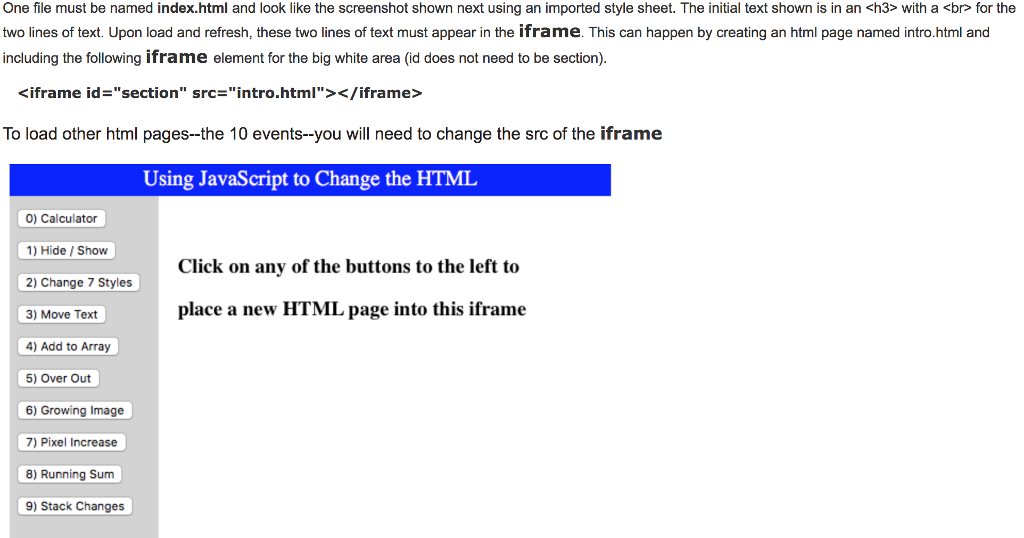
One file must be named index.html and look like the screenshot shown next using an imported style sheet. The initial text shown is in an
with a for the wo lines of text. Upon load and refresh, these two lines of text must appear in the iframe. This can happen by creating an html page named intro.html and including the following iframe element for the big white area (id does not need to be section). To load other html pages-the 10 events--you will need to change the src of the iframe Using JavaScript to Change the HTML 0) Calculator 1) Hide/ Show 2) Change 7 Styles 3) Move Text Click on any of the buttons to the left to place a new HTML page into this iframe 4) Add to Array 5) Over Out 6) Growing Image 7) Pixel Increase 8) Running Sum 9) Stack Changes One file must be named index.html and look like the screenshot shown next using an imported style sheet. The initial text shown is in an with a for the wo lines of text. Upon load and refresh, these two lines of text must appear in the iframe. This can happen by creating an html page named intro.html and including the following iframe element for the big white area (id does not need to be section). To load other html pages-the 10 events--you will need to change the src of the iframe Using JavaScript to Change the HTML 0) Calculator 1) Hide/ Show 2) Change 7 Styles 3) Move Text Click on any of the buttons to the left to place a new HTML page into this iframe 4) Add to Array 5) Over Out 6) Growing Image 7) Pixel Increase 8) Running Sum 9) Stack Changes
Step by Step Solution
There are 3 Steps involved in it

Get step-by-step solutions from verified subject matter experts
 Study Help