



Question: In this exercise, you will create a payroll register for Athletics Supply House using ROUND, IF, and VLOOKUP functions. You will also modify the
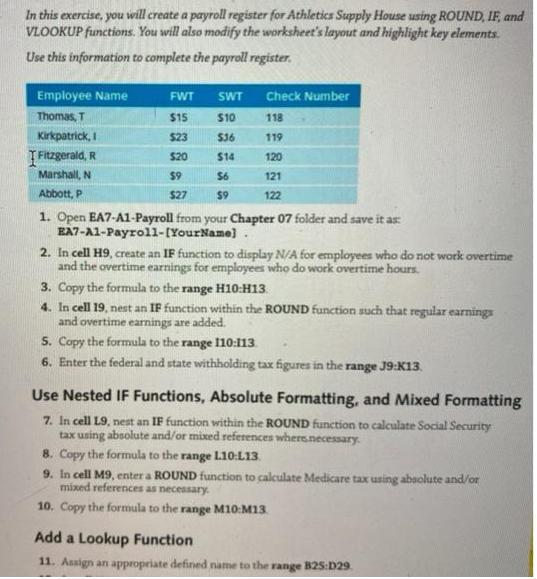


In this exercise, you will create a payroll register for Athletics Supply House using ROUND, IF, and VLOOKUP functions. You will also modify the sworksheet's layout and highlight key elements. Use this information to complete the payroll register. Employee Name FWT SWT Check Number Thomas, T $15 $10 118 Kirkpatrick, I $23 $36 119 TFitzgerald, R $20 S14 120 Marshall, N $9 S6 121 Abbott, P $27 $9 122 1. Open EA7-A1-Payroll from your Chapter 07 folder and save it as BA7-A1-Payrol1-(YourName) 2. In cell H9, create an IF function to display N/A for employees who do not work overtime and the overtime earnings for employees who do work overtime hours. 3. Copy the formula to the range H10:H13. 4. In cell 19, nest an IF function within the ROUND function such that regular earnings and overtime earnings are added. 5. Copy the formula to the range 110:113 6. Enter the federal and state withholding tax figures in the range J9:K13. Use Nested IF Functions, Absolute Formatting, and Mixed Formatting 7. In cell L9, nest an IF function within the ROUND function to calculate Social Security tax using absolute and/or mixed references where.necessary. 8. Copy the formula to the range L10:L13. 9. In cell M9, enter a ROUND function to calculate Medicare tax using absolute and/or mixed references as necessary. 10. Copy the formula to the range M10:M13 Add a Lookup Function 11. Assign an appropriate defined name to the range B25:D29 12. In cell N9, nest a LOOKUP function within the ROUND function to calculate the hospital donation amounts using absolute and/or mixed references as necessary. 13. Copy the formula to the range N10:N13 and then to cell 09, modifying it to properly calculate the school donation amounts. 14. Enter the appropriate check numbers into the range P9:P13. 15. In cell Q9, enter a formula to calculate the net pay; copy it to the range Q10:Q13. 16. Enter a formula to calculate all appropriate totals in row 16. Finalize the Worksheet 17. Move worksheet elements as necessary so they are appropriately aligned. 18. Apply borders and bold or italic formatting where necessary to distinguish sets of data and ensure that the headers stand out. 19. Apply conditional formatting to the Net Pay column such that the two largest checks are highlighted in Yellow Fill with Dark Yellow Text 20. Save and close your file.
Step by Step Solution
3.41 Rating (157 Votes )
There are 3 Steps involved in it
Payroll Register Earnings Deductions Employee Name Regular Hours ... View full answer

Get step-by-step solutions from verified subject matter experts