







Question: and keep the data confidental, Steps to Perform: Points Possible Instructions Step 0 1 Start Excel. Download and open the file Excel_BU02_Assessment 2_Raises.xlsx. Grader will
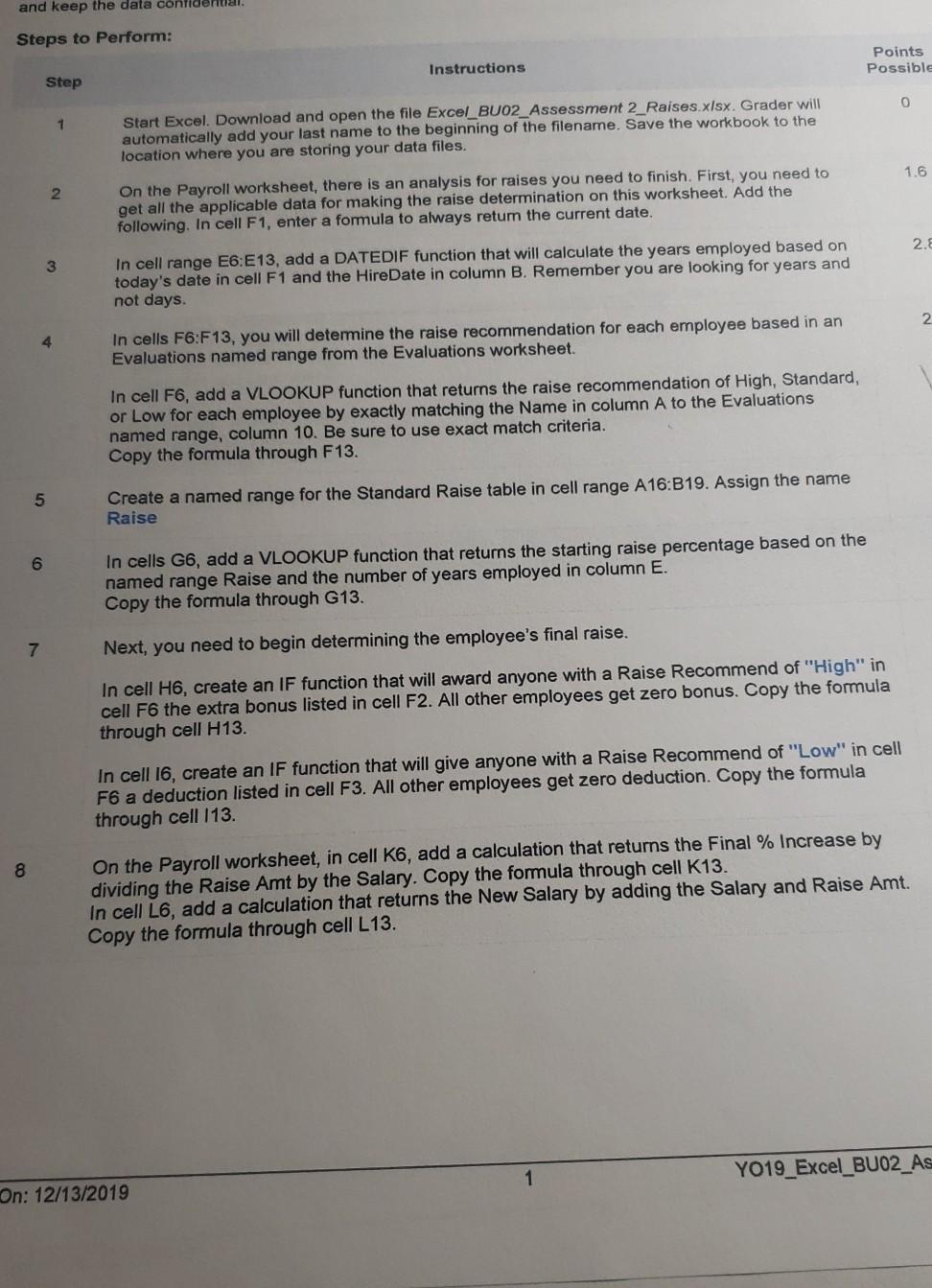
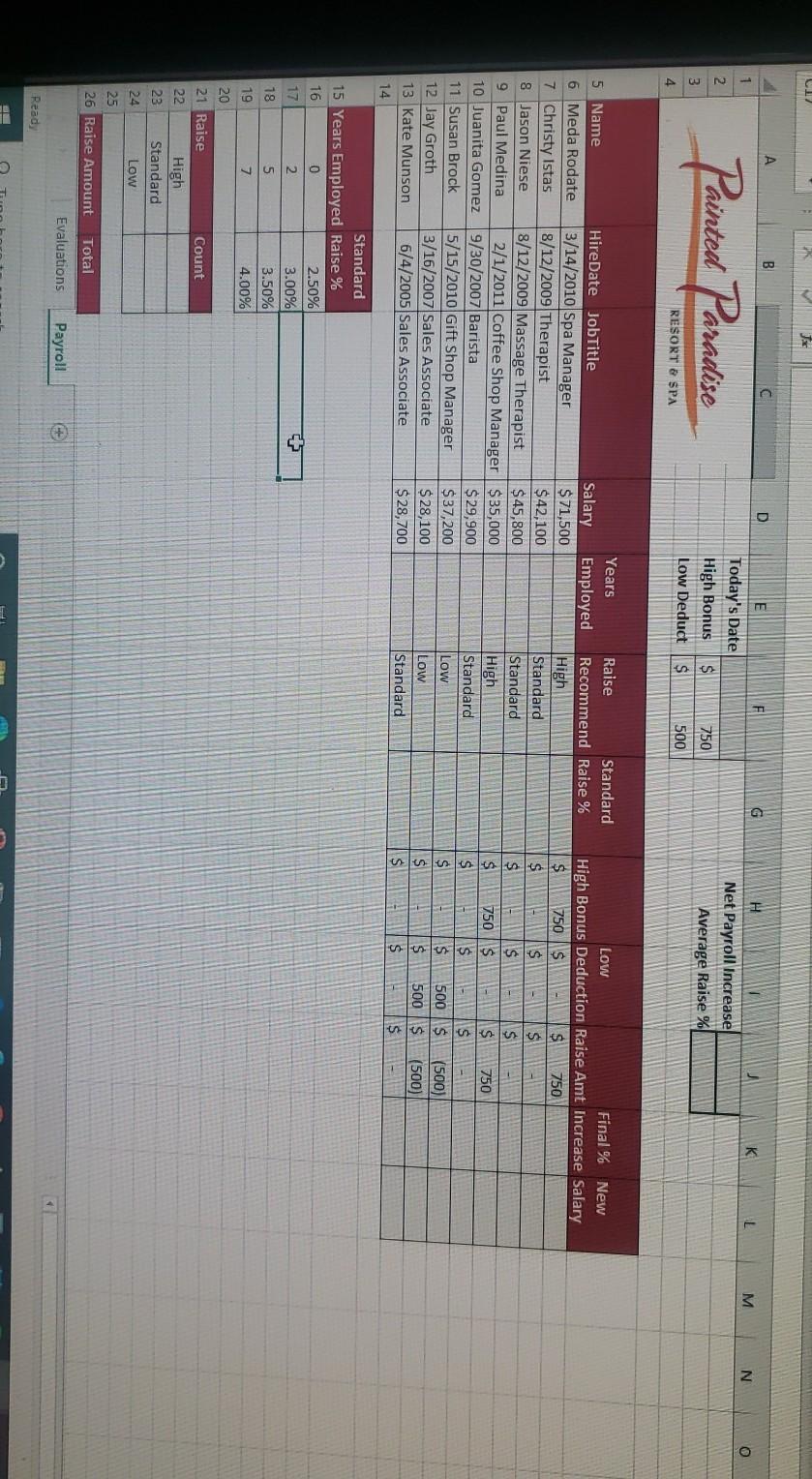
and keep the data confidental, Steps to Perform: Points Possible Instructions Step 0 1 Start Excel. Download and open the file Excel_BU02_Assessment 2_Raises.xlsx. Grader will automatically add your last name to the beginning of the filename. Save the workbook to the location where you are storing your data files. 1.6 2 On the Payroll worksheet, there is an analysis for raises you need to finish. First, you need to get all the applicable data for making the raise determination on this worksheet. Add the following. In cell F1, enter a formula to always retum the current date. 2. & 3 In cell range E6: E13, add a DATEDIF function that will calculate the years employed based on today's date in cell F1 and the HireDate in column B. Remember you are looking for years and not days. 2. 4 In cells F6:F13, you will determine the raise recommendation for each employee based in an Evaluations named range from the Evaluations worksheet. In cell F6, add a VLOOKUP function that returns the raise recommendation of High, Standard, or Low for each employee by exactly matching the Name in column A to the Evaluations named range, column 10. Be sure to use exact match criteria. Copy the formula through F13. 5 Create a named range for the Standard Raise table in cell range A16:B19. Assign the name Raise 6 In cells G6, add a VLOOKUP function that returns the starting raise percentage based on the named range Raise and the number of years employed in column E. Copy the formula through G13. 7 Next, you need to begin determining the employee's final raise. In cell H6, create an IF function that will award anyone with a Raise Recommend of "High" in cell F6 the extra bonus listed in cell F2. All other employees get zero bonus. Copy the formula through cell H13. In cell 16, create an IF function that will give anyone with a Raise Recommend of "Low" in cell F6 a deduction listed in cell F3. All other employees get zero deduction. Copy the formula through cell 113. 8 On the Payroll worksheet, in cell K6, add a calculation that returns the Final % Increase by dividing the Raise Amt by the Salary. Copy the formula through cell K13. In cell L6, add a calculation that returns the New Salary by adding the Salary and Raise Amt. Copy the formula through cell L13. 1 YO19_Excel_BU02_As On: 12/13/2019 C1 B D F G K 1 L M N 2 Painted Paradise Today's Date High Bonus Low Deduct H Net Payroll Increase Average Raise % 3 $ $ 750 500 4 RESORT & SPA 5 Name 6 Meda Rodate 7 Christy Istas 8 Jason Niese 9 Paul Medina 10 Juanita Gomez 11 Susan Brock 12 Jay Groth 13 Kate Munson 14 Years HireDate JobTitle Salary Employed 3/14/2010 Spa Manager $71,500 8/12/2009 Therapist $42,100 8/12/2009 Massage Therapist $ 45,800 2/1/2011 Coffee Shop Manager $ 35,000 9/30/2007 Barista $ 29,900 5/15/2010 Gift Shop Manager $ 37,200 3/16/2007 Sales Associate $28,100 6/4/2005 Sales Associate $ 28,700 Raise Standard Recommend Raise % High Standard Standard High Standard Low Low Standard Low Final % New High Bonus Deduction Raise Amt Increase Salary $ 750 $ $ 750 $ $ $ $ $ $ $ 750 S $ 750 $ $ $ $ $ 500$ (500) $ $ 500 $ (500 $ $ Standard 15 Years Employed Raise % 16 0 2.50% 17 2 3.00% 18 5 3.50% 19 7 4.00% 20 21 Raise Count 22 High 23 Standard 24 Low 25 26 Raise Amount Total Evaluations Payroll Ready
Step by Step Solution
There are 3 Steps involved in it

Get step-by-step solutions from verified subject matter experts
 Study Help