







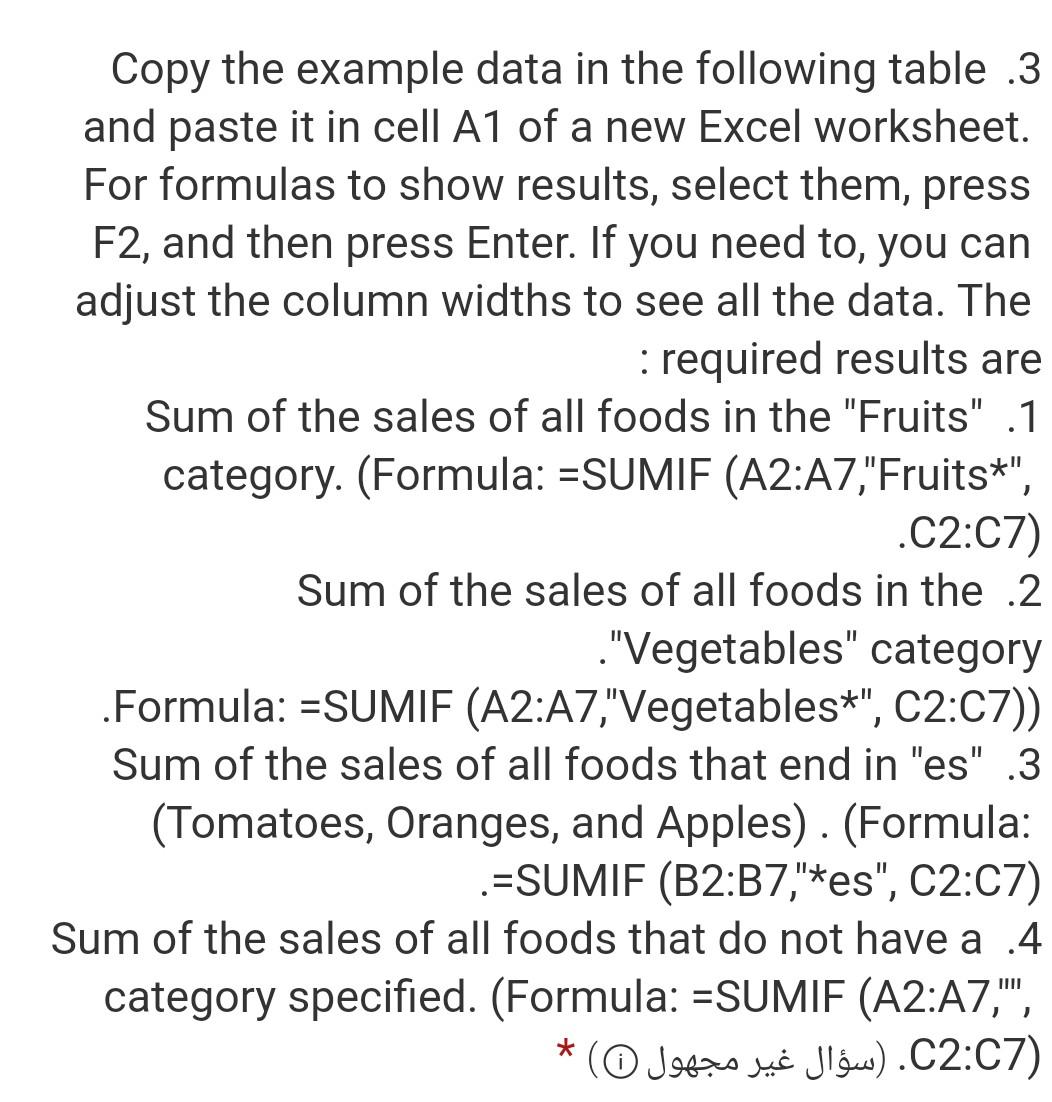
Question: and this is the table Copy the example data in the following table .3 and paste it in cell A1 of a new Excel worksheet.
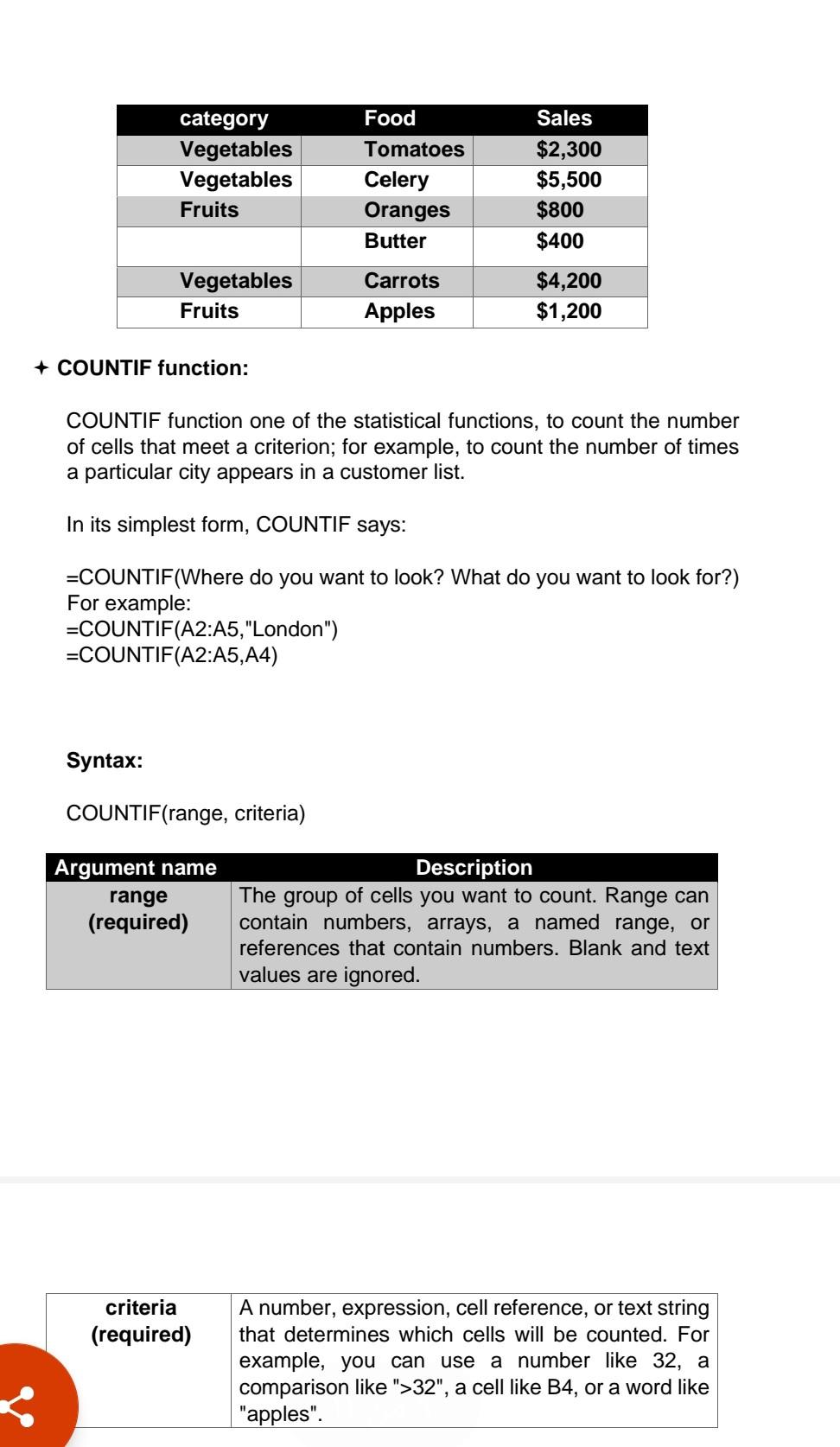
and this is the table
Copy the example data in the following table .3 and paste it in cell A1 of a new Excel worksheet. For formulas to show results, select them, press F2, and then press Enter. If you need to, you can adjust the column widths to see all the data. The : required results are Sum of the sales of all foods in the "Fruits" .1 category. (Formula: =SUMIF (A2:A7,"Fruits*", .C2:07) Sum of the sales of all foods in the 2 ."Vegetables" category .Formula: =SUMIF (A2:A7,"Vegetables*", C2:07)) Sum of the sales of all foods that end in "es" .3 (Tomatoes, Oranges, and Apples). (Formula: . =SUMIF (B2:37,"*es", C2:07) Sum of the sales of all foods that do not have a 4 category specified. (Formula: =SUMIF (A2:A7,'", * ( O Jetze uc Jiw).C2:07) category Vegetables Vegetables Fruits Food Tomatoes Celery Oranges Butter Sales $2,300 $5,500 $800 $400 Vegetables Fruits Carrots Apples $4,200 $1,200 + COUNTIF function: COUNTIF function one of the statistical functions, to count the number of cells that meet a criterion; for example, to count the number of times a particular city appears in a customer list. In its simplest form, COUNTIF says: =COUNTIF(Where do you want to look? What do you want to look for?) For example: =COUNTIF(A2:A5,"London") =COUNTIF(A2:A5, A4) Syntax: COUNTIF(range, criteria) Argument name range (required) Description The group of cells you want to count. Range can contain numbers, arrays, a named range, or references that contain numbers. Blank and text values are ignored. criteria (required) A number, expression, cell reference, or text string that determines which cells will be counted. For example, you can use a number like 32, a comparison like ">32", a cell like B4, or a word like "apples". Copy the example data in the following table .3 and paste it in cell A1 of a new Excel worksheet. For formulas to show results, select them, press F2, and then press Enter. If you need to, you can adjust the column widths to see all the data. The : required results are Sum of the sales of all foods in the "Fruits" .1 category. (Formula: =SUMIF (A2:A7,"Fruits*", .C2:07) Sum of the sales of all foods in the 2 ."Vegetables" category .Formula: =SUMIF (A2:A7,"Vegetables*", C2:07)) Sum of the sales of all foods that end in "es" .3 (Tomatoes, Oranges, and Apples). (Formula: . =SUMIF (B2:37,"*es", C2:07) Sum of the sales of all foods that do not have a 4 category specified. (Formula: =SUMIF (A2:A7,'", * ( O Jetze uc Jiw).C2:07) category Vegetables Vegetables Fruits Food Tomatoes Celery Oranges Butter Sales $2,300 $5,500 $800 $400 Vegetables Fruits Carrots Apples $4,200 $1,200 + COUNTIF function: COUNTIF function one of the statistical functions, to count the number of cells that meet a criterion; for example, to count the number of times a particular city appears in a customer list. In its simplest form, COUNTIF says: =COUNTIF(Where do you want to look? What do you want to look for?) For example: =COUNTIF(A2:A5,"London") =COUNTIF(A2:A5, A4) Syntax: COUNTIF(range, criteria) Argument name range (required) Description The group of cells you want to count. Range can contain numbers, arrays, a named range, or references that contain numbers. Blank and text values are ignored. criteria (required) A number, expression, cell reference, or text string that determines which cells will be counted. For example, you can use a number like 32, a comparison like ">32", a cell like B4, or a word like "apples
Step by Step Solution
There are 3 Steps involved in it

Get step-by-step solutions from verified subject matter experts
 Study Help