







Question: Example 2: Copy the example data in the following table and paste it in cell A1 of a new Excel worksheet. For formulas to show
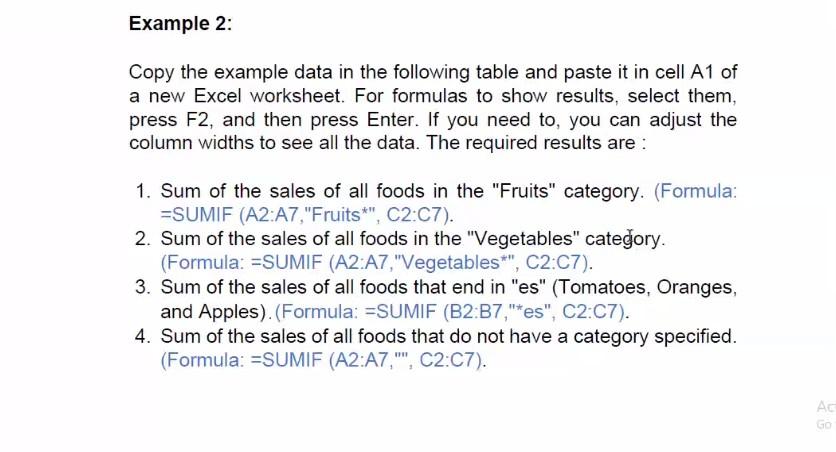
Example 2: Copy the example data in the following table and paste it in cell A1 of a new Excel worksheet. For formulas to show results, select them, press F2, and then press Enter. If you need to, you can adjust the column widths to see all the data. The required results are : 1. Sum of the sales of all foods in the "Fruits" category. (Formula: =SUMIF (A2:A7,"Fruits*", C2:07). 2. Sum of the sales of all foods in the "Vegetables" category. (Formula: =SUMIF (A2:A7,"Vegetables*", C2:07). 3. Sum of the sales of all foods that end in "es" (Tomatoes, Oranges, and Apples).(Formula: =SUMIF (B2:37,"es", C2:07). 4. Sum of the sales of all foods that do not have a category specified. (Formula: =SUMIF (A2:A7, "", C2:07). Example 2: Copy the example data in the following table and paste it in cell A1 of a new Excel worksheet. For formulas to show results, select them, press F2, and then press Enter. If you need to, you can adjust the column widths to see all the data. The required results are : 1. Sum of the sales of all foods in the "Fruits" category. (Formula: =SUMIF (A2:A7,"Fruits*", C2:07). 2. Sum of the sales of all foods in the "Vegetables" category. (Formula: =SUMIF (A2:A7,"Vegetables*", C2:07). 3. Sum of the sales of all foods that end in "es" (Tomatoes, Oranges, and Apples).(Formula: =SUMIF (B2:37,"es", C2:07). 4. Sum of the sales of all foods that do not have a category specified. (Formula: =SUMIF (A2:A7, "", C2:07)
Step by Step Solution
There are 3 Steps involved in it

Get step-by-step solutions from verified subject matter experts
 Study Help