Question: Android Studio: Instructions: Create an application containing 2 activities along with a custom adapter. Your application will allow a user to select an item from
Android Studio:
Instructions: Create an application containing 2 activities along with a custom adapter. Your application will allow a user to select an item from a Spinner on one activity, and once selected, launch the second activity and display the description and image for the selected item. Once completed, you will add an icon to your application and generate a signed APK that is ready to be distributed. Section 1 1. Create a new project with 2 activities - Selection Activity (your Main), and Display Activity (your secondary activity). Each activity should have the unique title/label shown in the illustration below, but when installed, the app should be listed as - Image Viewer App, where
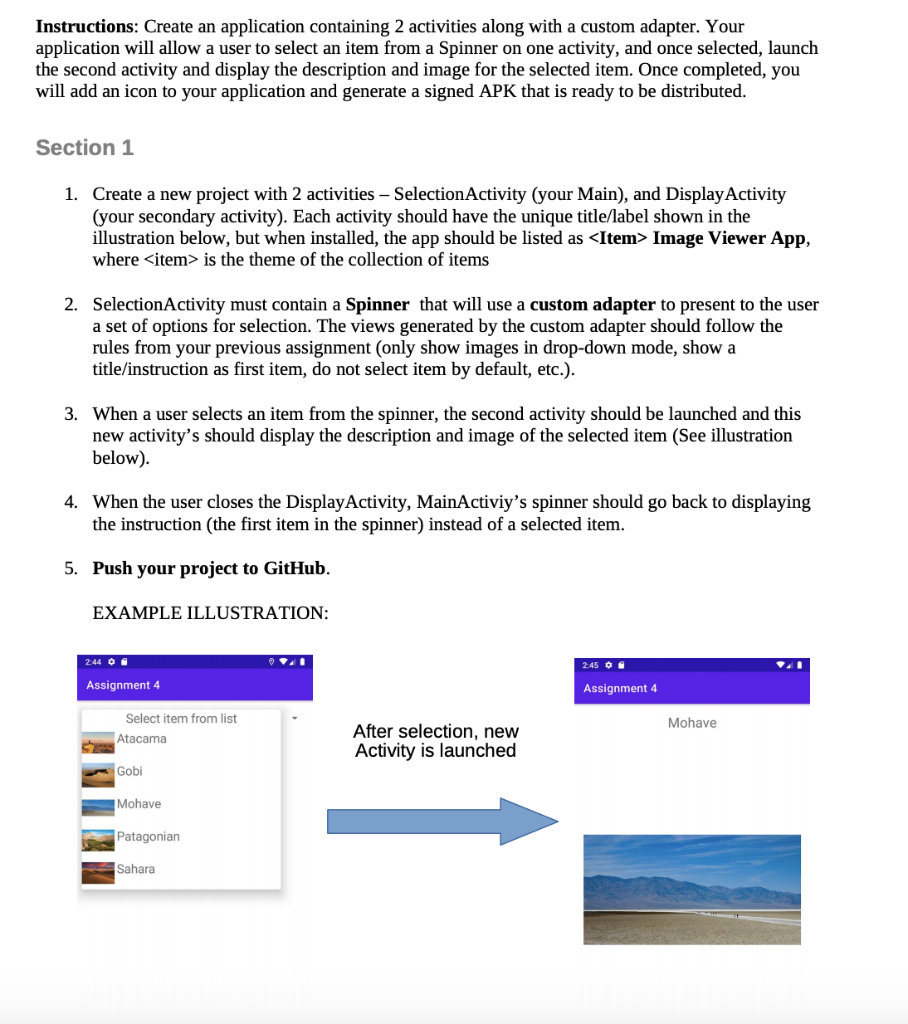
- is the theme of the collection of items 2. Selection Activity must contain a Spinner that will use a custom adapter to present to the user a set of options for selection. The views generated by the custom adapter should follow the rules from your previous assignment (only show images in drop-down mode, show a title/instruction as first item, do not select item by default, etc.). 3. When a user selects an item from the spinner, the second activity should be launched and this new activity's should display the description and image of the selected item (See illustration below) 4. When the user closes the Display Activity, MainActiviy's spinner should go back to displaying the instruction (the first item in the spinner) instead of a selected item. 5. Push your project to GitHub. EXAMPLE ILLUSTRATION: 2:44 O 2:45 O. . Assignment 4 Assignment 4 Select item from list Atacama Mohave After selection, new Activity is launched Gobi Mohave Patagonian Sahara Instructions: Create an application containing 2 activities along with a custom adapter. Your application will allow a user to select an item from a Spinner on one activity, and once selected, launch the second activity and display the description and image for the selected item. Once completed, you will add an icon to your application and generate a signed APK that is ready to be distributed. Section 1 1. Create a new project with 2 activities - Selection Activity (your Main), and Display Activity (your secondary activity). Each activity should have the unique title/label shown in the illustration below, but when installed, the app should be listed as
- Image Viewer App, where
- is the theme of the collection of items 2. Selection Activity must contain a Spinner that will use a custom adapter to present to the user a set of options for selection. The views generated by the custom adapter should follow the rules from your previous assignment (only show images in drop-down mode, show a title/instruction as first item, do not select item by default, etc.). 3. When a user selects an item from the spinner, the second activity should be launched and this new activity's should display the description and image of the selected item (See illustration below) 4. When the user closes the Display Activity, MainActiviy's spinner should go back to displaying the instruction (the first item in the spinner) instead of a selected item. 5. Push your project to GitHub. EXAMPLE ILLUSTRATION: 2:44 O 2:45 O. . Assignment 4 Assignment 4 Select item from list Atacama Mohave After selection, new Activity is launched Gobi Mohave Patagonian Sahara









 Study Help