







Question: As you continue developing the Web site for the Murfreesboro Regional Soccer League, you incorporate font styling and into the site. a. Open HTM D-7.html
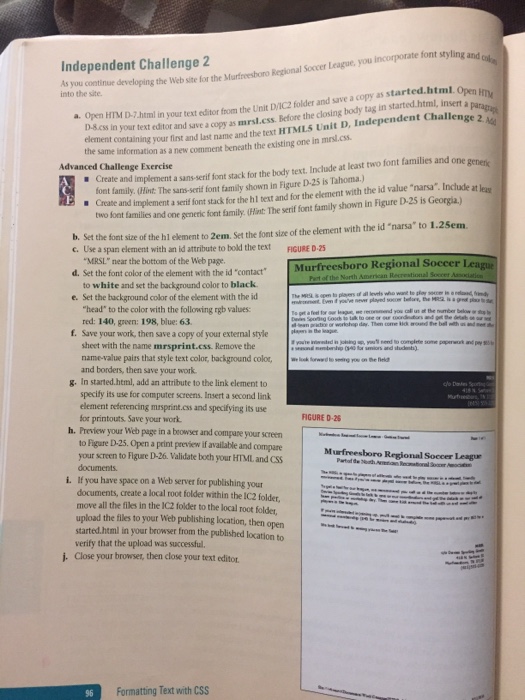
As you continue developing the Web site for the Murfreesboro Regional Soccer League, you incorporate font styling and into the site. a. Open HTM D-7.html in your text editor from the Unit D/IC2 folder and save a copy as started.html. Open HTM D-8.css in your text editor and save a copy as marsl.css. Before the closing body tag in started.html, insert a paragraph element containing your first and last name and the text HTML5 Unit D, Independent Challenge 2. Add the same information as a new comment beneath the existing one in mrsl.css. Create and implement a sans-serif stack for the body text, include at least two font families and one generic font family. Create and implement a serif font stack for the h1 text and for the element with the id "narsa". Include at least two font family and one generic font family. B. Set the font size of the h1 element to 2cm. Set the font size of the element with the id "narsa" to 1.25em. c. Use a span element with an id attribute to bold the text "MRSL" near the bottom of the Web page. d. Set the font color of the element with the id "contact" to white and set the background color to black. e. Set the background color of the element with the id "head" to the color with the following rgb values: red: 140, green: 198, blue: 63. f. Save your work, then save a copy of your external style sheet with the name mrsprint.css. Remove the name-value pairs that style text color, background color, field and borders, then save your work. g. In started.html, add an attribute to the link element to specify its use for computer screens. Insert a second link element referencing mrsprint.css and specifying its use for printouts. Save your work. h. Preview your Web page in a browser and compare your screen to Figure D-25. Open a print preview if available and compare your screen to Figure D-26. Validate both your HTML and CSS documents. i. If you have space on a Web server for publishing your documents, create a local root folder within the IC2 folder, move all the files in the IC2 folder to the local root folder, upload the files to your Web publishing location, then open started.html in your browser from the published location to verify that the upload was successful. Close your browser, then close your text editor
Step by Step Solution
There are 3 Steps involved in it

Get step-by-step solutions from verified subject matter experts
 Study Help