







Question: asp.net database visual studio project files omework - Enhance the Product List application Update the data list to show the calculated value 9. Display the
asp.net database visual studio
project files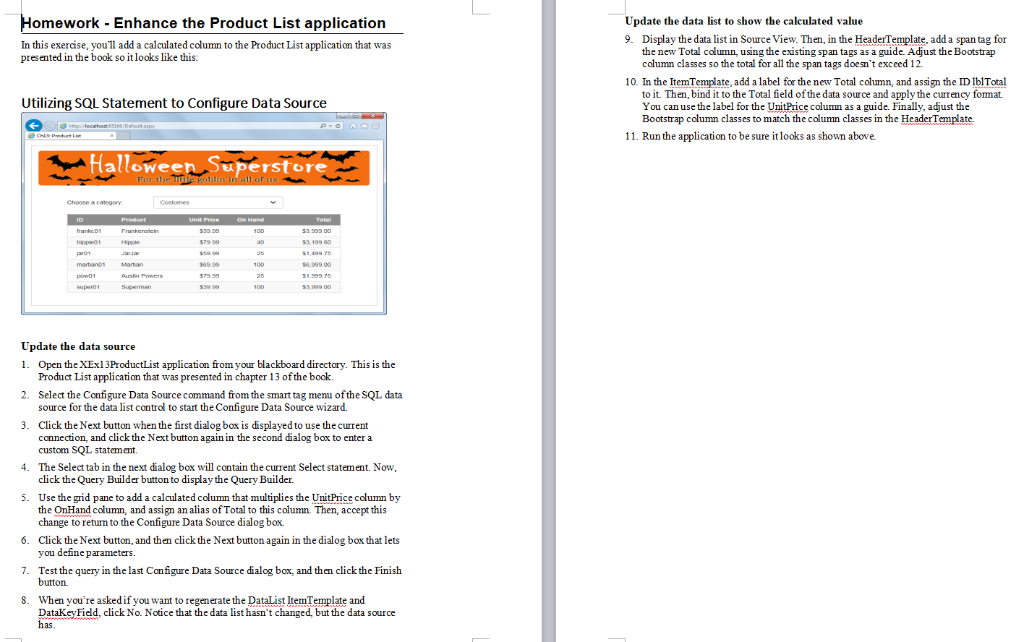
omework - Enhance the Product List application Update the data list to show the calculated value 9. Display the data list in Source View. Then, in the HeaderTemplate, add a span tag for In this exercise, you'll add a calculated columm to the Product List application that was presented in the book so itlooks like this. the new Total column, using the existing span tags as a guide. Adjust the Bootstrap column classes so the total for all the span tags doesn't exceed 12 10. In the ItemTemplate, add a label for the new Total column, and assign the ID 1blTotal to it. Then, bind it to the Total field of the data source and apply the currency fomat. You can use the label for the UnitPricecmn as a guide. Finally, adjust the Bootstrap column classes to match the column classes in the HeaderTemplate Utilizing SOL Statement to Configure Data Source 11. Run the application to be sure itlooks as shown above Halloween Superstore Choose acateoory Update the data source 1. Open the XEx13ProductList application from your blackboard directory. This is the 2. Select the Configure Data Source command from the smart tag menu of the SQL data 3. Click the Next button when the first dialog box is displayed to use the current Product List application that was presented in chapter 13 ofthe book source for the data list control to start the Configure Data Source wizard. connection, and clickthe Next button again in the second dialog box to enter a custom SQL statement 4. The Select tab in the next dialog box will contain the current Select statement. Now click the Query Builder button to display the Query Builder. 5. Use the grid pane to add a calculated colum that multiplies the UnitPrice column by the OnHand column, and assign an alias of Total to this column. Then, accept this change to return to the Configure Dt Soce dialog box. 6. Click the Next button, and then clickthe Next button again in the dialog box that lets you define parameters. 7. Test the query in the last Configure Data Source dialog box, and then clickthe Finish button 8. When you're askedif you want to regenerate the DataList ItemTemplate and DataKeyFidd, click No. Notice that the data list hasn't changed, but the data source has omework - Enhance the Product List application Update the data list to show the calculated value 9. Display the data list in Source View. Then, in the HeaderTemplate, add a span tag for In this exercise, you'll add a calculated columm to the Product List application that was presented in the book so itlooks like this. the new Total column, using the existing span tags as a guide. Adjust the Bootstrap column classes so the total for all the span tags doesn't exceed 12 10. In the ItemTemplate, add a label for the new Total column, and assign the ID 1blTotal to it. Then, bind it to the Total field of the data source and apply the currency fomat. You can use the label for the UnitPricecmn as a guide. Finally, adjust the Bootstrap column classes to match the column classes in the HeaderTemplate Utilizing SOL Statement to Configure Data Source 11. Run the application to be sure itlooks as shown above Halloween Superstore Choose acateoory Update the data source 1. Open the XEx13ProductList application from your blackboard directory. This is the 2. Select the Configure Data Source command from the smart tag menu of the SQL data 3. Click the Next button when the first dialog box is displayed to use the current Product List application that was presented in chapter 13 ofthe book source for the data list control to start the Configure Data Source wizard. connection, and clickthe Next button again in the second dialog box to enter a custom SQL statement 4. The Select tab in the next dialog box will contain the current Select statement. Now click the Query Builder button to display the Query Builder. 5. Use the grid pane to add a calculated colum that multiplies the UnitPrice column by the OnHand column, and assign an alias of Total to this column. Then, accept this change to return to the Configure Dt Soce dialog box. 6. Click the Next button, and then clickthe Next button again in the dialog box that lets you define parameters. 7. Test the query in the last Configure Data Source dialog box, and then clickthe Finish button 8. When you're askedif you want to regenerate the DataList ItemTemplate and DataKeyFidd, click No. Notice that the data list hasn't changed, but the data source has
Step by Step Solution
There are 3 Steps involved in it

Get step-by-step solutions from verified subject matter experts
 Study Help