







Question: Assignment 1B: Setting Up and Running Solver Before using the Solver Parameters window, you should jot down the parameters you must define and their cell
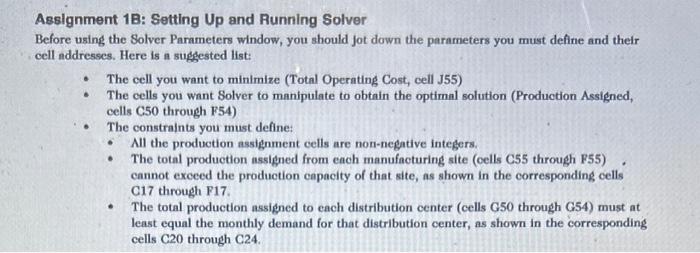
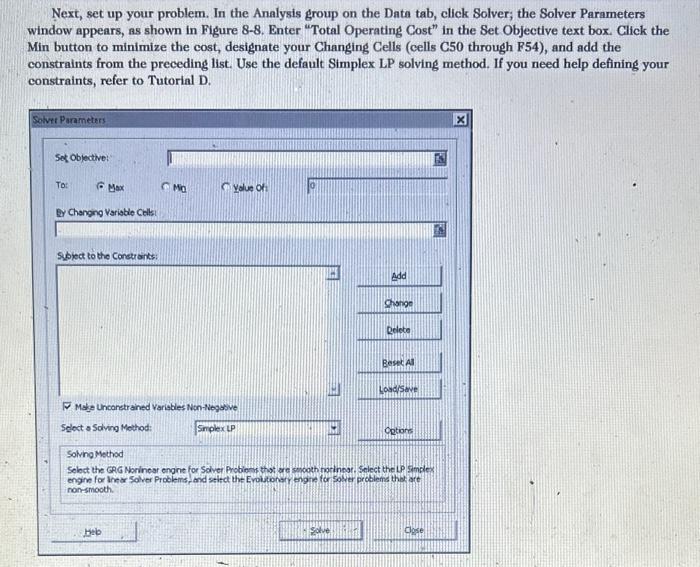

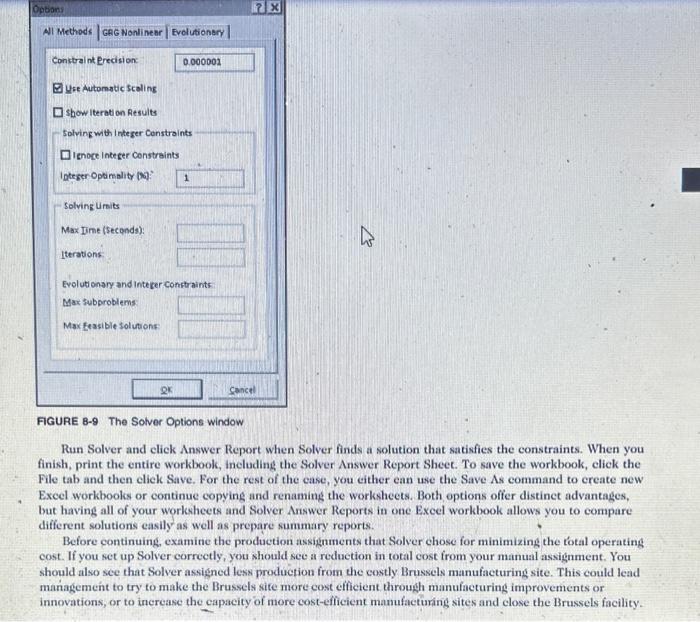
Assignment 1B: Setting Up and Running Solver Before using the Solver Parameters window, you should jot down the parameters you must define and their cell addresses. Here is a suggested list: - The cell you want to minimize (Total Operating Cost, cell J55) - The cells you want Solver to manipulate to obtain the optimal solution (Production Assigned, cells C50 through F54) - The constraints you must define: - All the production assignment cells are non-negative integers. - The total production assigned from each manufacturing site (oells C55 through F55) cannot exceed the production capacity of that site, as shown in the corresponding cells C17 through F17. - The total production assigned to each distribution center (cells G50 through G54) must at least equal the monthly demand for that distribution center, as shown in the corresponding cells C20 through C24. Next, set up your problem. In the Analysis group on the Data tab, click Solver; the Solver Parameters window appears, as shown in Figure 8-8. Enter "Total Operating Cost" in the Set Objective text box. Click the Min button to minimize the cost, designate your Changing Cells (cells C50 through F54), and add the constraints from the preceding list. Use the default Simplex LP solving method. If you need help defining your constraints, refer to Tutorial D. Next, you should elick the Options button and check the Options window that appears (see Figure 8-9). The default Integer Optimality is 5%; change it to 1% to get a better answer, Make sure that the Constraint Precision is set to the default value of .000001 and that Use Automatio Scaling is checked. When you finish setting the options, click OK to return to the Solver Parameters window. FIGURE 8-9 The Solver Options window Run Solver and click Answer Report when Solver finds a solution that satisfies the constraints. When you finish, print the entire workbook, including the Solver Answer Report Sheet. To save the workbook, click the File tab and then click Save. For the rest of the case, you cither ean use the Save As command to create new Excel workbooks or continue copying and renaming the worksheets. Both options offer distinet advantages, but having all of your workheets and Solver Answer Reports in one Exeel workbook allows you to compare different solutions easily as well as prepare summary reports. Before continuing, examine the production assignments that Solver chose for minimizing the total operating cost. If you set up Solver correctly, you should see a reduetion in total cost from your manual assignment. You should also see that Solver assigned less production from the costly Brussels manufacturing site. This could lead management to try to make the Brussels site more cost efficient through manufacturing improvements or innovations, or to increase the capacity of more cost-efficient manufacturing sites and close the Brussels facility
Step by Step Solution
There are 3 Steps involved in it

Get step-by-step solutions from verified subject matter experts
 Study Help