







Question: Below is the example code for the Elgen Face Example (Run seperatly in jupyter notebook) in Python: ---------------------------------------------------------------------------------------------------------------------------------------------------------- from sklearn.datasets import fetch_lfw_people faces = fetch_lfw_people(min_faces_per_person=60)
Below is the example code for the Elgen Face Example (Run seperatly in jupyter notebook) in Python:
----------------------------------------------------------------------------------------------------------------------------------------------------------

from sklearn.datasets import fetch_lfw_people
faces = fetch_lfw_people(min_faces_per_person=60) print(' Faces to be used: ', faces.target_names) print(' Faces shape:', faces.images.shape)
----------------------------------------------------------------------------------------------------------------------------------------------------------

from sklearn.decomposition import PCA as RandomizedPCA pca = RandomizedPCA(1348) pca.fit(faces.data)
----------------------------------------------------------------------------------------------------------------------------------------------------------

%matplotlib inline import matplotlib.pyplot as plt import imageio import numpy as np import warnings from PIL import Image from urllib.request import urlopen fig, axes = plt.subplots(3, 8, figsize=(9, 4), subplot_kw={'xticks':[], 'yticks':[]}, gridspec_kw=dict(hspace=0.1, wspace=0.1)) for i, ax in enumerate(axes.flat): ax.imshow(pca.components_[i].reshape(62, 47), cmap='bone')
----------------------------------------------------------------------------------------------------------------------------------------------------------

plt.plot(np.cumsum(pca.explained_variance_ratio_)) plt.xlabel('number of components') plt.ylabel('cumulative explained variance') plt.show()
----------------------------------------------------------------------------------------------------------------------------------------------------------

pca = RandomizedPCA(150) pca.fit(faces.data)
plt.plot(np.cumsum(pca.explained_variance_ratio_)) plt.xlabel('number of components') plt.ylabel('cumulative explained variance') plt.show()
----------------------------------------------------------------------------------------------------------------------------------------------------------
![axes = plt.subplots(3, 8, figsize=(9, 4), subplot_kw={'xticks':[], 'yticks':[]}, gridspec_kw=dict(hspace=0.1, wspace=0.1)) for i,](https://dsd5zvtm8ll6.cloudfront.net/si.experts.images/questions/2024/09/66f950a717c57_14266f950a6bb007.jpg)
# Compute the components and projected faces pca = RandomizedPCA(150).fit(faces.data) components = pca.transform(faces.data) projected = pca.inverse_transform(components)
# Plot the results fig, ax = plt.subplots(2, 8, figsize=(10, 2.5), subplot_kw={'xticks':[], 'yticks':[]}, gridspec_kw=dict(hspace=0.1, wspace=0.1)) for i in range(8): ax[0, i].imshow(faces.data[i].reshape(62, 47), cmap='binary_r') ax[1, i].imshow(projected[i].reshape(62, 47), cmap='binary_r') ax[0, 0].set_ylabel('full-dim input') ax[1, 0].set_ylabel('150-dim reconstruction');
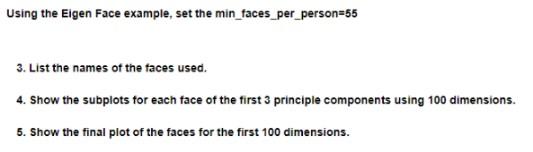
Using the Eigen Face example, set the min_faces_per_person=55 3. List the names of the faces used. 4. Show the subplots for each face of the first 3 principle components using 100 dimensions. 5. Show the final plot of the faces for the first 100 dimensions. We will use the Labeled Faces in the Wild dataset, which consists of several thousand collated photos of various public figures A fetcher for the dataset is built into Scikit-Learn Let's take a look at the principal axes that span this dataset Because this is a large dataset, we will use RandomizedPCA-it contains a randomized method to approximate the first N principal components much more quickly than the standard PCA estimator, and thus is very useful for high-dimensional data Visualize the images associated with the first several principal components (these components are technically known as "eigenvectors," so these types of images are often called "eigenfaces") As you can see in this figure, they are as creepy as they sound The results are very interesting, and give us insight into how the images vary: for example, the first few eigenfaces (from the top left) seem to be associated with the angle of lighting on the face, and later principal vectors seem to be picking out certain features, such as eyes, noses, and lips Let's take a look at the cumulative variance of these components to see how much of the data information the projection is preserving Let's look at the first 150 components We see that the first 150 components account for just over 95% of the variance That would lead us to believe that using these 150 components, we would recover most of the essential characteristics of the data To make this more concrete, we can compare the input images with the images reconstructed from these 150 components
Step by Step Solution
There are 3 Steps involved in it

Get step-by-step solutions from verified subject matter experts
 Study Help