







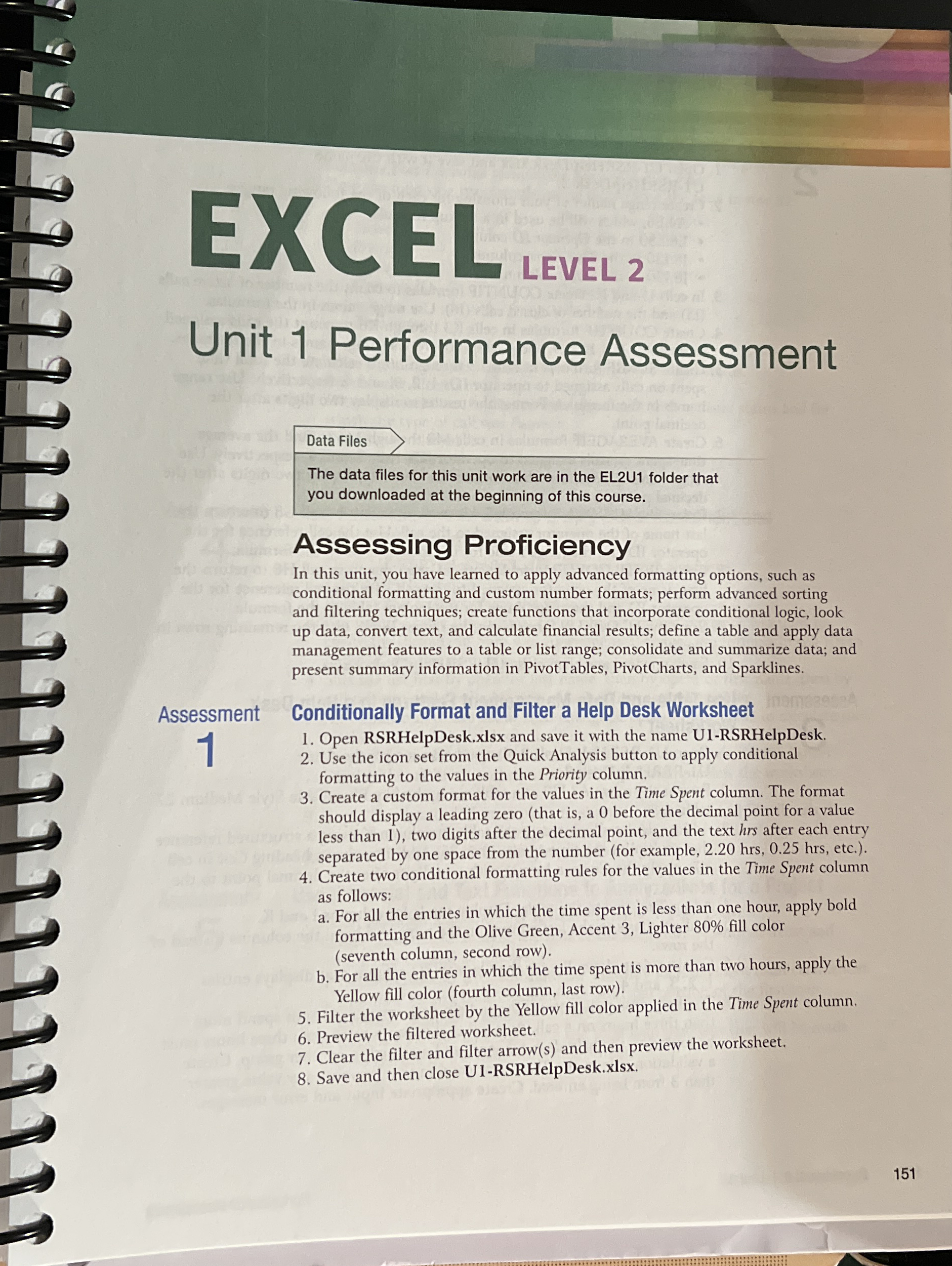
Question: ) C LEVEL 2 Unit 1 Performance Assessment Data Files The data files for this unit work are in the EL 2 U 1 folder
C LEVEL
Unit Performance Assessment
Data Files
The data files for this unit work are in the ELU folder that you downloaded at the beginning of this course.
Assessing Proficiency
In this unit, you have learned to apply advanced formatting options, such as conditional formatting and custom number formats; perform advanced sorting and filtering techniques; create functions that incorporate conditional logic, look up data, convert text, and calculate financial results; define a table and apply data management features to a table or list range; consolidate and summarize data; and present summary information in PivotTables, PivotCharts, and Sparklines.
Assessment
Conditionally Format and Filter a Help Desk Worksheet
Open RSRHelpDesk.xlsx and save it with the name URSRHelpDesk.
Use the icon set from the Quick Analysis button to apply conditional formatting to the values in the Priority column.
Create a custom format for the values in the Time Spent column. The format should display a leading zero that is a before the decimal point for a value less than two digits after the decimal point, and the text after each entry separated by one space from the number for example, etc.
Create two conditional formatting rules for the values in the Time Spent column as follows:
a For all the entries in which the time spent is less than one hour, apply bold formatting and the Olive Green, Accent Lighter fill color seventh column, second row
b For all the entries in which the time spent is more than two hours, apply the Yellow fill color fourth column, last row
Filter the worksheet by the Yellow fill color applied in the Time Spent column.
Preview the filtered worksheet.
Clear the filter and filter arrow and then preview the worksheet.
Save and then close URSRHelpDesk.xlsx
Step by Step Solution
There are 3 Steps involved in it
1 Expert Approved Answer
Step: 1 Unlock

Question Has Been Solved by an Expert!
Get step-by-step solutions from verified subject matter experts
Step: 2 Unlock
Step: 3 Unlock
 Study Help