







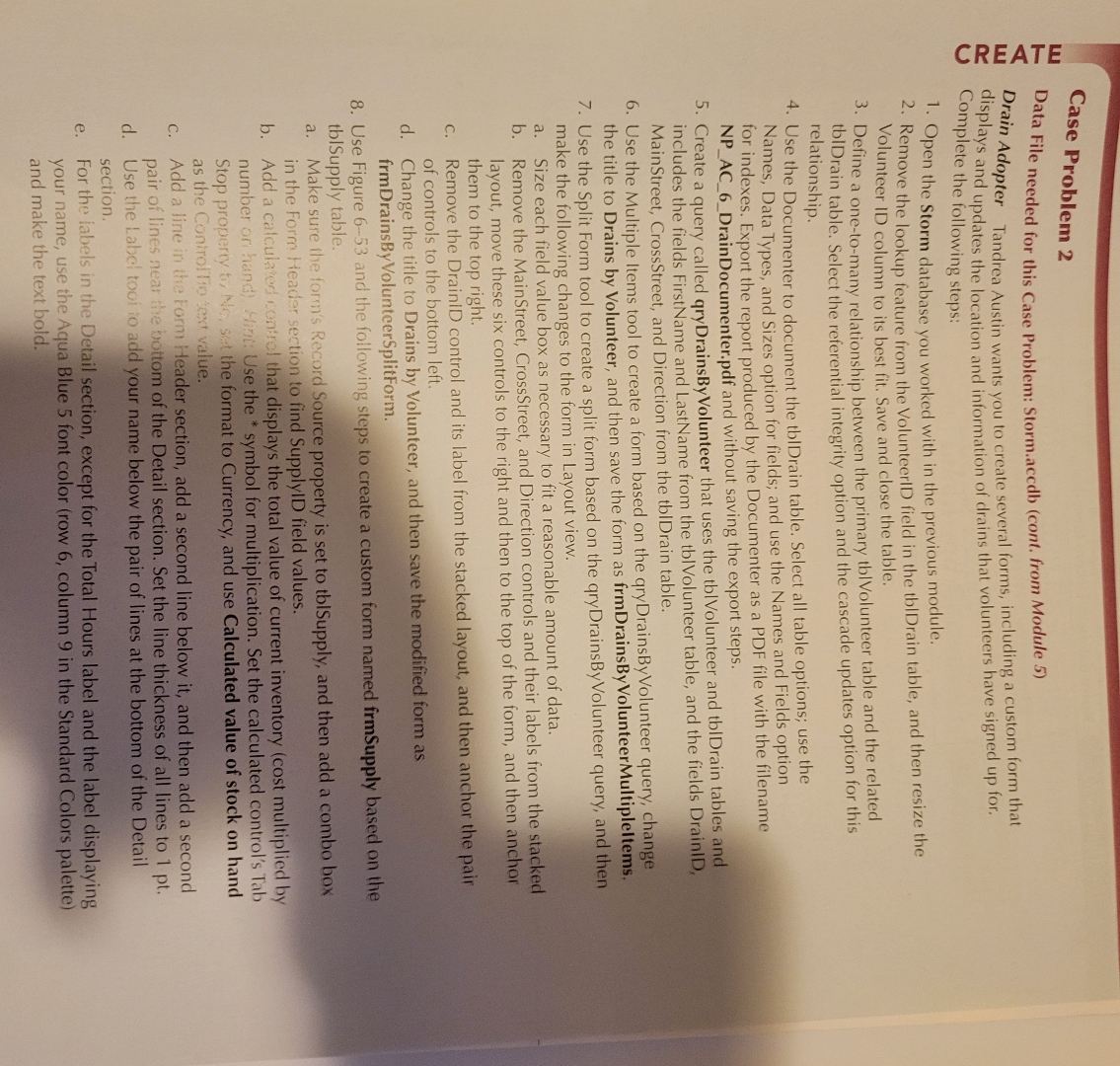
Question: Case Problem 2 Data File needed for this Case Problem: Storm.accdb ( cont . from Module 5 ) Drain Adopter Tandrea Austin wants you to
Case Problem
Data File needed for this Case Problem: Storm.accdb cont from Module
Drain Adopter Tandrea Austin wants you to create several forms, including a custom form that displays and updates the location and information of drains that volunteers have signed up for. Complete the following steps:
Open the Storm database you worked with in the previous module.
Remove the lookup feature from the VolunteerID field in the thlDrain table, and then resize the Volunteer ID column to its best fit. Save and close the table.
Define a onetomany relationship between the primary tblVolunteer table and the related thIDrain table. Select the referential integrity option and the cascade updates option for this relationship.
Use the Documenter to document the tblDrain table. Select all table options; use the Names, Data Types, and Sizes option for fields; and use the Names and Fields option for indexes. Export the report produced by the Documenter as a PDF file with the filename NPACDrainDocumenter.pdf and without saving the export steps.
Create a query called qryDrainsByVolunteer that uses the tblVolunteer and thIDrain tables and includes the fields FirstName and LastName from the tblVolunteer table, and the fields DrainID, MainStreet, CrossStreet, and Direction from the tbIDrain table.
Use the Multiple Items tool to create a form based on the qryDrainsByVolunteer query, change the title to Drains by Volunteer, and then save the form as frmDrainsByVolunteerMultipleltems.
Use the Split Form tool to create a split form based on the qryDrainsByVolunteer query, and then make the following changes to the form in Layout view.
a Size each field value box as necessary to fit a reasonable amount of data.
b Remove the MainStreet, CrossStreet, and Direction controls and their labels from the stacked layout, move these six controls to the right and then to the top of the form, and then anchor them to the top right.
c Remove the DrainiD control and its label from the stacked layout, and then anchor the pair of controls to the bottom left.
d Change the title to Drains by Volunteer, and then save the modified form as frmDrainsByVolunteerSplitForm.
Use Figure and the following steps to create a custom form named frmSupply based on the tblSupply table.
a Make sure the form's Record Source property is set to tblSupply, and then add a combo box in the Form tieador section to find SupplyID field values.
b Add a calculated antrol that displays the total value of current inventory cost multiplied by number on hand Hirsi: Use the symbol for multiplication. Set the calculated control's Tab as the Coniroltio sext value.
C Add a line in the form Header section, add a second line below it and then add a second pair of lines near the bottom of the Detail section. Set the line thickness of all lines to
d Use the Labci tool io add your name below the pair of lines at the bottom of the Detail section.
e For the labels in the Detail section, except for the Total Hours label and the label displaying your name, use the Aqua Blue font color row column in the Standard Colors palette and make the text bold.
Step by Step Solution
There are 3 Steps involved in it
1 Expert Approved Answer
Step: 1 Unlock

Question Has Been Solved by an Expert!
Get step-by-step solutions from verified subject matter experts
Step: 2 Unlock
Step: 3 Unlock
 Study Help