







Question: Microsoft Office 365 Excel Comprehensive 2021 Module 4 Case Problem 1 Data File needed for this Case Problem: NP_EX_4-3.xlsx Certus Car Rental John Tretow is
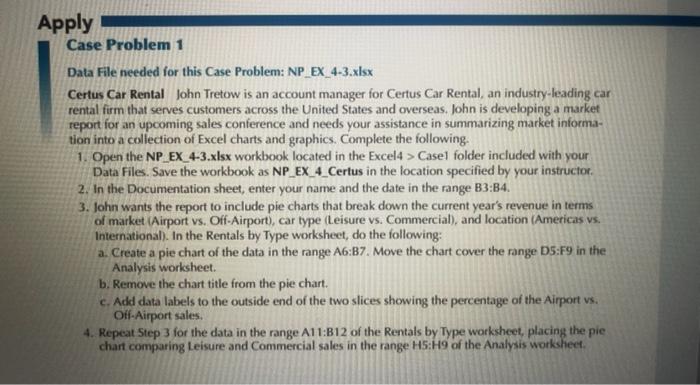
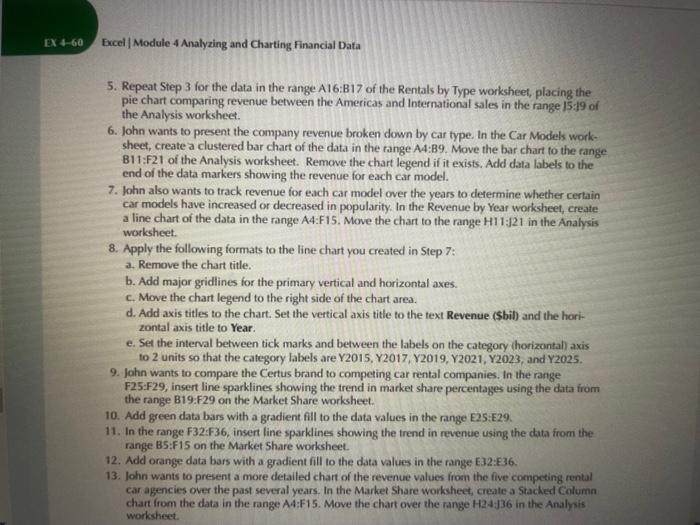
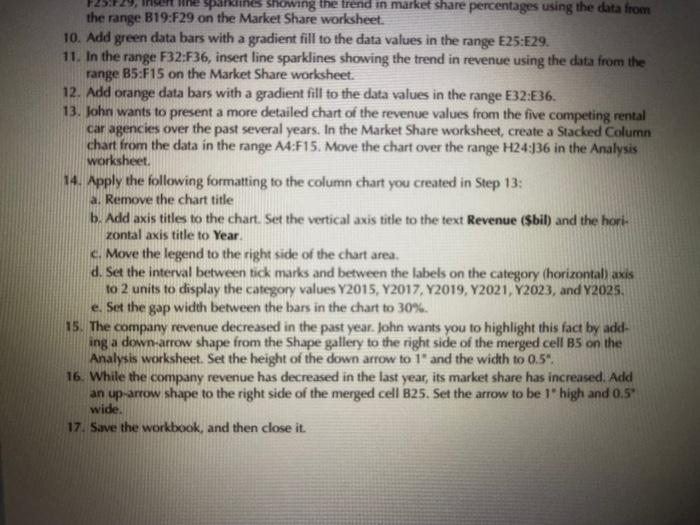
Data File needed for this Case Problem: NP_EX_4-3.xlsx Certus Car Rental John Tretow is an account manager for Certus Car Rental, an industry-leading car rental firm that serves customers across the United States and overseas. John is developing a market report for an upcoming sales conference and needs your assistance in summarizing market information into a collection of Excel charts and graphics. Complete the following. 1. Open the NP_EX_4-3.xlsx workbook located in the Excel4 > Casel folder included with your Data Files. Save the workbook as NP_EX_4_Certus in the location specified by your instructor. 2. In the Documentation sheet, enter your name and the date in the range B3:B4. 3. John wants the report to include pie charts that break down the current year's revenue in terms of market (Airport vs. Off-Airport), car type (Leisure vs. Commercial), and location (Americas vs. International). In the Rentals by Type worksheet, do the following: a. Create a pie chart of the data in the range A6:B7. Move the chart cover the range D5:F9 in the Analysis worksheet. b. Remove the chart title from the pie chart. c. Add data labels to the outside end of the two slices showing the percentage of the Airport vs. Ofi-Airport sales. 4. Repeat Step 3 for the data in the range A11:B12 of the Rentals by Type worksheet, placing the pie chart comparing Leisure and Commercial sales in the range H:H9 of the Analysis workshect. Excel | Module 4 Analyzing and Charting Financial Data 5. Repeat Step 3 for the data in the range A16:B17 of the Rentals by Type worksheet, placing the pie chart comparing revenue between the Americas and International sales in the range 15:19 of the Analysis worksheet. 6. John wants to present the company revenue broken down by car type. In the Car Models worksheet, create a clustered bar chart of the data in the range A4:B9. Move the bar chart to the range B1 1:F21 of the Analysis worksheet. Remove the chart legend if it exists. Add data labels to the end of the data markers showing the revenue for each car model. 7. John also wants to track revenue for each car model over the years to determine whether certain car models have increased or decreased in popularity. In the Revenue by Year worksheet, create a line chart of the data in the range A4:F15. Move the chart to the range H11:/21 in the Analysis worksheet. 8. Apply the following formats to the line chart you created in Step 7: a. Remove the chart title. b. Add major gridlines for the primary vertical and horizontal axes. c. Move the chart legend to the right side of the chart area. d. Add axis titles to the chart. Set the vertical axis title to the text Revenue (\$bil) and the horizontal axis title to Year. e. Set the interval between tick marks and between the labels on the category (horizontal) axis to 2 units so that the category labels are Y2015, Y2017, Y2019, Y2021, Y2023, and Y2025. 9. John wants to compare the Certus brand to competing car rental companies. In the range F25:F29, insert line sparklines showing the trend in market share percentages using the data from the range B19:F29 on the Market Share worksheet. 10. Add green data bars with a gradient fill to the data values in the range E25:E29. 11. In the range f32:F36, insert line sparklines showing the trend in revenue using the data from the range B5:F15 on the Market Share worksheet. 12. Add orange data bars with a gradient fill to the data values in the range E32:E36. 13. John wants to present a more detailed chart of the revenue values from the five competing rental car agencies over the past several years. In the Market Share worksheet, create a Stacked Column chart from the data in the range A4:F15. Move the chart over the range H24:J6 in the Analysis worksheet. 10. Add green data bars with a gradient fill to the data values in the range E25:E29. 11. In the range F32:F36, insert line sparklines showing the trend in revenue using the data from the range B5:F15 on the Market Share worksheet. 12. Add orange data bars with a gradient fill to the data values in the range E32:E36. 13. John wants to present a more detailed chart of the revenue values from the five competing rental car agencies over the past several years. In the Market Share worksheet, create a Stacked Column chart from the data in the range A4:F15. Move the chart over the range H24:336 in the Analysis worksheet. 14. Apply the following formatting to the column chart you created in Step 13: a. Remove the chart title b. Add axis titles to the chart. Set the vertical axis title to the text Revenue (\$bil) and the horh. zontal axis title to Year. c. Move the legend to the right side of the chart area. d. Set the interval between tick marks and between the labels on the category (horizontal) axis to 2 units to display the category values Y2015, Y2017, Y2019, Y2021, Y2023, and Y2025. e. Set the gap width between the bars in the chart to 30%. 15. The company revenue decreased in the past year. John wants you to highlight this fact by adding a down-arrow shape from the Shape gallery to the right side of the merged cell B5 on the Analysis worksheet. Set the height of the down arrow to 1" and the width to 0.5. 16. While the company revenue has decreased in the last year, its market share has increased. Add an up-arrow shape to the right side of the merged cell B25. Set the arrow to be 1" high and 0.5 " wide. 17. Save the workbook, and then close it
Step by Step Solution
There are 3 Steps involved in it

Get step-by-step solutions from verified subject matter experts
 Study Help