







Question: Configuring Windows File System Permissions ( 3 e ) LAB GUIDE Introduction Section 1 : Hands - On Demonstration Section 2 : Applied Learning Part
Configuring Windows File System Permissions e
LAB GUIDE
Introduction
Section : HandsOn Demonstration
Section : Applied Learning
Part : Create the Folder Structure
Part : Create Security Groups
Part : Create Security Groups completed
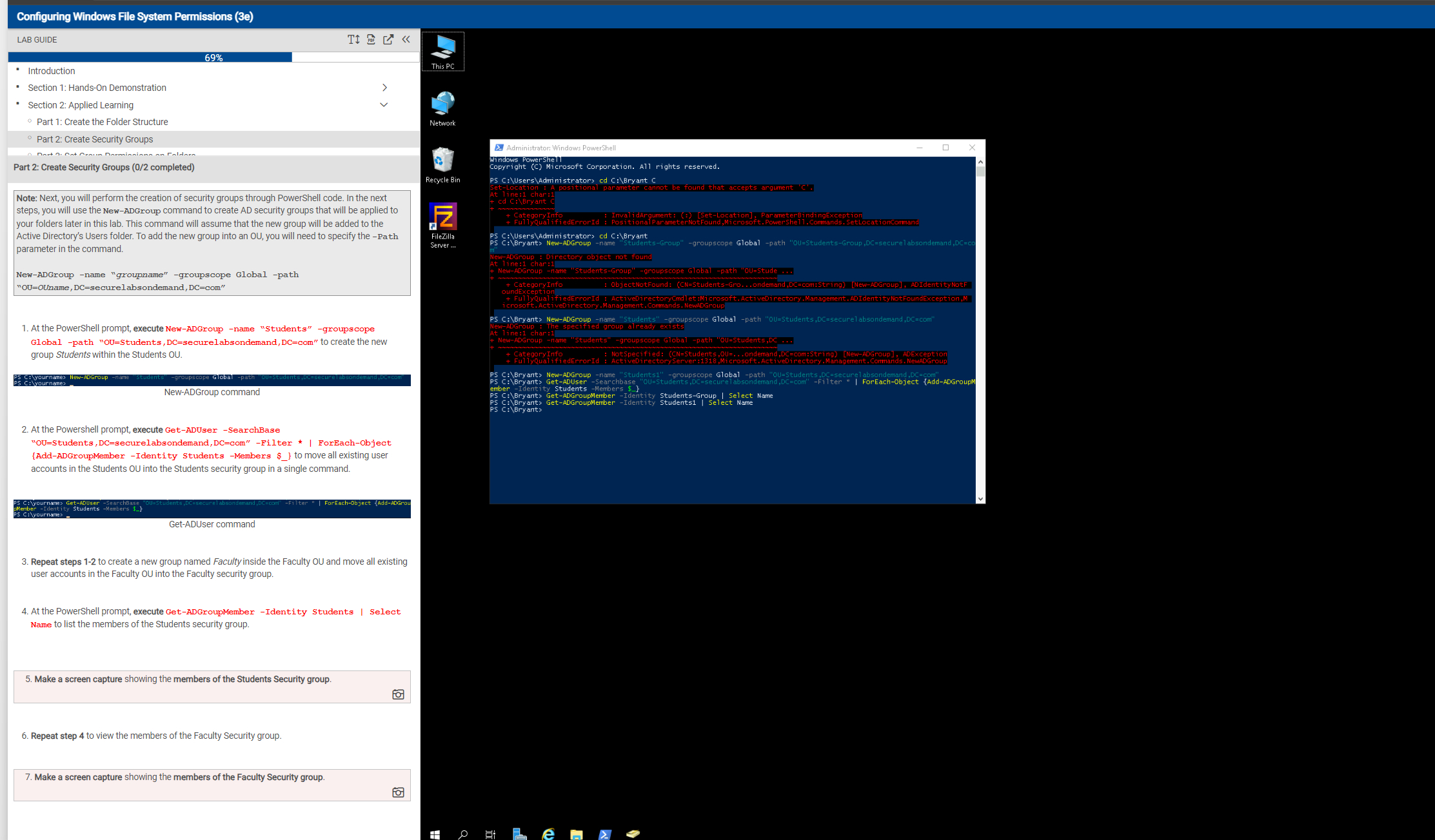
Note: Next, you will perform the creation of security groups through PowerShell code. In the next steps, you will use the NewADGroup command to create AD security groups that will be applied to your folders later in this lab. This command will assume that the new group will be added to the Active Directory's Users folder. To add the new group into an OU you will need to specify the Path parameter in the command.
NewADGroup name "groupname" groupscope Global path OUOUname, securelabsondemandCom
At the PowerShell prompt, execute NewADGroup name "Students" groupscope Global path OUStudents, securelabsondemandcom to create the new group Students within the Students OU
NewADGroup command
At the Powershell prompt, execute GetADUser SearchBase
OUStudents,DCsecurelabsondemandDCCom" Filter ForEachObject AddADGroupMember Identity Students Members $ to move all existing user accounts in the Students oU into the Students security group in a single command.
GetADUser command
Repeat steps to create a new group named Faculty inside the Faculty OU and move all existing user accounts in the Faculty OU into the Faculty security group.
At the PowerShell prompt, execute GetADGroupMember Identity Students Select Name to list the members of the Students security group.
Make a screen capture showing the members of the Students Security group.
Repeat step to view the members of the Faculty Security group
Make a screen capture showing the members of the Faculty Security group.Help with this
Step by Step Solution
There are 3 Steps involved in it
1 Expert Approved Answer
Step: 1 Unlock

Question Has Been Solved by an Expert!
Get step-by-step solutions from verified subject matter experts
Step: 2 Unlock
Step: 3 Unlock
 Study Help