







Question: Create a nested INDEX and XMATCH function to display the number of transactions by city. a . Click the Transactions sheet tab and select and
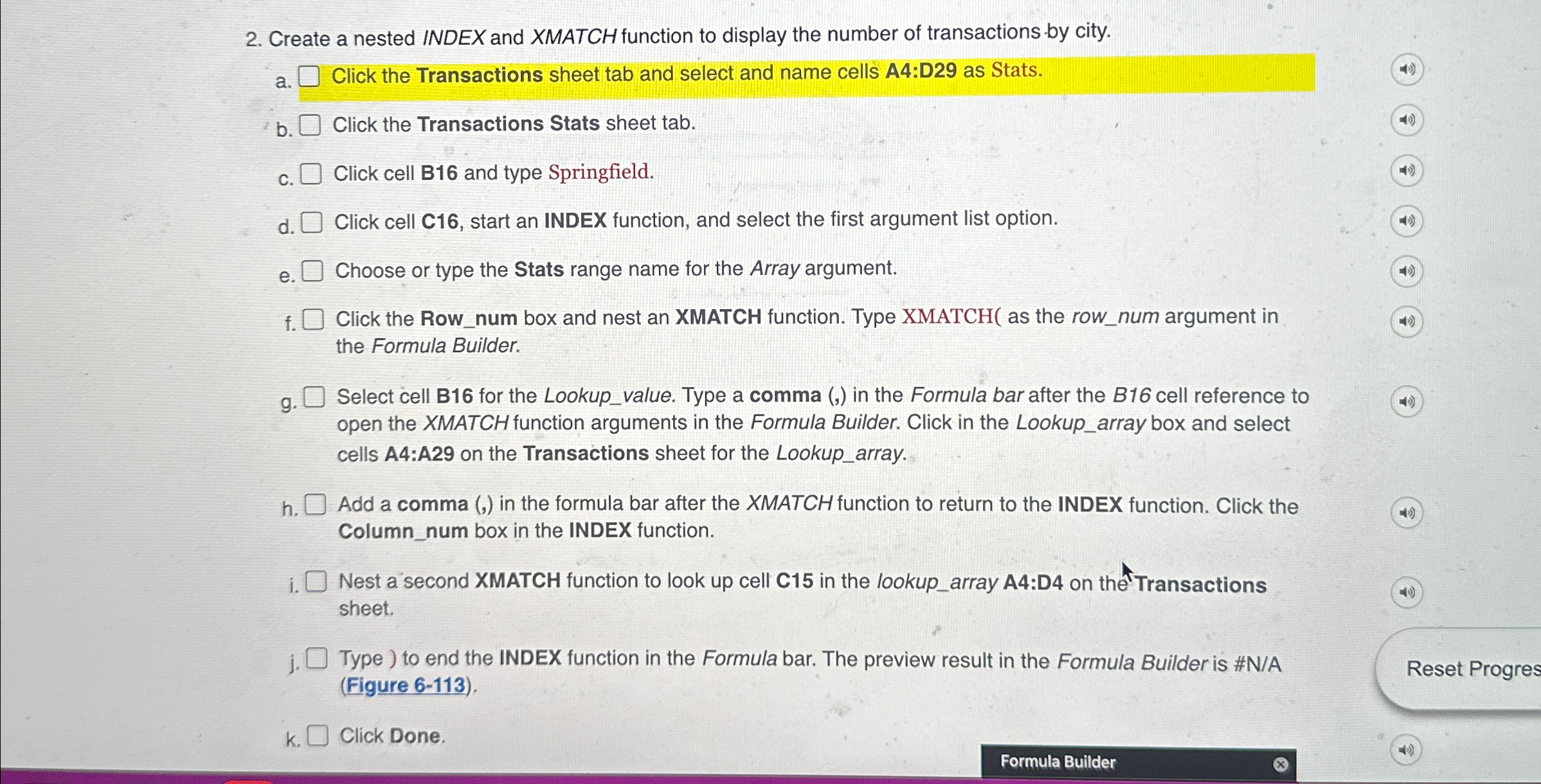
Create a nested INDEX and XMATCH function to display the number of transactions by city.
a Click the Transactions sheet tab and select and name cells A:D as Stats.
b Click the Transactions Stats sheet tab.
c Click cell B and type Springfield.
d Click cell C start an INDEX function, and select the first argument list option.
e Choose or type the Stats range name for the Array argument.
f Click the Rownum box and nest an XMATCH function. Type XMATCH as the rownum argument in the Formula Builder.
g Select cell B for the Lookupvalue. Type a comma in the Formula bar after the B cell reference to open the XMATCH function arguments in the Formula Builder. Click in the Lookuparray box and select cells A:A on the Transactions sheet for the Lookuparray.
h Add a comma in the formula bar after the XMATCH function to return to the INDEX function. Click the Columnnum box in the INDEX function.
i Nest a second XMATCH function to look up cell C in the lookuparray A:D on thetransactions sheet.
j Type to end the INDEX function in the Formula bar. The preview result in the Formula Builder is #NA Figure
k Click Done.
Step by Step Solution
There are 3 Steps involved in it
1 Expert Approved Answer
Step: 1 Unlock

Question Has Been Solved by an Expert!
Get step-by-step solutions from verified subject matter experts
Step: 2 Unlock
Step: 3 Unlock
 Study Help