







Question: Create a new MS Project file with a minimum of 10 and maximum of 25 tasks. These tasks should be part of a technology oriented
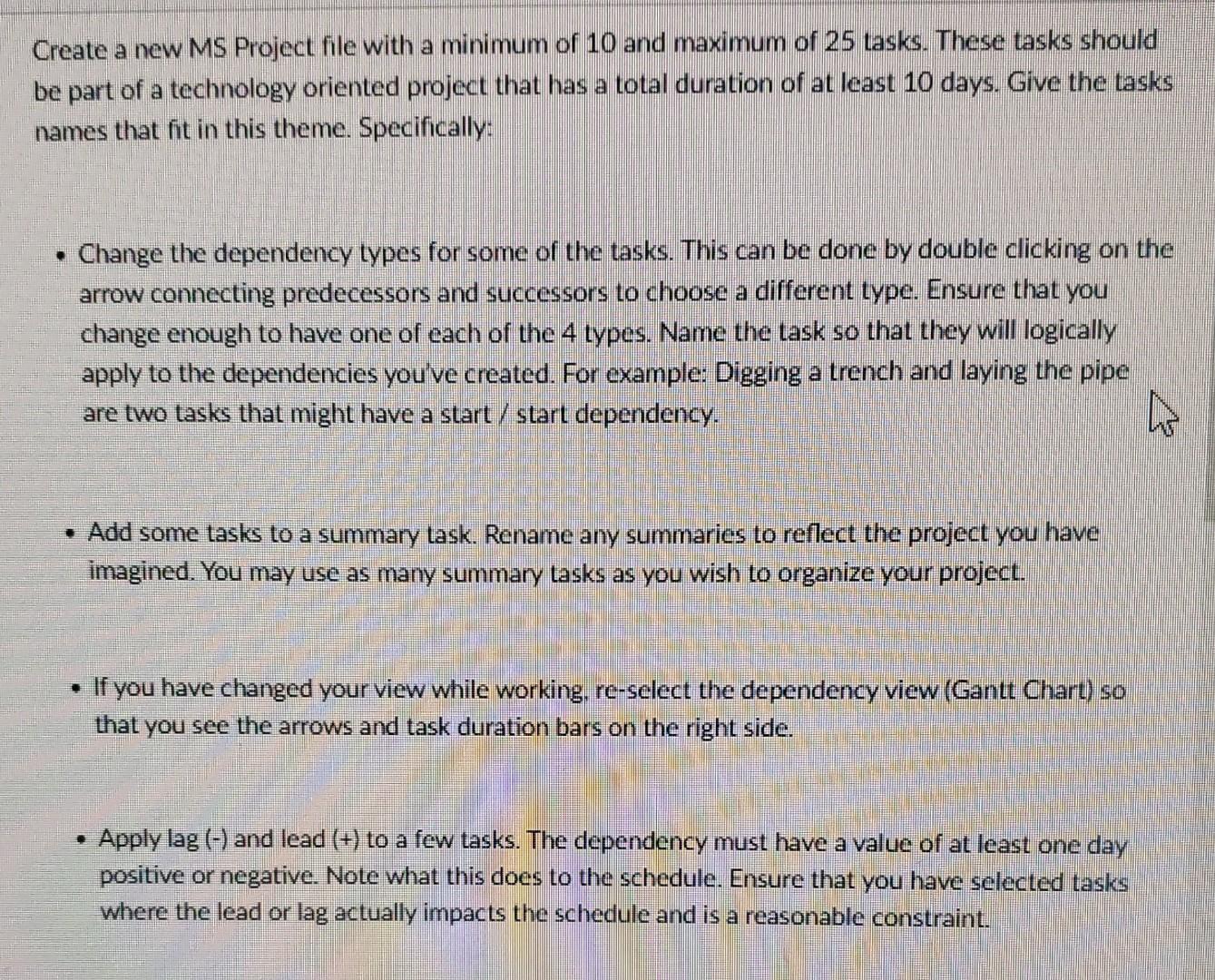
Create a new MS Project file with a minimum of 10 and maximum of 25 tasks. These tasks should be part of a technology oriented project that has a total duration of at least 10 days. Give the tasks names that fit in this theme. Specifically: - Change the dependency types for some of the tasks. This can be done by double clicking on the arrow connecting predecessors and successors to choose a different type. Ensure that you change enough to have one of each of the 4 types. Name the task so that they will logically apply to the dependencies you've created. For example: Digging a trench and laying the pipe are two tasks that might have a start / start dependency. - Add some tasks to a summary task. Rename any summaries to reflect the project you have imagined. You may use as many summary tasks as you wish to organize your project. - If you have changed your view while working, re-select the dependency view (Gantt Chart) so that you see the arrows and task duration bars on the right side. - Apply lag () and lead (t) to a few tasks. The dependency must have a value of at least one day positive or negative. Note what this does to the schedule. Ensure that you have selected tasks where the lead or lag actually impacts the schedule and is a reasonable constraint. - If you have changed your view while working, re-select the dependency view (Gantt Chart) so that you see the arrows and task duration bars on the right side. - Apply lag () and lead (+) to a few tasks. The dependency must have a value of at least one day positive or negative. Note what this does to the schedule. Ensure that you have selected tasks where the lead or lag actually impacts the schedule and is a reasonable constraint. - View the project as a Gantt chart. Hide the start and end date fields. Use the Add new Column to show the Critical Path value. Create a new MS Project file with a minimum of 10 and maximum of 25 tasks. These tasks should be part of a technology oriented project that has a total duration of at least 10 days. Give the tasks names that fit in this theme. Specifically: - Change the dependency types for some of the tasks. This can be done by double clicking on the arrow connecting predecessors and successors to choose a different type. Ensure that you change enough to have one of each of the 4 types. Name the task so that they will logically apply to the dependencies you've created. For example: Digging a trench and laying the pipe are two tasks that might have a start / start dependency. - Add some tasks to a summary task. Rename any summaries to reflect the project you have imagined. You may use as many summary tasks as you wish to organize your project. - If you have changed your view while working, re-select the dependency view (Gantt Chart) so that you see the arrows and task duration bars on the right side. - Apply lag () and lead (t) to a few tasks. The dependency must have a value of at least one day positive or negative. Note what this does to the schedule. Ensure that you have selected tasks where the lead or lag actually impacts the schedule and is a reasonable constraint. - If you have changed your view while working, re-select the dependency view (Gantt Chart) so that you see the arrows and task duration bars on the right side. - Apply lag () and lead (+) to a few tasks. The dependency must have a value of at least one day positive or negative. Note what this does to the schedule. Ensure that you have selected tasks where the lead or lag actually impacts the schedule and is a reasonable constraint. - View the project as a Gantt chart. Hide the start and end date fields. Use the Add new Column to show the Critical Path value
Step by Step Solution
There are 3 Steps involved in it
1 Expert Approved Answer
Step: 1 Unlock

Question Has Been Solved by an Expert!
Get step-by-step solutions from verified subject matter experts
Step: 2 Unlock
Step: 3 Unlock
 Study Help