Question: Create a one page flowchart for an invoice payment process for your establishment using the following guidelines: Once you start this payment process to get
Create a one page flowchart for an invoice payment process for your establishment using the following guidelines:
Once you start this payment process to get your suppliers/vendors paid, you will mail any invoices to Accounts Payable. They will then review the invoices for compliance. If they decide that the invoice meets the requirements they will send it off for approval. If it does not meet the requirements the invoice is then returned to the supplier that created it for us which will end that process until they resend it. For those invoices that were sent off for approval, they were either approved or not approved. If they were not approved they are put on hold, the issue is resolved and then they go back through to approval. If approved they are placed in the payment queue and the payment in processed thus ending the cycle. Please add a title and a background to your chart.
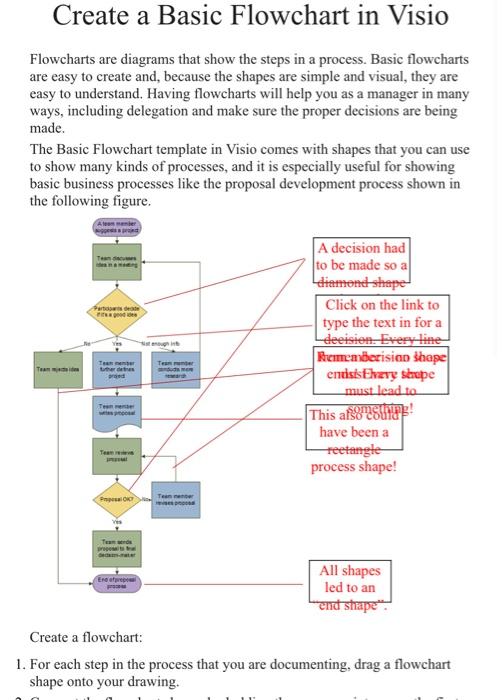
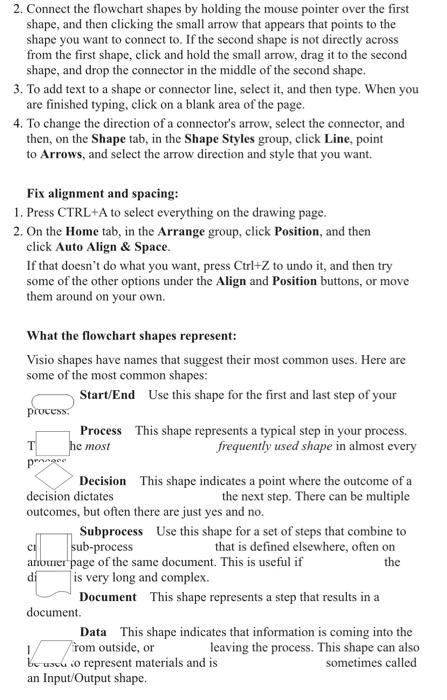
Create a Basic Flowchart in Visio Flowcharts are diagrams that show the steps in a process. Basic flowcharts are easy to create and, because the shapes are simple and visual, they are easy to understand. Having flowcharts will help you as a manager in many ways, including delegation and make sure the proper decisions are being made. The Basic Flowchart template in Visio comes with shapes that you can use to show many kinds of processes, and it is especially useful for showing basic business processes like the proposal development process shown in the following figure. Ten Potats A decision had to be made so a diamond-shaped Click on the link to type the text in for a deeisien. Every line Rememberisian shape entisisElevy shape must lead to This afsonst have been a Teetangle process shape! Tente herders Team Teme Teen OCT Teaned Ere All shapes led to an ent shape Create a flowchart: 1. For each step in the process that you are documenting, drag a flowchart shape onto your drawing. 2. Connect the flowchart shapes by holding the mouse pointer over the first shape, and then clicking the small arrow that appears that points to the shape you want to connect to. If the second shape is not directly across from the first shape, click and hold the small arrow, drag it to the second shape, and drop the connector in the middle of the second shape. 3. To add text to a shape or connector line, select it, and then type. When you are finished typing, click on a blank area of the page. 4. To change the direction of a connector's arrow, select the connector, and then, on the Shape tab, in the Shape Styles group, click Line, point to Arrows, and select the arrow direction and style that you want. Fix alignment and spacing: 1. Press CTRL+A to select everything on the drawing page. 2. On the Home tab, in the Arrange group, click Position, and then click Auto Align & Space. If that doesn't do what you want, press Ctrl+Z to undo it, and then try some of the other options under the Align and Position buttons, or move them around on your own. T he most pringer What the flowchart shapes represent: Visio shapes have names that suggest their most common uses. Here are some of the most common shapes: Start/End Use this shape for the first and last step of your process Process This shape represents a typical step in your process, frequently used shape in almost every Decision This shape indicates a point where the outcome of a decision dictates the next step. There can be multiple outcomes, but often there are just yes and no. Subprocess Use this shape for a set of steps that combine to sub-process that is defined elsewhere, often on anouer page of the same document. This is useful if the di is very long and complex. Document This shape represents a step that results in a document Data This shape indicates that information is coming into the from outside, or leaving the process. This shape can also be uscu o represent materials and is sometimes called an Input/Output shape









 Study Help