







Question: Create a Windows Forms application. Use the following names for the project and solution, respectively: Texting Project and Texting Solution. Save the application in the
Create a Windows Forms application. Use the following names for the project and solution, respectively: Texting Project and Texting Solution. Save the application in the VBChap folder.
Change the form files name to Main Form.vb Change the forms Name property to frmMain, its Font property to Segoe UIpt its MaximizeBox property to False, its StartPosition property to CenterScreen, and its Text property to Text Message Symbols.
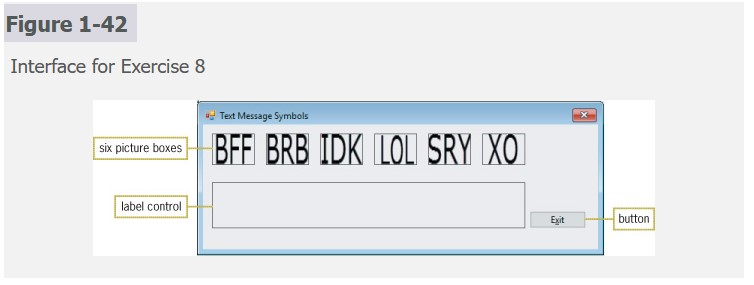
Create the interface shown in Figure Use the Label tool to create the label control. However, you will not be able to size the label control until you complete Step c Set each picture boxs BorderStyle property to FixedSingle. The images in the picture boxes represent text message symbols. The images are stored in the BFFpng BRBpng IDK.png LOL.png SRYpng and XOpng files, which are contained in the VBChap folder.
Change the label controls name to lblMeaning. Set its AutoSize property to False, its BorderStyle property to FixedSingle, its Font size to pt and its TextAlign property to MiddleCenter. Delete the contents of its Text property. Now size the label control as shown in Figure
Lock the controls on the form. Give the picture boxes and the Exit button meaningful names.
Code the Exit button.
When clicked, each picture box should assign the meaning of its associated symbol to the lblMeaning controls Text property. For example, the picture box that displays BFF should assign the message Best friends forever to the Text property. Code each picture boxs Click event procedure. If necessary, use the Internet to research the meaning of any symbols you do not recognize.
Open the Project Designer window and verify the name of the startup form. Save the solution and then close the Project Designer window. Start and test the application.
Step by Step Solution
There are 3 Steps involved in it
1 Expert Approved Answer
Step: 1 Unlock

Question Has Been Solved by an Expert!
Get step-by-step solutions from verified subject matter experts
Step: 2 Unlock
Step: 3 Unlock
 Study Help