







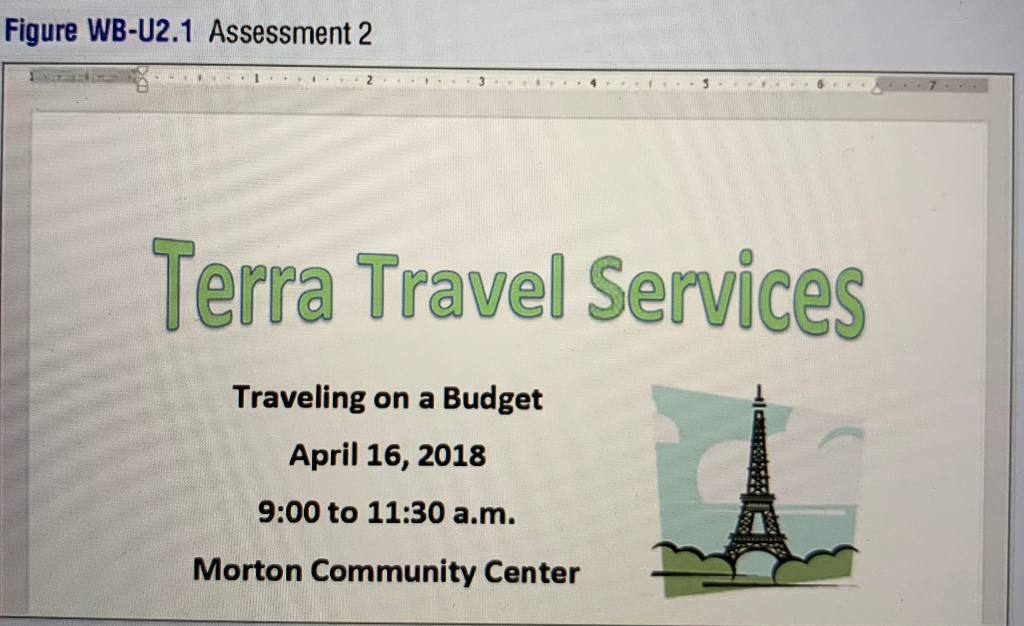
Question: Create a Workshop Flyer 1. Create the flyer shown in Figure WB-U2.1 with the following specifications : a. Create the WordArt with the following specifications:
Create a Workshop Flyer 1. Create the flyer shown in Figure WB-U2.1 with the following specifications :
a. Create the WordArt with the following specifications:
Use the Fill - White, Outline - Accent 1, Shadow option (fourth column, first row) at the WordArt button drop-down gallery.
Increase the width to 6.5 inches and the height to inch
. Apply the Deflate text effect transform shape ( second column, sixth row in the Warp section)
. Position the WordArt in the top center of the page and apply square text wrapping
Change the text fill color to Green, Accent 6, Lighter 40% (last column, fourth row in the Theme Colors section).
b. Type the text shown in the figure. Change the font to 22 -point Calibri, apply bold formatting , and center-align the text.
c. Insert the Eiffel Tower.png image . Change the wrapping style to Square and size and position the image as shown in Figure WB- U2.1.
2. Save the document as YourLast Name_W2A2.docx .
3. Print and then close YourLast Name_W2A2.docx.
Step by Step Solution
There are 3 Steps involved in it

Get step-by-step solutions from verified subject matter experts
 Study Help