







Question: Create an advanced filter using the criteria in range A1:G2. Filter the list in-place to display the filtered data on the StudentData worksheet. Copy the
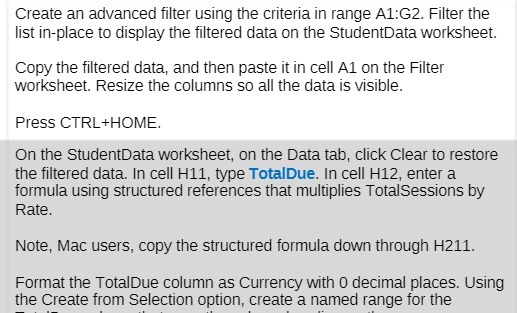
Create an advanced filter using the criteria in range A1:G2. Filter the list in-place to display the filtered data on the StudentData worksheet. Copy the filtered data, and then paste it in cell A1 on the Filter worksheet. Resize the columns so all the data is visible. Press CTRL+HOME. On the StudentData worksheet, on the Data tab, click Clear to restore the filtered data. In cell H11, type TotalDue. In cell H12, enter a formula using structured references that multiplies TotalSessions by Rate. Note, Mac users, copy the structured formula down through H211. Format the TotalDue column as Currency with 0 decimal places. Using the Create from Selection option, create a named range for the
Step by Step Solution
There are 3 Steps involved in it

Get step-by-step solutions from verified subject matter experts
 Study Help