





Question: Create an Occupation Pivot table On the Census sheet, highlight the entire sheet (CTRL A). While the dataset is highlighted, from your menu select Insert
Create an Occupation Pivot table On the Census
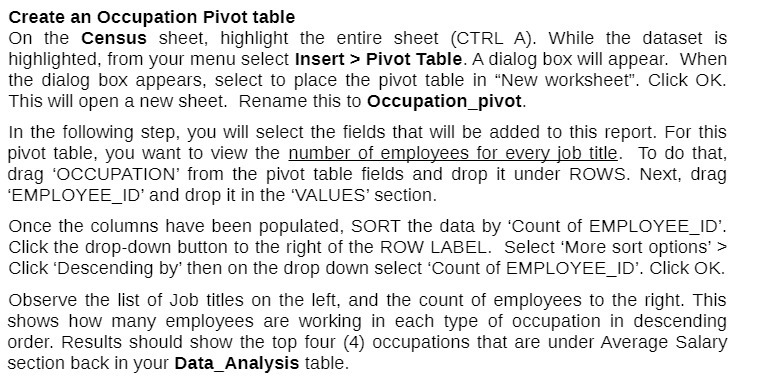
Create an Occupation Pivot table On the Census sheet, highlight the entire sheet (CTRL A). While the dataset is highlighted, from your menu select Insert :- Pivot Table. A dialog box will appear. When the dialog box appears, select to place the pivot table in "New worksheet". Click OK. This will open a new sheet. Rename this to Occupation_pivot. In the following step, you will select the fields that will be added to this report. Fer this pivot table, you want to view the number of employees for every job title. To do that, drag 'OCCUPATION' from the pivot table fields and drop it under ROWS. Next, drag 'EMPLOYEE_IO' and drop it in the 'VALUES' section. Once the columns have been populated, SORT the data by 'Count of EMPLOYEE_IO'. Click the dropdown button to the right of the ROW LABEL. Select 'lvlore sort options' a Click 'Descending by' then on the drop down select \"Count of EMPLOYEE_ID'. Click OK. Observe the list of Job titles on the left, and the count of employees to the right. This shows how many employees are working in each type of occupation in descending order. Results should show the top four (4) occupations that are under Average Salary section back in your Data_Analysis table

Step by Step Solution

There are 3 Steps involved in it

1 Expert Approved Answer
Step: 1 Unlock blur-text-image

Question Has Been Solved by an Expert!

Get step-by-step solutions from verified subject matter experts

Step: 2 Unlock
Step: 3 Unlock

Students Have Also Explored These Related Mathematics Questions!