





Question: Create Security policy using templates Open a Web browser and go to www.sans.org. From the Resources menu on the top, select Security Policy Project and
Create Security policy using templates Create Security policy using templates Open a Web browser and go to

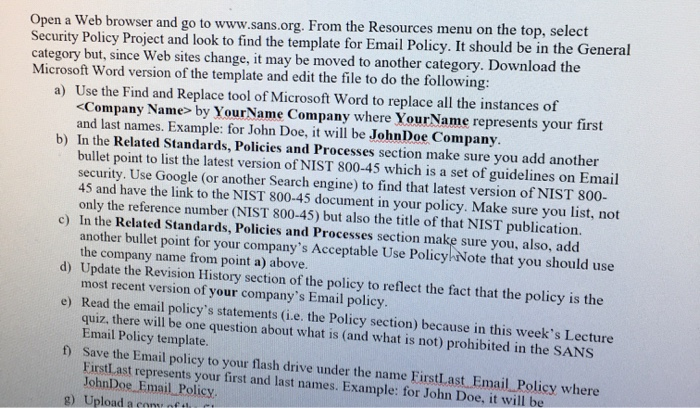
Open a Web browser and go to www.sans.org. From the Resources menu on the top, select Security Policy Project and look to find the template for Email Policy. It should be in the General category but since Web sites change, it may be moved to another category. Download the Microsoft Word version of the template and edit the file to do the following: a) Use the Find and Replace tool of Microsoft Word to replace all the instances of by Your Name Company where Your Name represents your first and last names. Example: for John Doe, it will be John Doe Company b) In the Related Standards, Policies and Processes section make sure you add another bullet point to list the latest version of NIST 800-45 which is a set of guidelines on Email security. Use Google (or another Search engine) to find that latest version of NIST 800- 45 and have the link to the NIST 800-45 document in your policy. Make sure you list, not only the reference number (NIST 800-45) but also the title of that NIST publication. c) In the Related Standards, Policies and Processes section make sure you, also, add another bullet point for your company's Acceptable Use Policy Note that you should use the company name from point a) above. d) Update the Revision History section of the policy to reflect the fact that the policy is the most recent version of your company's Email policy. e) Read the email policy's statements (ie the Policy section) because in this week's Lecture quiz, there will be one question about what is (and what is not) prohibited in the SANS Email Policy template. f) Save the Email policy to your flash drive under the name First Last Email Policy where FirstLast represents your first and last names. Example: for John Doe, it will be John Doe Email Policy 8) Upload a one of the

Step by Step Solution

There are 3 Steps involved in it

1 Expert Approved Answer
Step: 1 Unlock blur-text-image
Question Has Been Solved by an Expert!

Get step-by-step solutions from verified subject matter experts

Step: 2 Unlock
Step: 3 Unlock

Students Have Also Explored These Related Databases Questions!