



Question: Create the Outline for Professional Credo Speech Outline Template (Microsoft Word). Beginning on the next page is an outline template (in Microsoft Word format), which
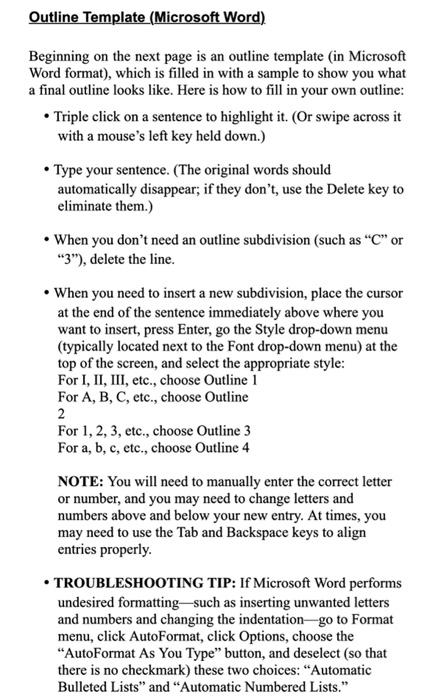
Outline Template (Microsoft Word). Beginning on the next page is an outline template (in Microsoft Word format), which is filled in with a sample to show you what a final outline looks like. Here is how to fill in your own outline: - Triple click on a sentence to highlight it. (Or swipe across it with a mouse's left key held down.) - Type your sentence. (The original words should automatically disappear; if they don't, use the Delete key to eliminate them.) - When you don't need an outline subdivision (such as " C " or "3"), delete the line. - When you need to insert a new subdivision, place the cursor at the end of the sentence immediately above where you want to insert, press Enter, go the Style drop-down menu (typically located next to the Font drop-down menu) at the top of the screen, and select the appropriate style: For I, II, III, etc., choose Outline 1 For A, B, C, etc., choose Outline 2 For 1, 2, 3, etc., choose Outline 3 For a, b, c, etc., choose Outline 4 NOTE: You will need to manually enter the correct letter or number, and you may need to change letters and numbers above and below your new entry. At times, you may need to use the Tab and Backspace keys to align entries properly. - TROUBLESHOOTING TIP: If Microsoft Word performs undesired formatting - such as inserting unwanted letters and numbers and changing the indentation-go to Format menu, click AutoFormat, click Options, choose the "AutoFormat As You Type" button, and deselect (so that there is no checkmark) these two choices: "Automatic Bulleted Lists" and "Automatic Numbered Lists
Step by Step Solution
There are 3 Steps involved in it

Get step-by-step solutions from verified subject matter experts