







Question: / Description: The Assignment7 class creates a CirclePane object using JavaFX ony // on which we can draw circles with different // colors. import javafx.application.Application;
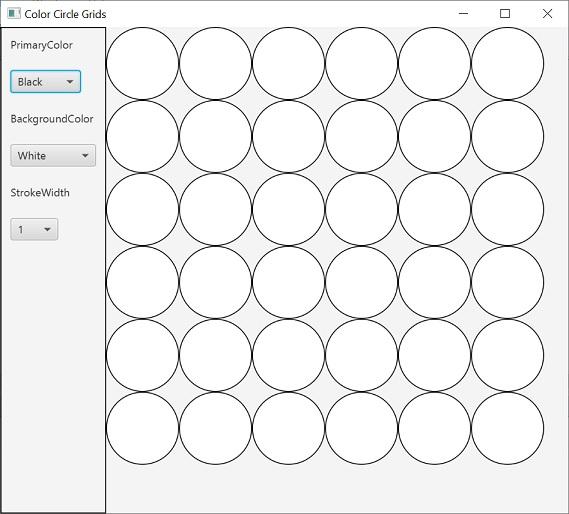
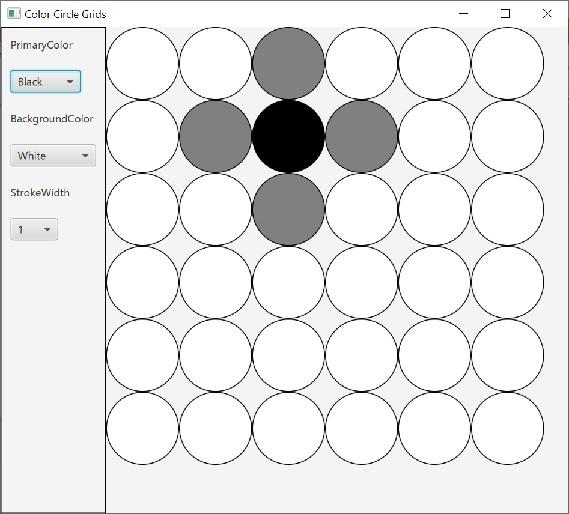
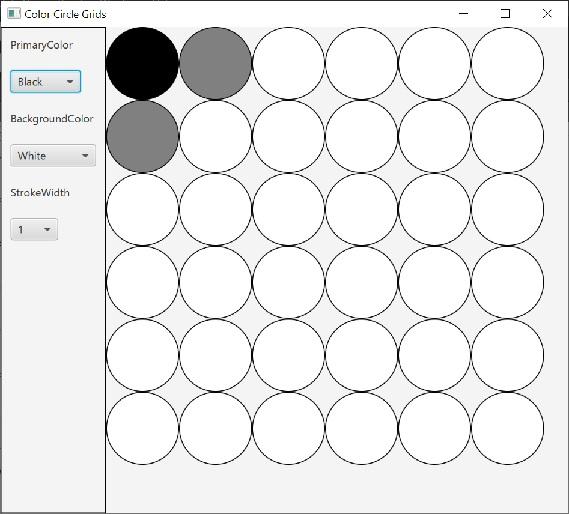
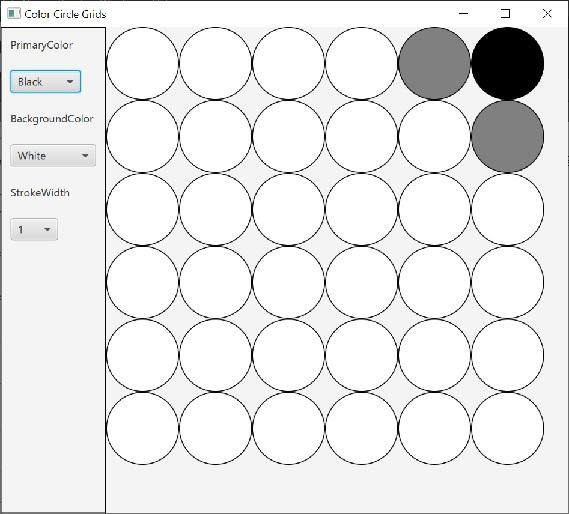
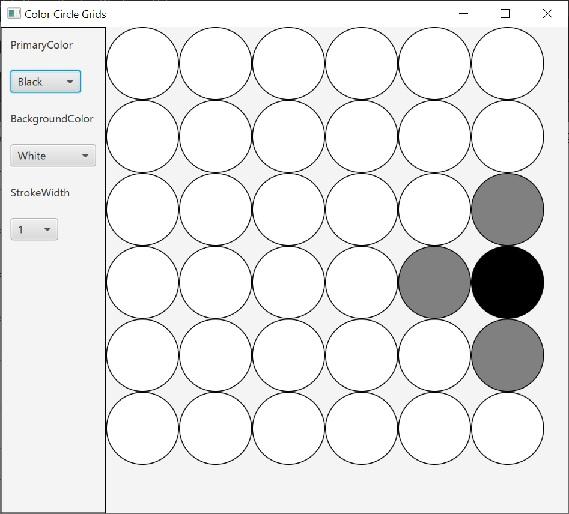
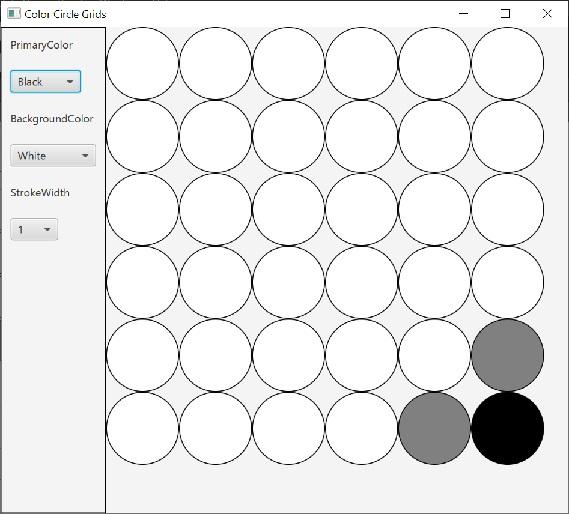
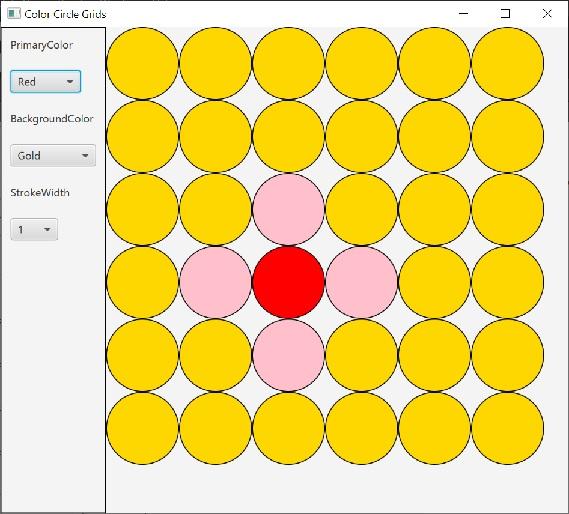
/ Description: The Assignment7 class creates a CirclePane object using JavaFX ony
// on which we can draw circles with different
// colors.
import javafx.application.Application;
import javafx.stage.Stage;
import javafx.scene.Scene;
import javafx.scene.layout.StackPane;
public class Assignment7 extends Application
{
public void start(Stage primaryStage)
{
//create a CirclePane object.
CirclePane gui = new CirclePane();
//put gui on top of the rootPane
StackPane rootPane = new StackPane();
rootPane.getChildren().add(gui);
// Create a scene and place rootPane in the stage
Scene scene = new Scene(rootPane, 630, 540);
primaryStage.setTitle("Color Circle Grids");
primaryStage.setScene(scene); // Place the scene in the stage
// Description: CirclePane class creates a pane where we can use
// mouse key to drag on canvass and there will be some color following
// the mouse. We can also use combo boxes to change its colors and stroke widths
// //--- is where you need to add your own code
//import any necessary classes here
//----
import javafx.scene.control.ComboBox;
import javafx.scene.layout.Pane;
import javafx.scene.layout.BorderPane;
import javafx.scene.layout.VBox;
import javafx.scene.shape.Circle;
import javafx.scene.paint.Color;
import javafx.geometry.Insets;
import javafx.scene.layout.*;
import javafx.event.ActionEvent;
import javafx.event.EventHandler;
import javafx.scene.input.MouseEvent;
public class CirclePane extends BorderPane
{
//instance variables - check assignment's description
//----
private ComboBox
private ComboBox
private ComboBox
private Color primaryColor;
private Color secondaryColor;
private Color bgColor;
private int selectWidth;
private Circle[][] circleArray;
private final int NUM_COL =6, NUM_ROW = 6, RADIUS = 40;
private GridPane canvas; //this is where circles are drawn
//constructor
public CirclePane()
{
//Step #1: Initialize instance varibles and set up the layout
//----
//Instantiate the two dimensional circleArray that contains
//6 columns and 6 rows of circles (36 in total)
//----
//instantiate canvas and set its width and height
canvas = new GridPane();
canvas.setPrefWidth(2*RADIUS * NUM_COL);
canvas.setPrefHeight(2*RADIUS * NUM_ROW);
//Use nested loop to instantiate the 6 columns by 6 rows of
//Circle objects, add them inside the circleArrary
//----
//----
//leftPane is a VBox, it should contain labels and the 3 comboBox
VBox leftPane = new VBox();
leftPane.setSpacing(20);
leftPane.setPadding(new Insets(10, 10, 10, 10));
leftPane.setStyle("-fx-border-color: black");
//----
//add leftPane and canvas to CirclePane
//----
//Step 3: register the source nodes with its handler objects
//----
}
//Step #2(A) - MouseHandler
private class MouseHandler implements EventHandler
{
public void handle(MouseEvent event)
{
//handle MouseEvent here
//Note: you can use if(event.getEventType()== MouseEvent.MOUSE_DRAGGED)
//to check whether the mouse key is dragged or released, etc
//write your own codes here
//----
}
}//end MouseHandler
//Step #2(B) - Primary and secondary color handler
private class PrimaryColorHandler implements EventHandler
{
public void handle(ActionEvent event)
{
//Write your own code here
//----
}
}//end PrimaryColorHandler
//Step #2(C): background color handler
//Write a private class called BackgroundColorHandler that handles the background
//color changes
//----
//----
//Step #2(D): handle the stroke width
private class WidthHandler implements EventHandler
{
//write your own code
//----
//----
}//end of WidthHandler
} //end of CirclePane
Step by Step Solution
There are 3 Steps involved in it

Get step-by-step solutions from verified subject matter experts
 Study Help