







Question: Do it on Excel 6. Enter below data to worksheet 3. a. Merge and center the title, b. Set the font for title to 'Calibri,
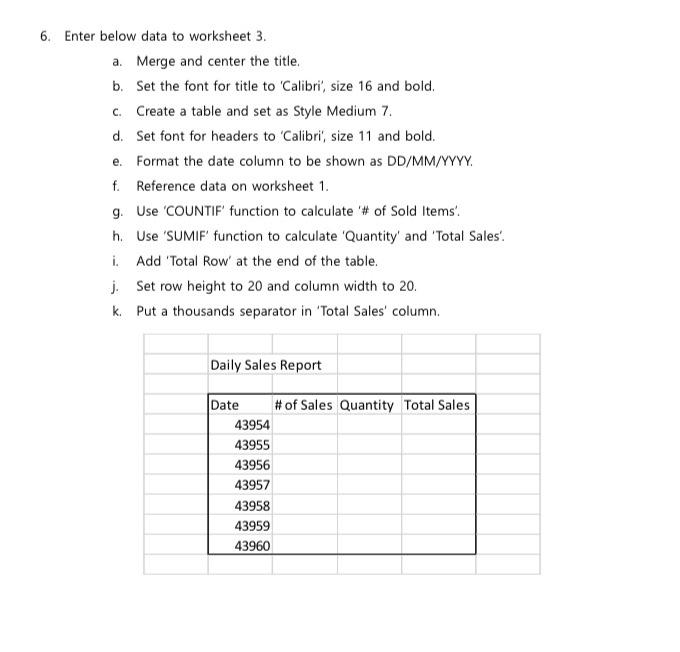
6. Enter below data to worksheet 3. a. Merge and center the title, b. Set the font for title to 'Calibri", size 16 and bold. c. Create a table and set as Style Medium 7. d. Set font for headers to 'Calibri', size 11 and bold. e. Format the date column to be shown as DD/MM/YYYY. f. Reference data on worksheet 1. g. Use 'COUNTIF' function to calculate '# of Sold Items! h. Use 'SUMIF' function to calculate 'Quantity' and 'Total Sales' i. Add 'Total Row' at the end of the table. j. Set row height to 20 and column width to 20. k Put a thousands separator in 'Total Sales' column. Daily Sales Report Date # of Sales Quantity Total Sales 43954 43955 43956 43957 43958 43959 43960 6. Enter below data to worksheet 3. a. Merge and center the title, b. Set the font for title to 'Calibri", size 16 and bold. c. Create a table and set as Style Medium 7. d. Set font for headers to 'Calibri', size 11 and bold. e. Format the date column to be shown as DD/MM/YYYY. f. Reference data on worksheet 1. g. Use 'COUNTIF' function to calculate '# of Sold Items! h. Use 'SUMIF' function to calculate 'Quantity' and 'Total Sales' i. Add 'Total Row' at the end of the table. j. Set row height to 20 and column width to 20. k Put a thousands separator in 'Total Sales' column. Daily Sales Report Date # of Sales Quantity Total Sales 43954 43955 43956 43957 43958 43959 43960
Step by Step Solution
There are 3 Steps involved in it

Get step-by-step solutions from verified subject matter experts
 Study Help