







Question: Creat work book in your Excel 2. Create five different worksheet and name them as 1, 2, 3, 4, & 5. 3. Format cell font
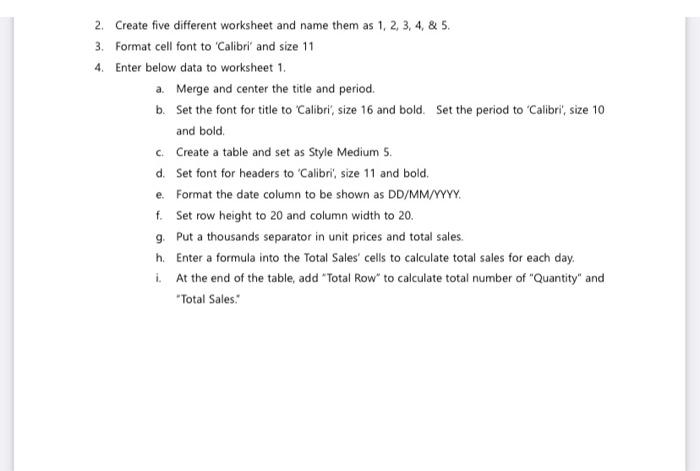
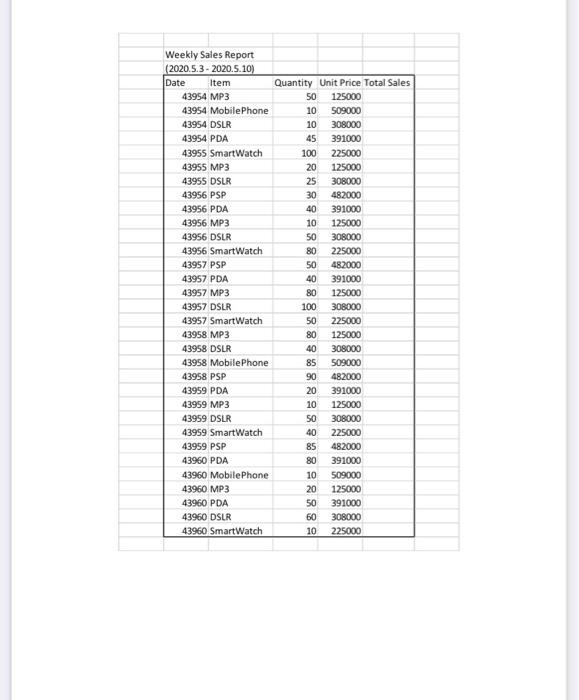
2. Create five different worksheet and name them as 1, 2, 3, 4, & 5. 3. Format cell font to 'Calibri' and size 11 4. Enter below data to worksheet 1. a. Merge and center the title and period. b. Set the font for title to "Calibri", size 16 and bold. Set the period to "Calibri", size 10 and bold Create a table and set as Style Medium 5. d. Set font for headers to "Calibri", size 11 and bold. e. Format the date column to be shown as DD/MM/YYYY. f. Set row height to 20 and column width to 20. g. Put a thousands separator in unit prices and total sales. h. Enter a formula into the Total Sales' cells to calculate total sales for each day. i. At the end of the table, add "Total Row" to calculate total number of "Quantity" and "Total Sales: Weekly Sales Report (2020.5.3 - 2020.5.10) Date Item 43954 MP3 43954 Mobile Phone 43954 DSLR 43954 PDA 43955 Smart Watch 43955 MP3 43955 DSLR 43956 PSP 43956 PDA 43956 MP3 43956 DSLR 43956 Smart Watch 43957 PSP 43957 PDA 43957 MP3 43957 DSLR 43957 Smart Watch 43958 MP3 43958 DSLR 43958 Mobile Phone 43958 PSP 43959 PDA 43959 MP3 43959 DSLR 43959 Smart Watch 43959 PSP 43960 PDA 43960 Mobile Phone 43960 MP3 43960 PDA 43960 DSLR 43960 SmartWatch Quantity Unit Price Total Sales 50 125000 10 509000 10 308000 45 391000 100 225000 20 125000 25 308000 30 482000 40 391000 10 125000 50 308000 80 225000 50 482000 40 391000 80 125000 100 308000 50 225000 80 125000 40 308000 85 509000 90 482000 20 391000 10 125000 50 308000 40 225000 85 482000 80 391000 10 509000 20 125000 50 391000 60 308000 10 225000
Step by Step Solution
There are 3 Steps involved in it

Get step-by-step solutions from verified subject matter experts
 Study Help