Question: e. 1. Open Tableau Prep & Merge Files a. Create a folder on your computer named MBA 611 Exam 2 b. Save the files ISTEPCorpGrade
e. 1. Open Tableau Prep & Merge Files a. Create a

e. 1. Open Tableau Prep & Merge Files a. Create ae. 1. Open Tableau Prep & Merge Files a. Create a

e. 1. Open Tableau Prep & Merge Files a. Create ae. 1. Open Tableau Prep & Merge Files a. Create ae. 1. Open Tableau Prep & Merge Files a. Create ae. 1. Open Tableau Prep & Merge Files a. Create a

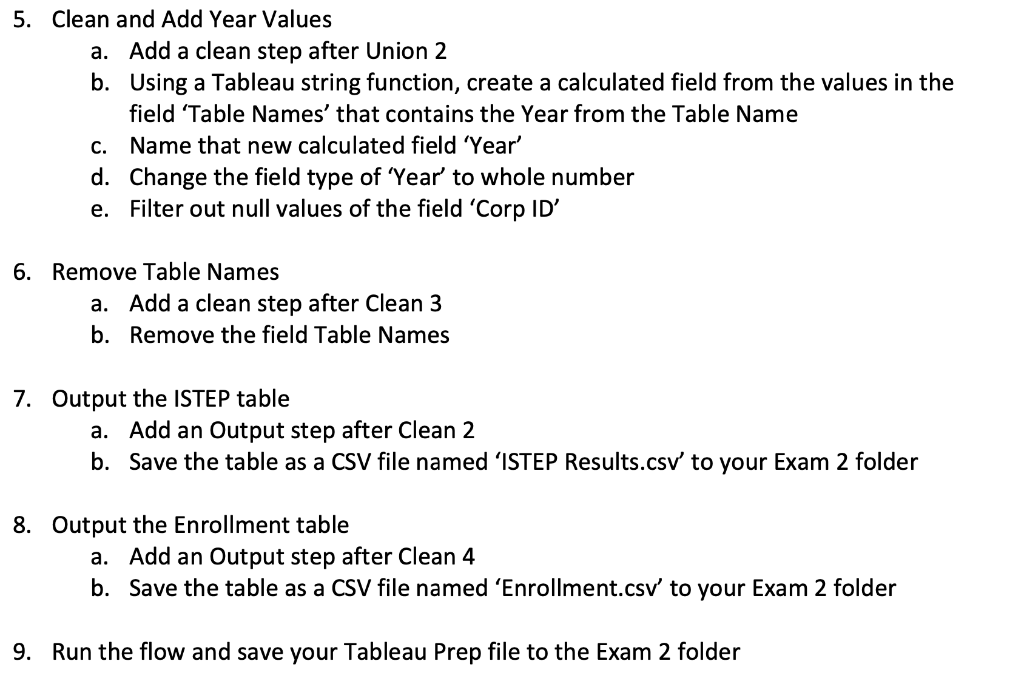
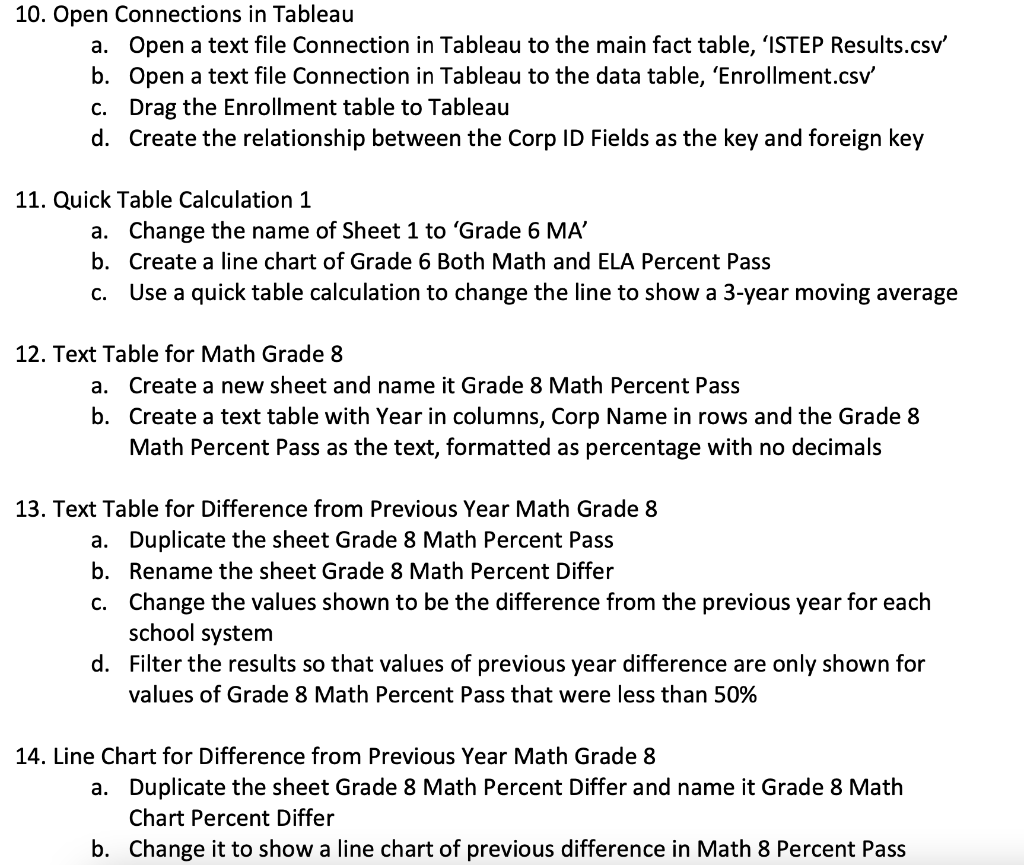
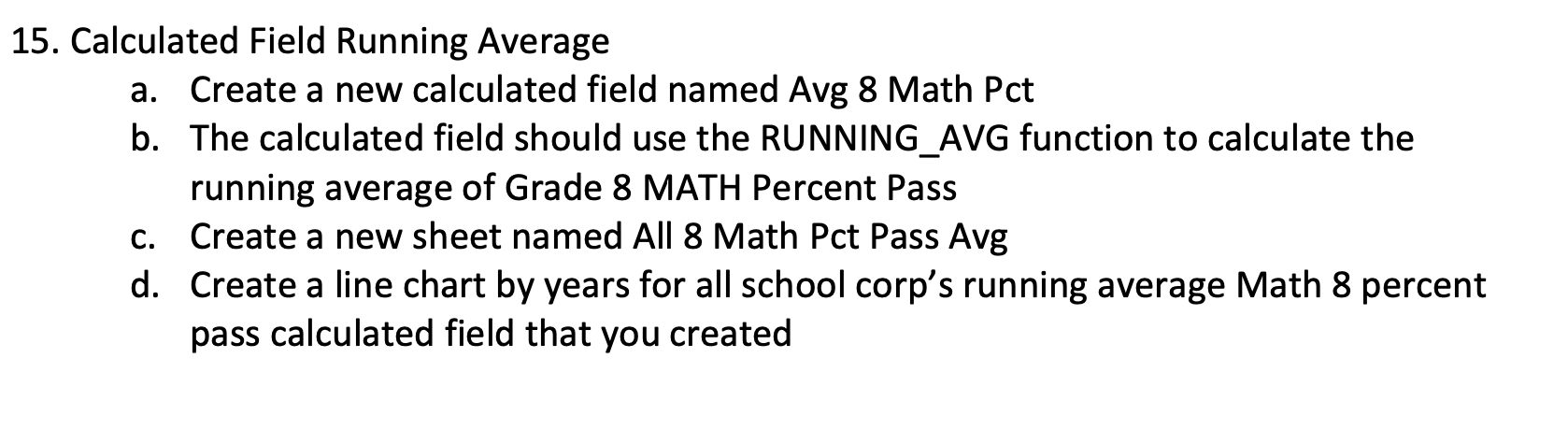
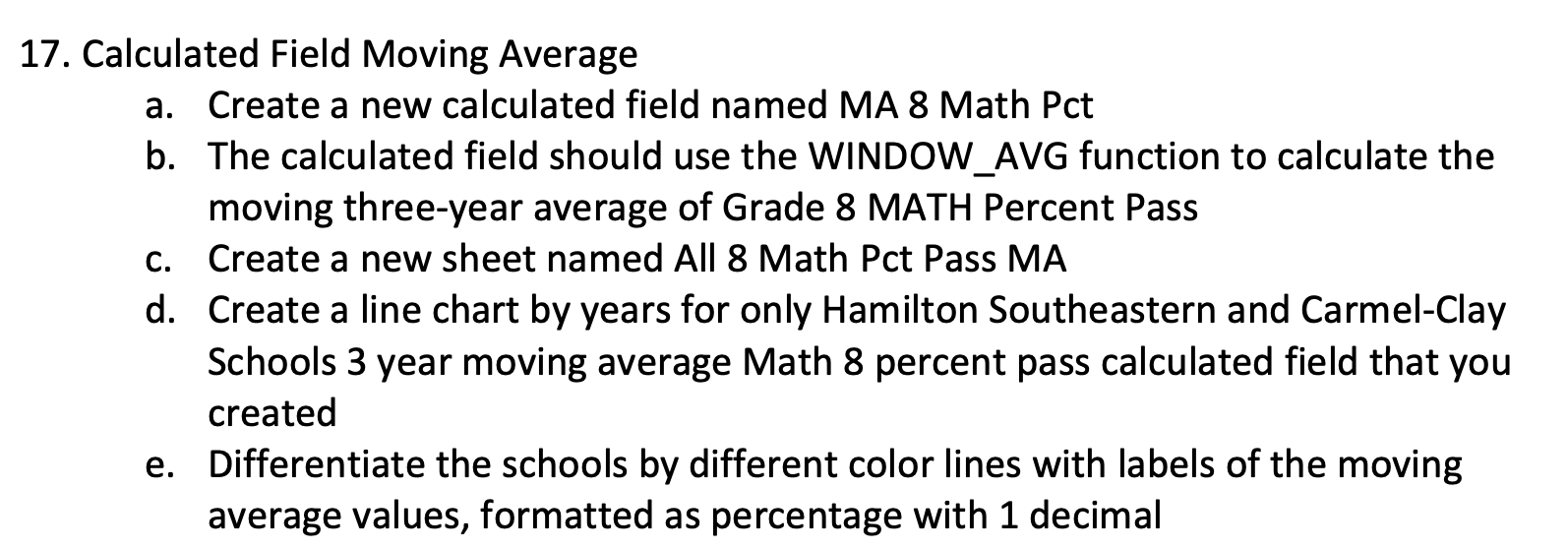
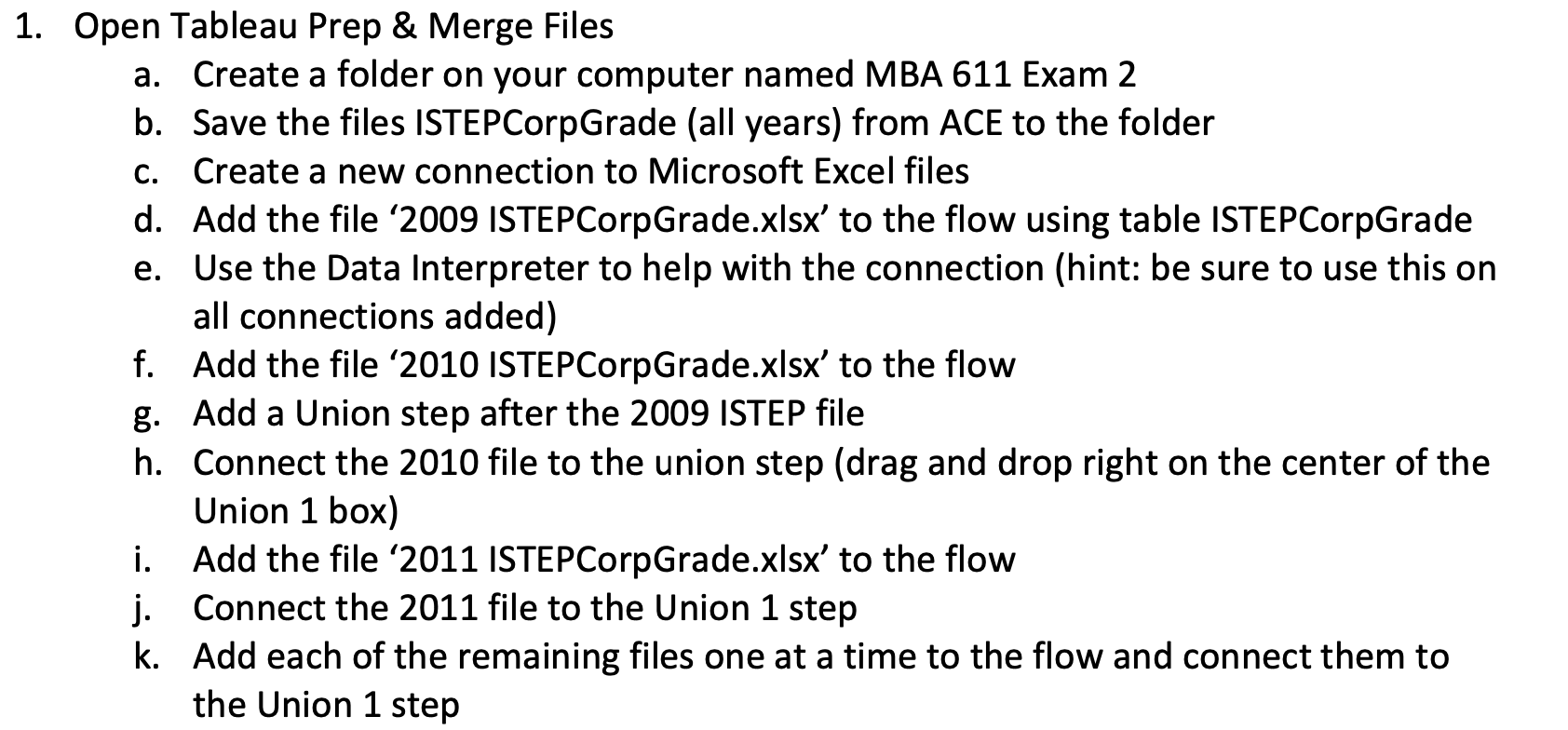
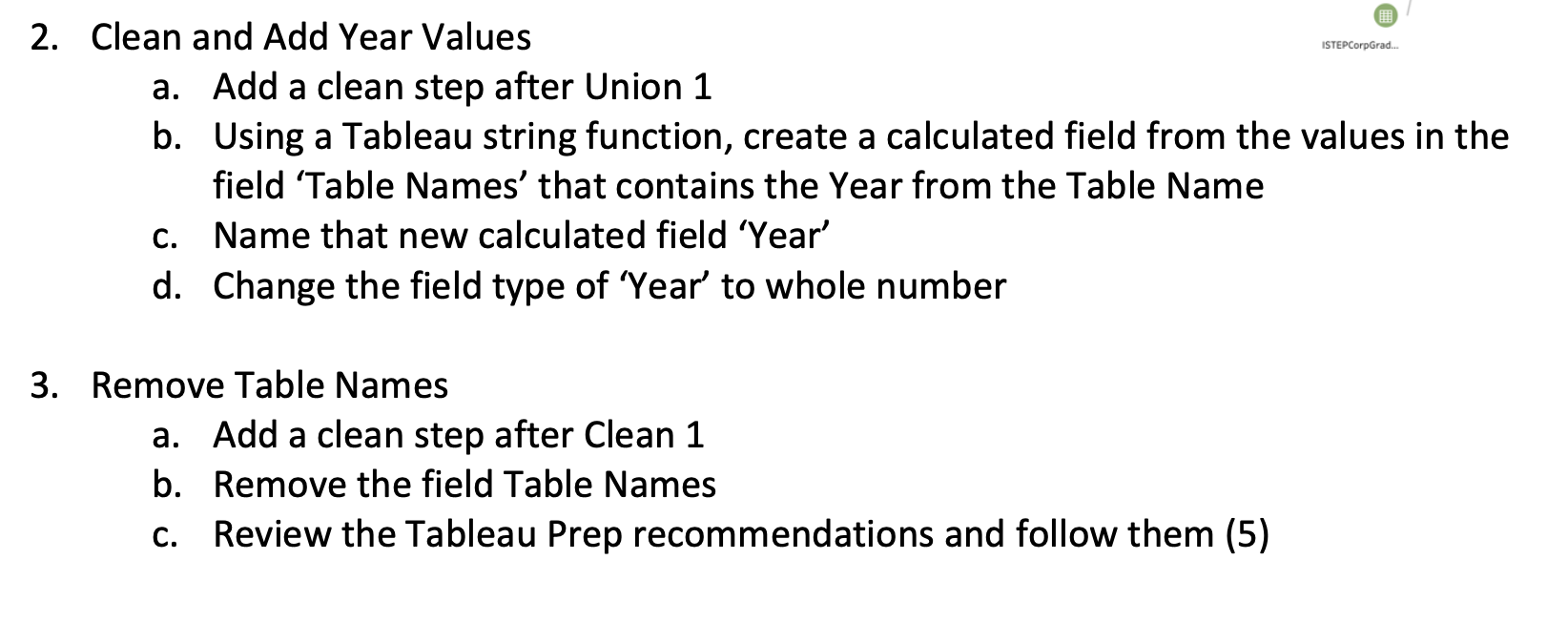
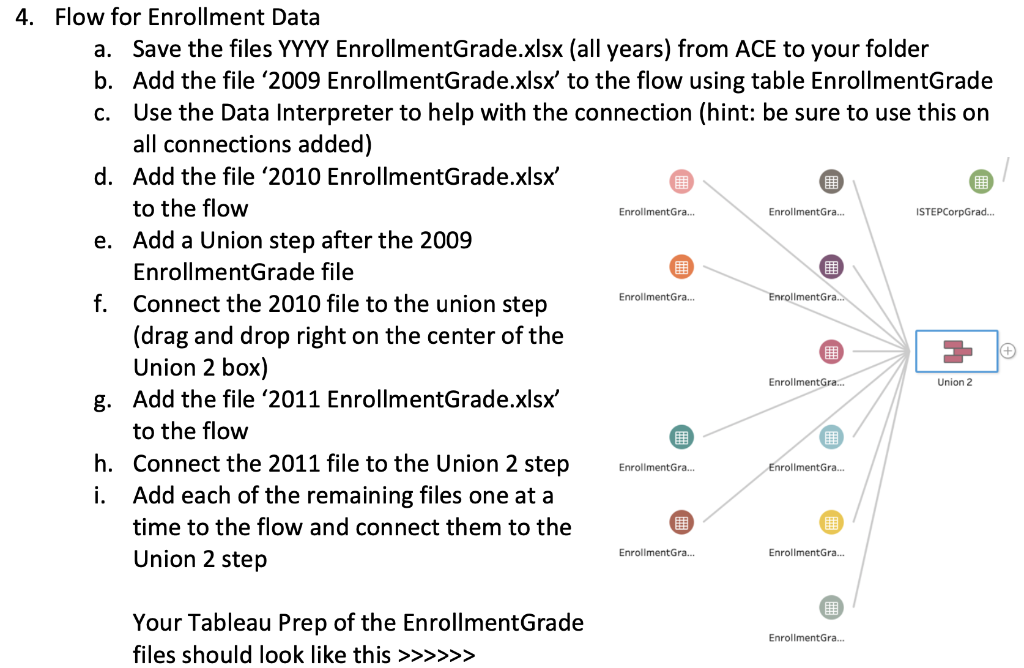
e. 1. Open Tableau Prep & Merge Files a. Create a folder on your computer named MBA 611 Exam 2 b. Save the files ISTEPCorpGrade (all years) from ACE to the folder C. Create a new connection to Microsoft Excel files d. Add the file '2009 ISTEPCorpGrade.xlsx' to the flow using table ISTEPCorpGrade Use the Data Interpreter to help with the connection (hint: be sure to use this on all connections added) f. Add the file 2010 ISTEP CorpGrade.xlsx' to the flow g. Add a Union step after the 2009 ISTEP file h. Connect the 2010 file to the union step (drag and drop right on the center of the Union 1 box) i. Add the file '2011 ISTEPCorpGrade.xlsx' to the flow j. Connect the 2011 file to the Union 1 step k. Add each of the remaining files one at a time to the flow and connect them to the Union 1 step ISTEPCorpGrad. 2. Clean and Add Year Values a. Add a clean step after Union 1 b. Using a Tableau string function, create a calculated field from the values in the field 'Table Names' that contains the Year from the Table Name c. Name that new calculated field Year' d. Change the field type of Year' to whole number 3. Remove Table Names a. Add a clean step after Clean 1 b. Remove the field Table Names C. Review the Tableau Prep recommendations and follow them (5) EnrollmentGra... EnrollmentGra... ISTEPCorpGrad... 4. Flow for Enrollment Data a. Save the files YYYY EnrollmentGrade.xlsx (all years) from ACE to your folder b. Add the file '2009 EnrollmentGrade.xlsx' to the flow using table EnrollmentGrade c. Use the Data Interpreter to help with the connection (hint: be sure to use this on all connections added) d. Add the file 2010 EnrollmentGrade.xlsx to the flow e. Add a Union step after the 2009 EnrollmentGrade file f. Connect the 2010 file to the union step (drag and drop right on the center of the Union 2 box) g. Add the file '2011 EnrollmentGrade.xlsx' to the flow h. Connect the 2011 file to the Union 2 step i. Add each of the remaining files one at a time to the flow and connect them to the Union 2 step EnrollmentGra... EnrollmentGra. EnrollmentGra... Union 2 EnrollmentGra... EnrollmentGra. lolololo ( EnrollmentGra... EnrollmentGra. Your Tableau Prep of the EnrollmentGrade files should look like this >>>>>> EnrollmentGra... 5. Clean and Add Year Values a. Add a clean step after Union 2 b. Using a Tableau string function, create a calculated field from the values in the field 'Table Names' that contains the Year from the Table Name c. Name that new calculated field 'Year' d. Change the field type of 'Year' to whole number e. Filter out null values of the field 'Corp ID' 6. Remove Table Names a. Add a clean step after Clean 3 b. Remove the field Table Names 7. Output the ISTEP table a. Add an Output step after Clean 2 b. Save the table as CSV file named 'ISTEP Results.csv' to your Exam 2 folder 8. Output the Enrollment table a. Add an Output step after Clean 4 b. Save the table as a CSV file named 'Enrollment.csv' to your Exam 2 folder 9. Run the flow and save your Tableau Prep file to the Exam 2 folder 10. Open Connections in Tableau a. Open a text file Connection in Tableau to the main fact table, 'ISTEP Results.csv b. Open a text file Connection in Tableau to the data table, 'Enrollment.csv c. Drag the Enrollment table to Tableau d. Create the relationship between the Corp ID Fields as the key and foreign key 11. Quick Table Calculation 1 a. Change the name of Sheet 1 to 'Grade 6 MA' b. Create a line chart of Grade 6 Both Math and ELA Percent Pass c. Use a quick table calculation to change the line to show a 3-year moving average 12. Text Table for Math Grade 8 a. Create a new sheet and name it Grade 8 Math Percent Pass b. Create a text table with Year in columns, Corp Name in rows and the Grade 8 Math Percent Pass as the text, formatted as percentage with no decimals 13. Text Table for Difference from Previous Year Math Grade 8 a. Duplicate the sheet Grade 8 Math Percent Pass b. Rename the sheet Grade 8 Math Percent Differ C. Change the values shown to be the difference from the previous year for each school system d. Filter the results so that values of previous year difference are only shown for values of Grade 8 Math Percent Pass that were less than 50% 14. Line Chart for Difference from Previous Year Math Grade 8 a. Duplicate the sheet Grade 8 Math Percent Differ and name it Grade 8 Math Chart Percent Differ b. Change it to show a line chart of previous difference in Math 8 Percent Pass 15. Calculated field Running Average a. Create a new calculated field named Avg 8 Math Pct b. The calculated field should use the RUNNING_AVG function to calculate the running average of Grade 8 MATH Percent Pass C. Create a new sheet named All 8 Math Pct Pass Avg d. Create a line chart by years for all school corp's running average Math 8 percent pass calculated field that you created 17. Calculated Field Moving Average a. Create a new calculated field named MA 8 Math Pct b. The calculated field should use the WINDOW_AVG function to calculate the moving three-year average of Grade 8 MATH Percent Pass c. Create a new sheet named All 8 Math Pct Pass MA d. Create a line chart by years for only Hamilton Southeastern and Carmel-Clay Schools 3 year moving average Math 8 percent pass calculated field that you created e. Differentiate the schools by different color lines with labels of the moving average values, formatted as percentage with 1 decimal
Step by Step Solution

There are 3 Steps involved in it

1 Expert Approved Answer
Step: 1 Unlock blur-text-image

Question Has Been Solved by an Expert!

Get step-by-step solutions from verified subject matter experts

Step: 2 Unlock
Step: 3 Unlock

Students Have Also Explored These Related General Management Questions!