







Question: Establish a connection to the text file Excel _ BU 0 5 _ PS 2 _ ReservationData.txt using Get & Transform. Split the data into
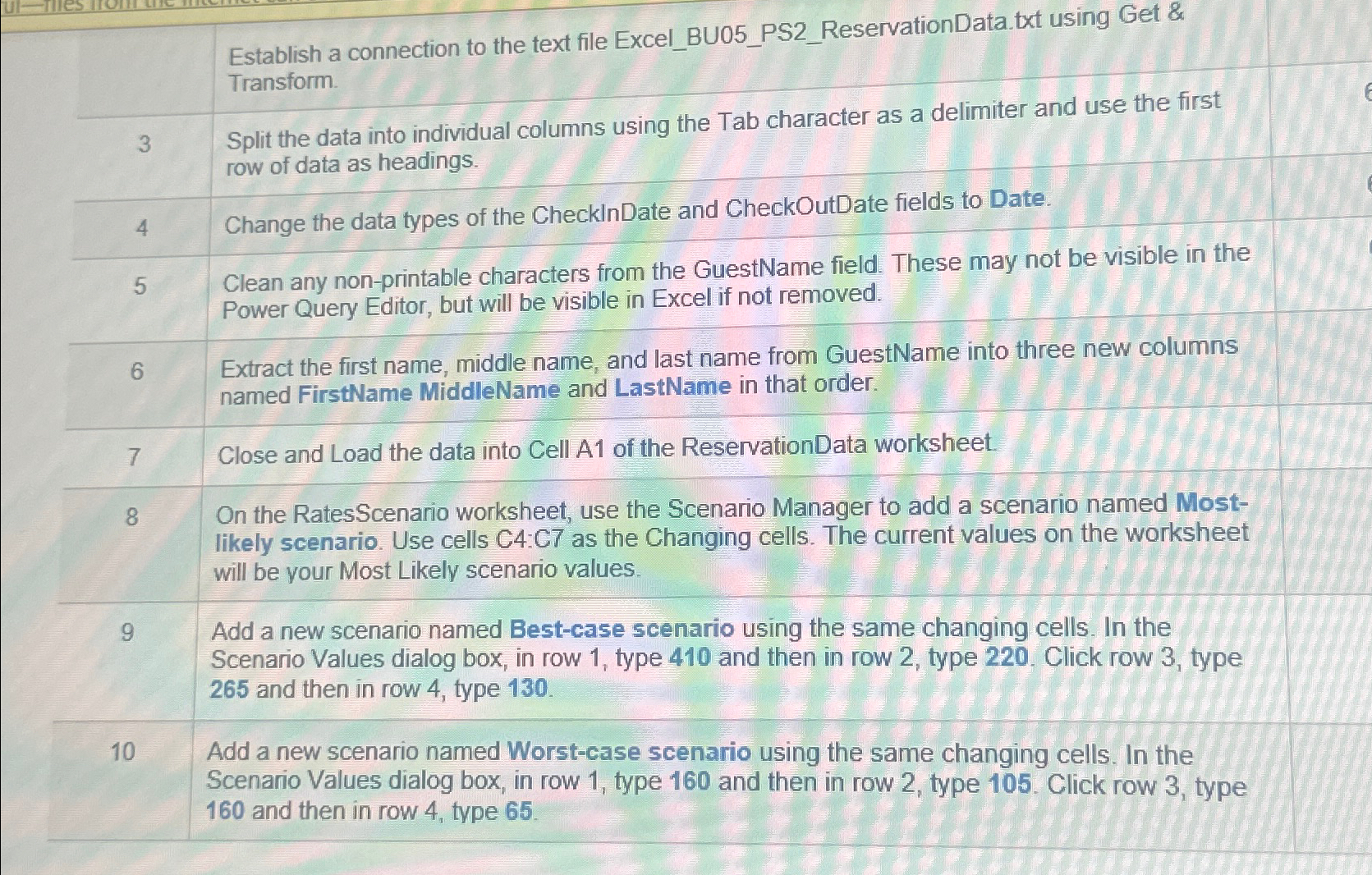
Establish a connection to the text file ExcelBUPSReservationData.txt using Get & Transform.
Split the data into individual columns using the Tab character as a delimiter and use the first row of data as headings.
Change the data types of the CheckInDate and CheckOutDate fields to Date.
Clean any nonprintable characters from the GuestName field. These may not be visible in the
Power Query Editor, but will be visible in Excel if not removed.
Extract the first name, middle name, and last name from GuestName into three new columns
named FirstName MiddleName and LastName in that order.
Close and Load the data into Cell A of the ReservationData worksheet.
On the RatesScenario worksheet, use the Scenario Manager to add a scenario named Most
likely scenario. Use cells C:C as the Changing cells. The current values on the worksheet
will be your Most Likely scenario values.
Add a new scenario named Bestcase scenario using the same changing cells. In the
Scenario Values dialog box, in row type and then in row type Click row type
and then in row type
Add a new scenario named Worstcase scenario using the same changing cells, In the
Scenario Values dialog box, in row type and then in row type Click row type
and then in row type
Step by Step Solution
There are 3 Steps involved in it
1 Expert Approved Answer
Step: 1 Unlock

Question Has Been Solved by an Expert!
Get step-by-step solutions from verified subject matter experts
Step: 2 Unlock
Step: 3 Unlock
 Study Help