







Question: Help me solve and work through this by giving me detailed step by step descriptions with the locations of where to access each tool. Project
Help me solve and work through this by giving me detailed step by step descriptions with the locations of where to access each tool. Project Description:
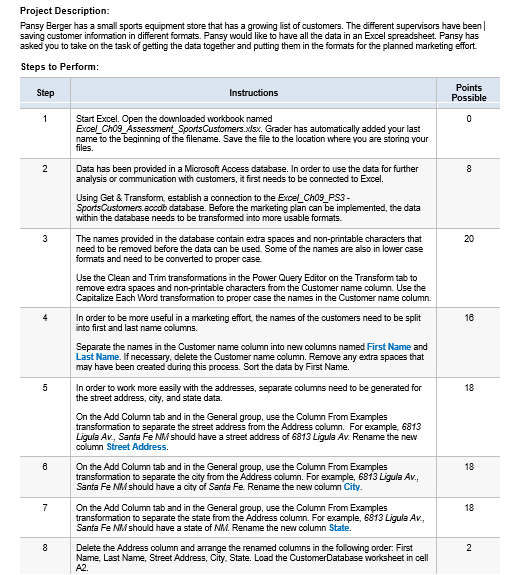
Pansy Berger has a small sports equipment store that has a growing list of customers. The different supervisors have been saving customer information in different formats. Pansy would like to have all the data in an Excel spreadsheet. Pansy has asked you to take on the task of getting the data together and putting them in the formats for the planned marketing effort. Steps to Perform:
Step Instructions Points Possible
Start Excel. Open the downloaded workbook named ExcelChAssessmentSportsCustomers.xlsx Grader has automatically added your last name to the beginning of the filename. Save the file to the location where you are storing your files.
Data has been provided in a Microsoft Access database. In order to use the data for further analysis or communication with customers, it first needs to be connected to Excel.
Using Get & Transform, establish a connection to the ExcelChPS SportsCustomers.accdb database. Before the marketing plan can be implemented, the data within the database needs to be transformed into more usable formats.
The names provided in the database contain extra spaces and nonprintable characters that need to be removed before the data can be used. Some of the names are also in lower case formats and need to be converted to proper case.
Use the Clean and Trim transformations in the Power Query Editor on the Transform tab to remove extra spaces and nonprintable characters from the Customer name column. Use the Capitalize Each Word transformation to proper case the names in the Customer name column.
In order to be more useful in a marketing effort, the names of the customers need to be split into first and last name columns.
Separate the names in the Customer name column into new columns named First Name and Last Name. If necessary, delete the Customer name column. Remove any extra spaces that may have been created during this process. Sort the data by First Name. X
AutoSave
On
ExcelChPSSportsCustomerssolution.xlsx Last Modified: June
Search Alt
B
BerryProject Description:
Pansy Berger has a small sports equipment store that has a growing list of customers. The different supervisors have been
saving customer information in different formats. Pansy would like to have all the data in an Excel spreadsheet. Pansy has
asked you to take on the task of getting the data together and putting them in the formats for the planned marketing effort.
Steps to Perform:
In order to work more easily with the addresses, separate columns need to be generated for the street address, city, and state data.
On the Add Column tab and in the General group, use the Column From Examples transformation to separate the street address from the Address column. For example, Ligula Av Santa Fe NM should have a street address of Ligula Av Rename the new column Street Address.
On the Add Column tab and in the General group, use the Column From Examples transformation to separate the city from the Address column. For example, Ligula Av Santa Fe NM should have a city of Santa Fe Rename the new column City.
On the Add Column tab and in the General group, use the Column From Examples transformation to separate the state from the Address column. For example, Ligula Av Santa Fe NM should have a state of NM Rename the new column State.
Delete the Address column and arrange the renamed columns in the following order: First Name, Last Name, Street Address, City, State. Load the CustomerDatabase worksheet in cell A
Save and close ExcelChAssessmentSportsCustomers.xlsx Exit Excel. Submit the file as directed.
Step by Step Solution
There are 3 Steps involved in it
1 Expert Approved Answer
Step: 1 Unlock

Question Has Been Solved by an Expert!
Get step-by-step solutions from verified subject matter experts
Step: 2 Unlock
Step: 3 Unlock
 Study Help