







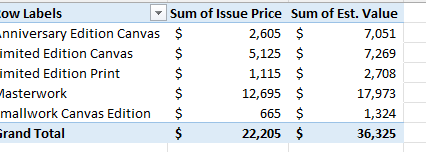
Question: EXCEL HELP 12 Display the Totals sheet. Insert a calculated field named Field1 to determine difference between the two values, Est. Value and Issue Price
EXCEL HELP
| 12 | Display the Totals sheet. Insert a calculated field named Field1 to determine difference between the two values, Est. Value and Issue Price. Change the custom name to Value Increase. |
| 13 | With the PivotTable on the Totals sheet displayed, change the Sum of Issue Price and Sum of Est. Value fields to show values as percentage of column totals. |
| 14 | With the PivotTable on the Totals sheet displayed, select Light Blue, Pivot Style Medium 6 and display banded rows. |
| 15 | Display the Porcelains sheet. Create a relationship between the PORCELAINS table using the Code field and the CODES table using the Code field. |
| 16 | Create a blank PivotTable from inside the PORCELAINS table. Add this data to the Data Model. Name the worksheet Porcelain Pivot and name the PivotTable Porcelain Values. |
| 17 | Display all tables in the PivotTable Fields List task pane. Add the Description from the CODES table to the Rows area and the Issue and Est. Value fields as Values from the PORCELAIN table. Format the two value fields with Accounting number format with zero decimal places. |
| 18 | Create a clustered column PivotChart from the Porcelain Values PivotTable. Cut the PivotChart and paste it in cell A7. |
| 19 | Add a chart title and type Porcelain Values. Bold the title. Change the value axis maximum bounds to $3,000. |
| 20 | Change the PivotChart height to 2.5 inches and the width to 3.7 inches. |
| 21 | Create a footer on all worksheets (except Art) with your name in the left section, the sheet name code in the center section, and the file name code in the right section. |
| 22 | Ensure that the worksheets are correctly named and placed in the following order in the workbook: Subtotals, Totals, Sold Out, Art, Summary, Porcelain Pivot, Porcelains.
|
Step by Step Solution
There are 3 Steps involved in it

Get step-by-step solutions from verified subject matter experts
 Study Help