







Question: EXCEL - Please help! 9. Change the summary function to Average for the data in the Values area and apply the Number number format with
 EXCEL - Please help!
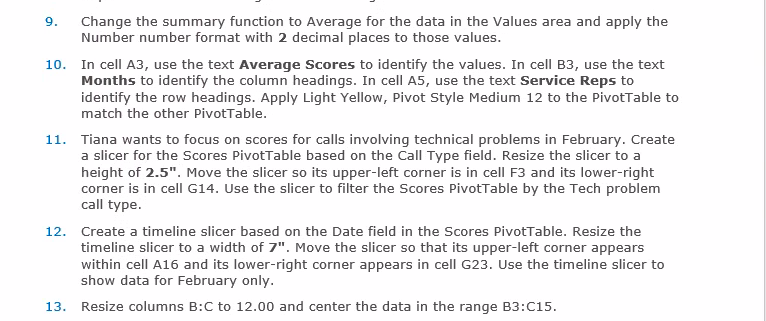
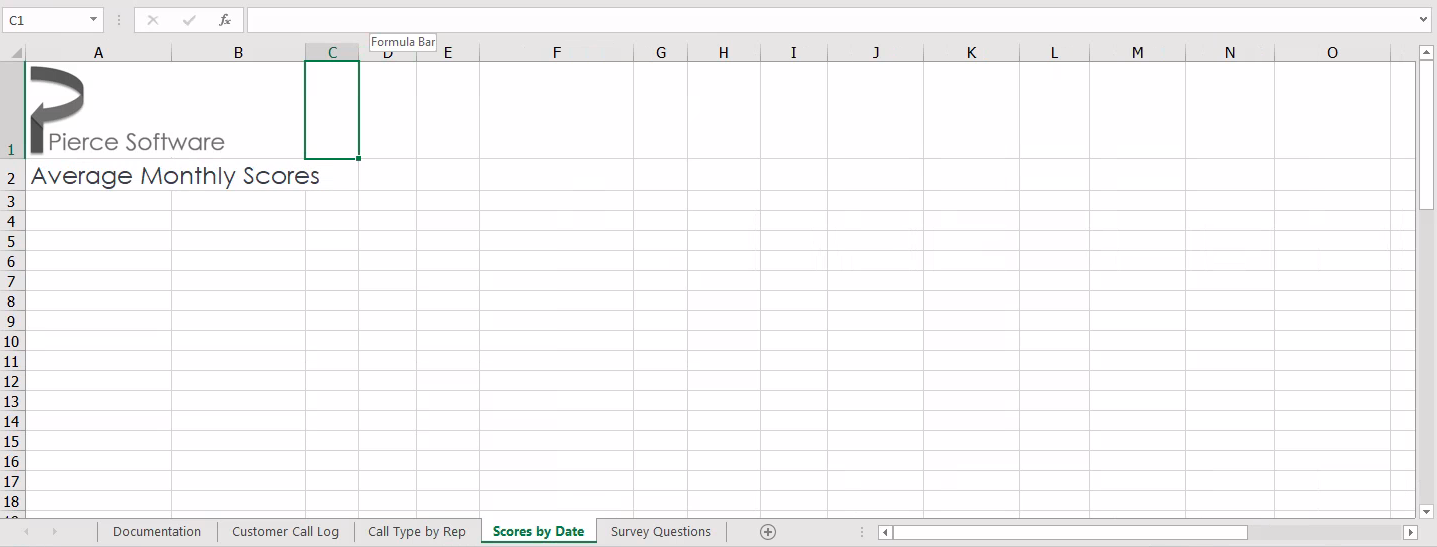
9. Change the summary function to Average for the data in the Values area and apply the Number number format with 2 decimal places to those values. 10. In cell A3, use the text Average Scores to identify the values. In cell B3, use the text Months to identify the column headings. In cell A5, use the text Service Reps to identify the row headings. Apply Light Yellow, Pivot Style Medium 12 to the PivotTable to match the other PivotTable. 11. Tiana wants to focus on scores for calls involving technical problems in February. Create a slicer for the Scores PivotTable based on the Call Type field. Resize the slicer to a height of 2.5. Move the slicer so its upper-left corner is in cell F3 and its lower-right corner is in cell G14. Use the slicer to filter the Scores PivotTable by the Tech problem call type. 12. Create a timeline slicer based on the Date field in the Scores PivotTable. Resize the timeline slicer to a width of 7". Move the slicer so that its upper-left corner appears within cell A16 and its lower-right corner appears in cell G23. Use the timeline slicer to show data for February only. 13. Resize columns B:C to 12.00 and center the data in the range B3:C15. 9. Change the summary function to Average for the data in the Values area and apply the Number number format with 2 decimal places to those values. 10. In cell A3, use the text Average Scores to identify the values. In cell B3, use the text Months to identify the column headings. In cell A5, use the text Service Reps to identify the row headings. Apply Light Yellow, Pivot Style Medium 12 to the PivotTable to match the other PivotTable. 11. Tiana wants to focus on scores for calls involving technical problems in February. Create a slicer for the Scores PivotTable based on the Call Type field. Resize the slicer to a height of 2.5. Move the slicer so its upper-left corner is in cell F3 and its lower-right corner is in cell G14. Use the slicer to filter the Scores PivotTable by the Tech problem call type. 12. Create a timeline slicer based on the Date field in the Scores PivotTable. Resize the timeline slicer to a width of 7". Move the slicer so that its upper-left corner appears within cell A16 and its lower-right corner appears in cell G23. Use the timeline slicer to show data for February only. 13. Resize columns B:C to 12.00 and center the data in the range B3:C15
Step by Step Solution
There are 3 Steps involved in it

Get step-by-step solutions from verified subject matter experts
 Study Help