



Question: Exchange Rate Graph Assignment Get the latest six month DAILY exchange rate HISTORICAL data from: Daily Exchange Rates Get the daily exchange rates for the
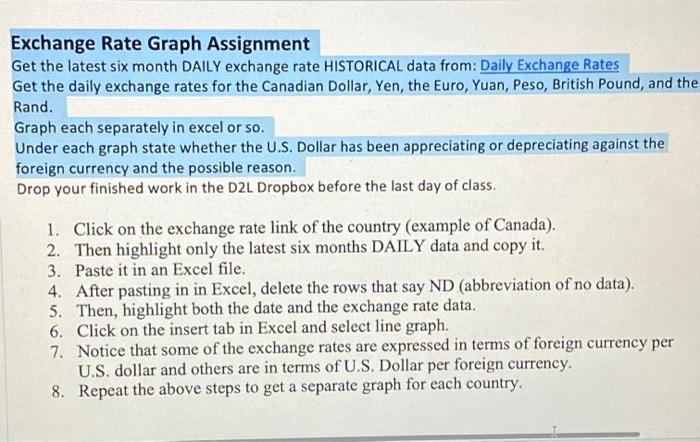
Exchange Rate Graph Assignment Get the latest six month DAILY exchange rate HISTORICAL data from: Daily Exchange Rates Get the daily exchange rates for the Canadian Dollar, Yen, the Euro, Yuan, Peso, British Pound, and the Rand. Graph each separately in excel or so. Under each graph state whether the U.S. Dollar has been appreciating or depreciating against the foreign currency and the possible reason. Drop your finished work in the D2L Dropbox before the last day of class. 1. Click on the exchange rate link of the country (example of Canada). 2. Then highlight only the latest six months DAILY data and copy it. 3. Paste it in an Excel file. 4. After pasting in in Excel, delete the rows that say ND (abbreviation of no data) 5. Then, highlight both the date and the exchange rate data. 6. Click on the insert tab in Excel and select line graph. 7. Notice that some of the exchange rates are expressed in terms of foreign currency per U.S. dollar and others are in terms of U.S. Dollar per foreign currency. 8. Repeat the above steps to get a separate graph for each country. Exchange Rate Graph Assignment Get the latest six month DAILY exchange rate HISTORICAL data from: Daily Exchange Rates Get the daily exchange rates for the Canadian Dollar, Yen, the Euro, Yuan, Peso, British Pound, and the Rand. Graph each separately in excel or so. Under each graph state whether the U.S. Dollar has been appreciating or depreciating against the foreign currency and the possible reason. Drop your finished work in the D2L Dropbox before the last day of class. 1. Click on the exchange rate link of the country (example of Canada). 2. Then highlight only the latest six months DAILY data and copy it. 3. Paste it in an Excel file. 4. After pasting in in Excel, delete the rows that say ND (abbreviation of no data) 5. Then, highlight both the date and the exchange rate data. 6. Click on the insert tab in Excel and select line graph. 7. Notice that some of the exchange rates are expressed in terms of foreign currency per U.S. dollar and others are in terms of U.S. Dollar per foreign currency. 8. Repeat the above steps to get a separate graph for each country
Step by Step Solution
There are 3 Steps involved in it

Get step-by-step solutions from verified subject matter experts