







Question: Exercise 1. The code below will allow a user to draw lines (in red) on a window using their mouse. import javafx.application.Application; import javafx.scene.Scene; import
Exercise 1. The code below will allow a user to draw lines (in red) on a window using their mouse.
import javafx.application.Application; import javafx.scene.Scene; import javafx.scene.Group; import javafx.scene.paint.Color; import javafx.scene.shape.*; import javafx.stage.Stage; import javafx.scene.input.MouseEvent; public class ElasticLines extends Application{ private Line line; private Group root; @Override public void start(Stage primaryStage) { root = new Group(); Scene scene = new Scene(root, 500, 500,Color.LIGHTBLUE); scene.setOnMousePressed(this::processMousePress); scene.setOnMouseDragged(this::processMouseDrag); primaryStage.setTitle("Elastic Lines"); primaryStage.setScene(scene); primaryStage.show(); } public void processMousePress(MouseEvent e){ line = new Line(e.getX(), e.getY(), e.getX(), e.getY()); line.setStroke(Color.RED); line.setStrokeWidth(3); root.getChildren().add(line); } public void processMouseDrag(MouseEvent e){ line.setEndX(e.getX()); line.setEndY(e.getY()); } public static void main(String[] args) { Application.launch(args); } }
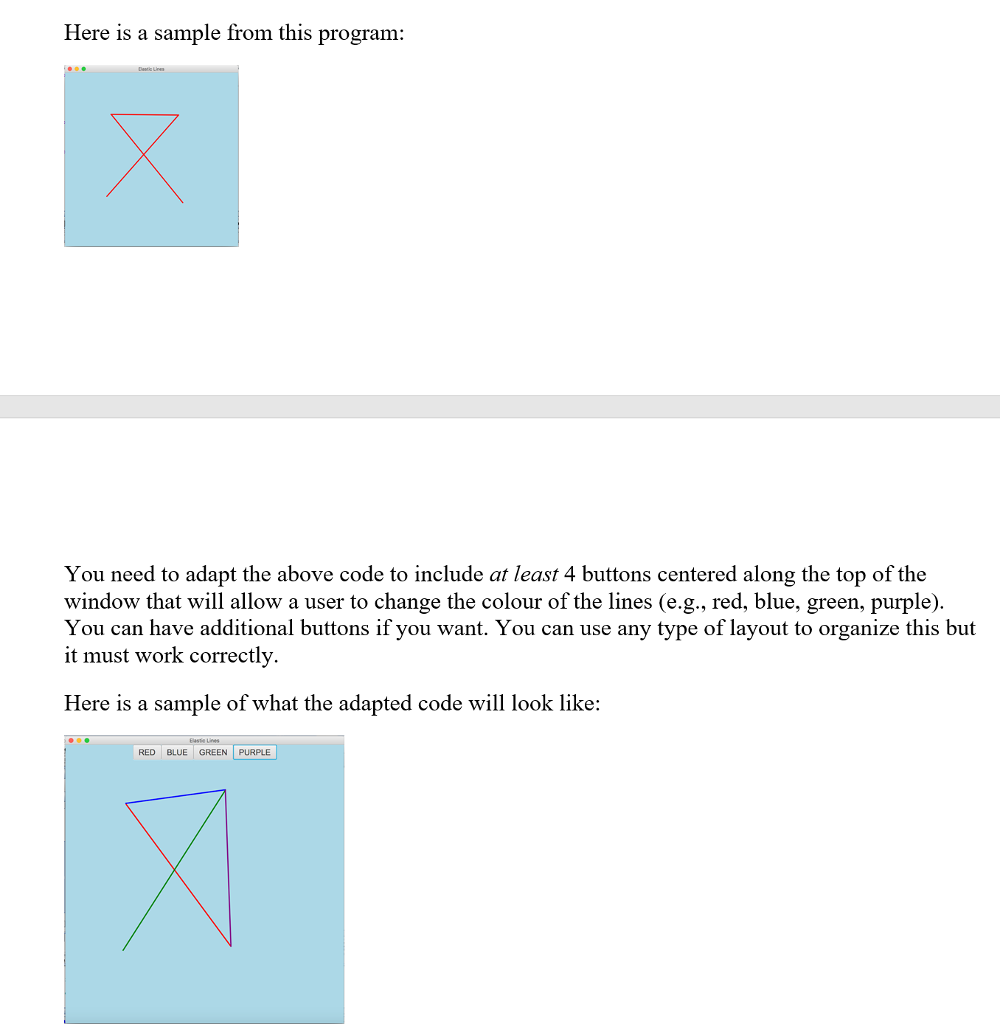
Here is a sample from this progranm You need to adapt the above code to include at least 4 buttons centered along the top of the window that will allow a user to change the colour of the lines (e.g., red, blue, green, purple). You can have additional buttons if you want. You can use any type of layout to organize this but it must work correctly Here is a sample of what the adapted code will look like: Basse Lines RED BLUE GREEN PURPLE
Step by Step Solution
There are 3 Steps involved in it

Get step-by-step solutions from verified subject matter experts
 Study Help